Using Developer Mode
Developer Mode is like having a mechanic ride along while you drive — you can ask why your agent did something, get advice on tuning it, and even add new abilities, all without stopping the trip. It is built for people who want to go a little deeper: see how their agent makes decisions, sharpen its instructions, and add custom skills (advanced abilities beyond its everyday tools).
Before you start
- A saved agent in the Agent Control Panel — your central hub for managing agents.
- A few test conversations help. Some developer abilities work best when there is real chat history to look at.
Turn on Developer Mode
- Open your agent in the Agent Control Panel.
- Go to the Developer panel.
- Turn Developer Mode on.
Once it is on, your chats with that agent gain extra developer abilities, and you will see a DEV label in the chat window so you know the mode is active.
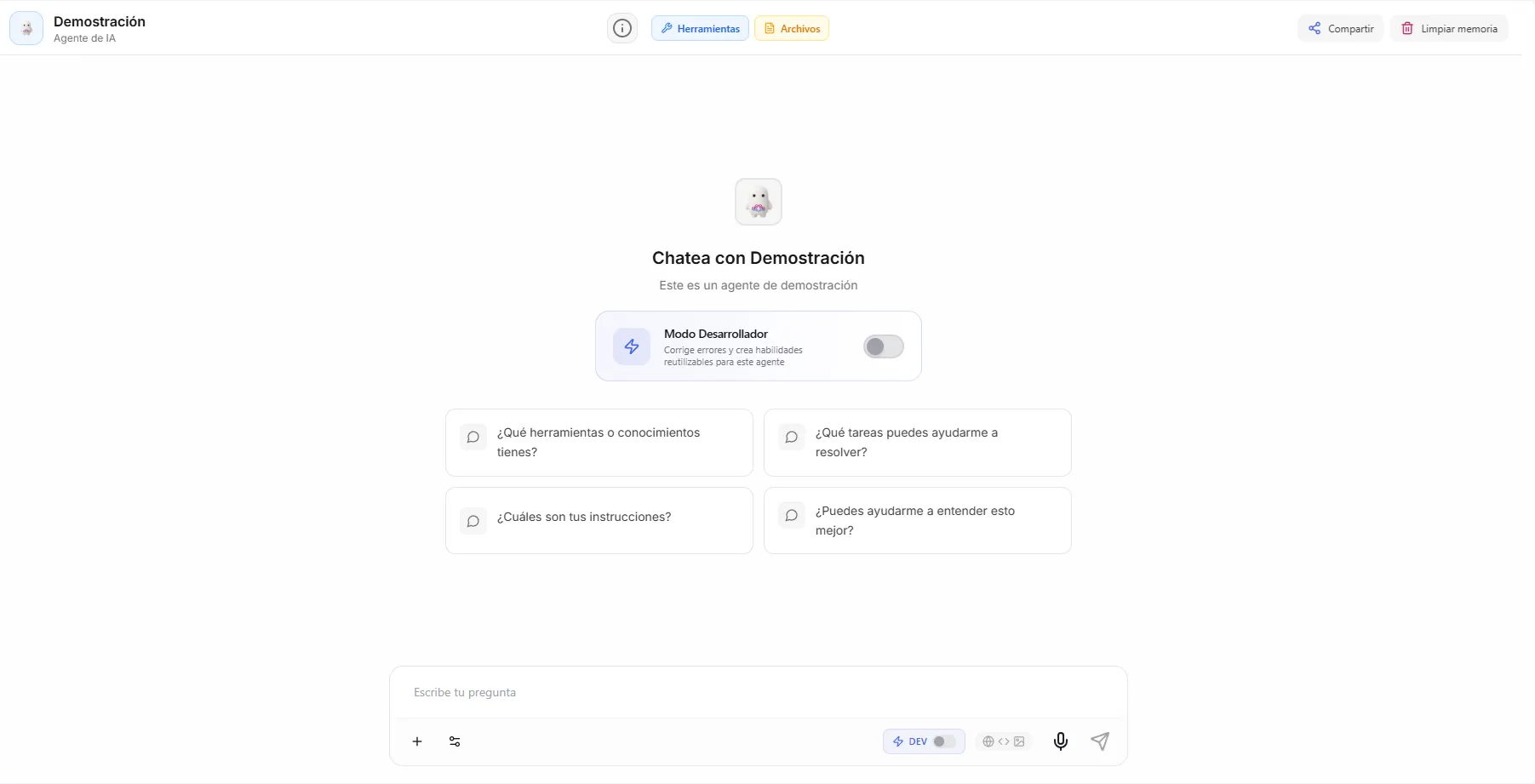 Image: Developer Mode toggle in the agent control panel with the DEV indicator shown
The four developer abilities
Developer Mode adds four specialized abilities (called developer skills) that your agent picks up based on what you ask. There are no commands or special syntax to learn — just describe what you need in plain words, and the agent uses the right one.
Debugging Guide
Describe a problem or something unexpected, and the agent figures out what happened.
Example: "The agent told a customer we offer 24/7 support, but we don't. Why did it say that?"
What it does:
- Shows which tools the agent used and why.
- Identifies which pieces of your knowledge base (the files and notes your agent can read) it pulled from.
- Points to the parts of your instructions that shaped the answer.
- Suggests how to fix the issue.
Optimize Instructions
Ask the agent to improve your instructions, and it reviews your current setup for clarity and gaps.
Example: "Can you review my instructions and suggest improvements?"
What it does:
- Checks how clear and specific your rules are.
- Spots possible contradictions.
- Flags edge cases you may have missed.
- Recommends a better structure for your instructions.
Standardize Quality
Ask the agent to make its answers more consistent, and it looks at how it has been responding.
Example: "My agent's tone feels inconsistent across conversations. Can you help standardize it?"
What it does:
- Detects tone that drifts between answers.
- Flags formatting that is not consistent.
- Identifies times the agent strayed from its instructions.
- Plans changes for steadier quality.
Create Skill
When the agent notices a step you repeat over and over, it can package that into a reusable skill.
Example: "I keep asking the agent to format data the same way every time. Can we turn that into a skill?"
What it does:
- Identifies the workflow to capture.
- Decides what information the skill needs from you each time.
- Writes the skill.
- Installs the skill on your agent.
How developer chats work
When Developer Mode is on, your chats run in a dedicated session (its own separate conversation thread) so the agent can keep track of what you are doing and offer the right developer ability. In that one chat:
- Regular messages are handled as usual — the agent answers like normal.
- Developer requests are recognized by the agent, which brings in the matching developer ability to help.
This means you can test your agent's everyday behavior and use the developer tools in the same chat, without switching modes or typing special commands.
When to reach for each ability
| Situation | What to do |
|---|---|
| Agent gives a wrong or unexpected answer | Describe the problem — the agent will diagnose it |
| You want to improve how the agent performs | Ask the agent to review and optimize your instructions |
| Agent answers feel inconsistent | Ask the agent to standardize its quality |
| You need custom logic the agent can't do with tools alone | Ask the agent to create a skill for that workflow |
Developer Mode vs. regular mode
| Regular mode | Developer mode | |
|---|---|---|
| Chat behavior | Normal agent answers | Normal answers + developer abilities available |
| Session type | Standard chat | Dedicated developer chat |
| Available abilities | None | Debugging, instruction tuning, quality standardizing, skill creation |
| Who it's for | Everyday users, testing | Agent creators |
| Effect on channels | N/A | Developer Mode is only active in the Control Panel, never on connected channels |
Developer Mode only affects your chats inside the Agent Control Panel. People talking to your agent on WhatsApp, Slack, or any other channel will never see developer abilities or features.
Troubleshooting
| Problem | Fix |
|---|---|
I don't see the DEV label in chat | Confirm Developer Mode is turned on in the agent's Developer panel, then reopen the chat. |
| The agent treats my developer request like a normal question | Be more specific about what you want (for example, "diagnose why you said X" or "review my instructions"). |
| Quality standardizing has little to work with | This ability is most useful once you have around 10 or more conversations to analyze — keep testing first. |
| A skill I asked for behaves unexpectedly | Describe the skill more clearly: what information it takes, what result it should produce, and when the agent should use it. |
Tips
- Describe unexpected behavior right after it happens — the agent can diagnose it immediately with full context.
- Ask for instruction tuning after writing your first draft, then again after a few days of real conversations.
- Quality standardizing works best once you have around 10 or more conversations to analyze.
- When creating a skill, be clear about what it takes in, what it should produce, and when the agent should use it.
When you want to build or heavily change skills for an agent that's already live, duplicate that agent first (Managing Your Agents), then create and test the skills on the copy. Once they work the way you want, copy them to your main agent from Your Skills Library. That way an unfinished skill never breaks the agent your customers are already talking to.
What's next
To go further with custom abilities, continue to Skills.