Projects
Everything you've set up so far — the profile, the instructions, the tools, the data — makes your agent capable. A project is what makes it feel like it's been working with you for a while. Without it, every conversation is a first meeting: your agent is briefed, does good work, and forgets all of it the moment the chat ends.
Connecting a project gives it somewhere to keep what it learns, and somewhere to look before it acts.
What changes when you connect one
You mentioned: "Sarah Chen runs ops at Acme. She prefers short emails and hates attachments — send links instead."
Happy to help. Who is Sarah, and which renewal are you referring to? Would you like me to attach the proposal document?
The conversation ended, and so did everything it knew. You re-explain from scratch — every time.
Drafted a short note to Sarah on the 12-month renewal she owns — no attachment, the rate card is linked inline. Want me to send it?
It checked the project before writing a word, and applied a preference you only mentioned once.
The same agent, with and without somewhere to remember. Nothing else about its setup changed.
Before you start
- A saved agent (at least the Profile section saved)
- At least one project created — see Creating a project
Connect it
In the builder, choose Projects in the left menu.
- Attached projects lists what this agent already uses, each with its access level.
- Under Attach a project, search your projects and click Attach — or Create a project if you don't have one yet.
- Each connected project has a power toggle, so you can switch one off temporarily without disconnecting it, and a remove button. Removing it from the agent never touches the project itself.
You can connect more than one. An agent that handles both sales and support can read your client project and your product project.
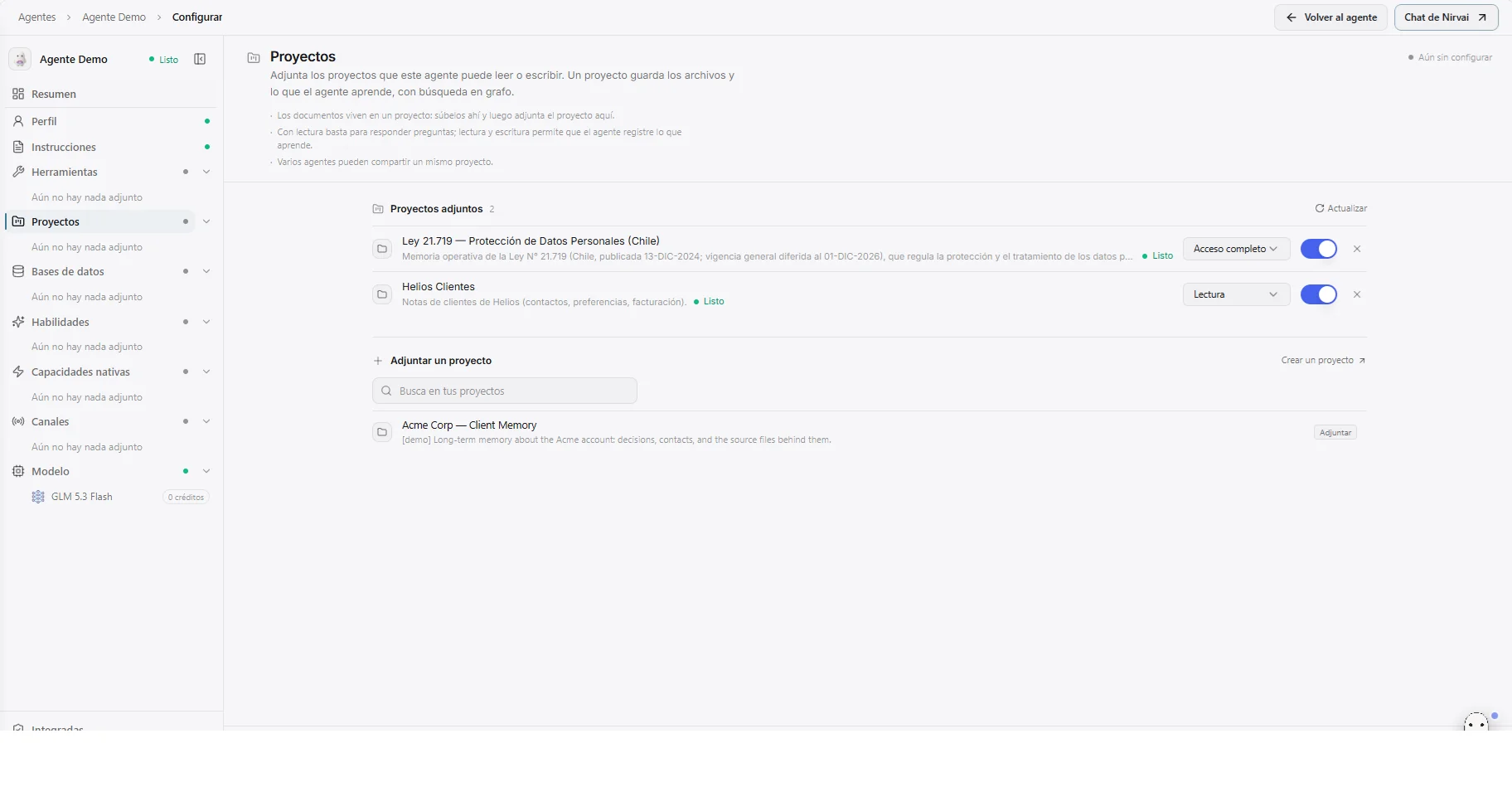 Image: The Projects section: two attached projects with their access level and on/off switch, and a list of projects you can attach
Choosing an access level
| Level | The agent can… | Give it when |
|---|---|---|
| Read only | Look things up. Never changes what's stored | The project is curated by you and you want it left alone |
| Read & write | Look things up, and record new facts and files | The default — you want the agent to learn as it works |
| Full access | Also correct and delete existing facts | You trust it to fix its own mistakes and retire stale facts |
New connections start at Read & write. That's usually right: an agent that can only read never gets any smarter than the day you set it up.
An agent with Full access can permanently remove observations. There's no undo. Grant it when an agent genuinely maintains a project — not just to be generous.
Getting good results
- Say so in the instructions. The connection makes the project available; a line in your agent's instructions — "Check the client project before drafting anything for a customer" — makes it habitual.
- The project's description does the routing. Your agent reads each connected project's "when to use" text to decide which one to open. Vague descriptions get skipped — see writing a good one.
- Share one project across agents. The point of a project is that it isn't the agent's. Connect the same project to every agent that touches those customers, and a fact recorded by one is known by all.
Manuals, price lists and FAQs go into a project: upload them there, then attach the project here. Agents made before Projects may still show their old knowledge files — they keep working and appear read-only.
Troubleshooting
| What you see | Why | What to do |
|---|---|---|
| The agent never mentions the project | Nothing told it to look | Add an explicit instruction, and sharpen the project's "when to use" description |
| It looks things up but never records anything | It's connected as Read only | Change the access level in the Projects section |
| It repeats a mistake you corrected in chat | Corrections in a conversation aren't facts until they're written down | Ask it to record the correction, or edit the observation yourself |
| It won't fix a wrong fact | Correcting requires Full access | Raise the level, or edit the observation in the project |
| The project isn't in the available list | It belongs to someone else, or is set to Personal | Ask the owner to set its visibility to Organization |
What's next
Next, connect your tables with Databases, or add routines with Skills.