Agents
Using an Agent Template
Start from a pre-built agent setup for a common job and customize it to your needs
Starting an agent from a template is like buying a cake mix instead of baking from scratch — most of the work is already done, and you just add your own touches. A template is a ready-made agent setup for a common job. It arrives with instructions, suggested tools, and conversation starters already filled in, so you can adjust the parts you care about and skip the blank-page problem.
Before you start
- A Nirvai account — agents live in the Agents center.
- An idea of what you want the agent to do (answer support questions, qualify sales leads, schedule meetings, and so on). Picking a template is easier once you know the job.
How templates work
A template fills in the creation steps for you, but every choice stays editable. You are never locked into what the template picked.
Step-by-step
- In the Agents center, click Browse templates.
- Browse the available templates. Each one has a name, description, and icon showing what it is for.
- Select a template. The Agent Builder opens with the template's setup already filled in.
- Go through the sections and customize as needed — attach your projects, adjust the instructions, turn on extra tools.
- Create the agent when you are happy with it.
Win and keep customers — pipelines, contacts, storefronts and bookings

Professional sales assistant to help manage leads, communications, and sales activities with CRM integration.




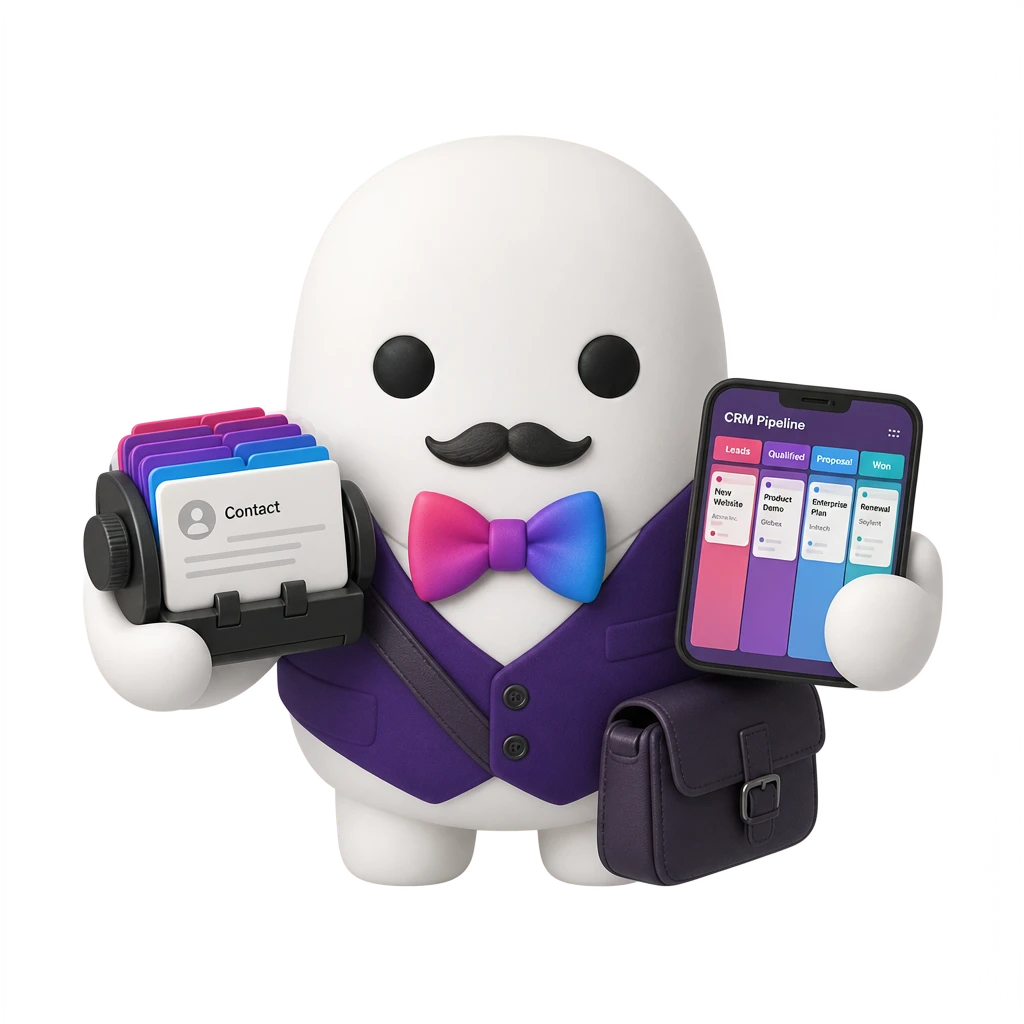
Extract, analyze, and manage customer relationship data across various CRM platforms including HubSpot, HighLevel and AgendaPro.
Available templates
Templates cover common jobs across different areas:
| Template | What it does | Already set up for you |
|---|---|---|
| Customer Support | Answers customer questions, handles common issues | Support-tone instructions, escalation rules, conversation starters for frequently asked questions |
| Sales Assistant | Qualifies leads, answers product questions | Sales-tone instructions, product-focused starters |
| Research Agent | Finds and summarizes information on topics | Web search turned on, research-style instructions |
| Content Writer | Helps draft articles, social posts, and copy | Writing-focused instructions, formatting guidelines |
| Data Analyst | Looks up data in your databases and explains trends | Database tools suggested, analytical instructions |
| HR Assistant | Answers employee questions about policies | Policy-oriented instructions, answers from your documents |
| Meeting Scheduler | Manages your calendar and books meetings | Google Calendar tool turned on, scheduling instructions |
| Email Assistant | Drafts and manages emails | Gmail tool turned on, email etiquette instructions |
The template library is updated regularly with new options. Check back now and then for templates that match newer use cases.
Two ways to start from a template
Option A — Pick a curated template (Recommended)
Choose this when your job matches one of the ready-made templates above. It is the fastest path and gives you a tested starting point.
Option B — Start blank and let Nirvai write the instructions
Choose this when no template fits your exact job:
- Click New agent in the Agents center and save a name and a clear description.
- In Instructions, click Magic Instructions and describe the job — Nirvai writes the instructions for you.
- Add the tools, projects and channels it needs.
Template or start from scratch?
| Use a template | Start from scratch |
|---|---|
| Your job matches a common pattern | Your agent has a one-of-a-kind purpose |
| You want a starting point to customize | You want full control from the very beginning |
| You are new to creating agents | You have built agents before and know what you need |
| You want to see how good instructions are structured | You have your own instruction style |
Even if you plan to change a lot, starting from a template is usually faster than starting from scratch. The template gives you a solid base — it is easier to edit good instructions than to write them from nothing.
Customizing a template
After you select a template, every section of the builder is editable:
- Profile — change the name and description to match your brand.
- Tools — add or remove tools based on what your agent actually needs.
- Projects — attach a project with your own documents. Templates do not include your documents.
- Instructions — edit the pre-written instructions to match your own rules and tone.
- Conversation Starters — change the starters so they reflect your real use cases.
Troubleshooting
| Problem | Fix |
|---|---|
| I do not see the template I expected | The library is updated over time — refresh the page, or start blank and let Magic Instructions write the instructions. |
| The template's instructions do not fit my business | Open the Instructions section and edit them. The template's text is only a starting point. |
| A tool the template turned on is not connected | Some tools (like Gmail or Google Calendar) need you to sign in with that account first. Open the Tools section to connect it. |
| The agent has no knowledge of my products | Templates do not include your documents. Put them in a project and attach it in the Projects section. |
What's next
- Native Capabilities — let the agent improve its instructions and skills as you chat.
- The Agents Center — edit, test and share the agent you just created.