Agent Steps & Routers
Building an automation is like setting up an assembly line: some stations do the actual work, and some decide which way a product should go next. In Nirvai, the workers are agent steps and the decision-makers are routers. Each one is a node -- a single block on the workspace. This page explains how to set up each one and how information flows between them.
Agent Steps
An agent step hands a task to one of your AI agents. The agent reads its instructions, does the work, and saves the result so the next step can use it.
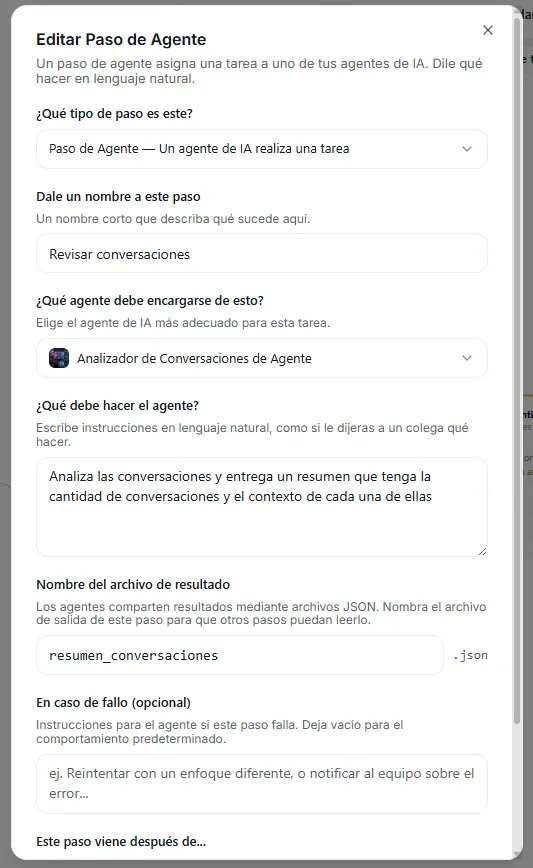 Image: An agent step configuration panel showing agent selector, instructions field, and output file setting
Configuring an agent step
Every agent step has three parts:
1. Which agent performs the task
Pick from the agents available in your automation:
- Default Nirvai Agent — general-purpose, always available
- Your custom agents — agents you created with their own knowledge, tools, and instructions
Choose the agent whose skills best match the task. For example, use an agent with web search tools for research, or an agent with database access for looking up data.
2. Instructions — what to do
Write clear instructions telling the agent what to do with the information it receives. Think of it as briefing a teammate.
| Instruction Quality | Example |
|---|---|
| Good | "Search for news articles about Tesla published in the last 24 hours. Focus on financial news and product announcements. Summarize the top 5 stories in bullet points." |
| Too vague | "Find Tesla news" |
| Good | "Read the customer feedback below. Classify the sentiment as positive, negative, or neutral. Extract the main complaint or compliment. Rate urgency from 1-5." |
| Too vague | "Analyze this feedback" |
Write instructions as if you're talking to a smart teammate who has never done this task before. Be specific about what you want, what format to use, and what to focus on.
3. Where to save the result
Each step saves its work to a file (for example, ./outputs/step1_result.json -- a plain file that holds the step's results). That file becomes the starting material for the next step in the chain.
How steps chain together
Each agent step reads the result of the previous step and produces its own result for the next one.
- Step 1 receives the trigger information (the schedule's context, the information another app sent, or what you typed in by hand)
- Step 2 receives Step 1's saved result as its starting material
- Step 3 receives Step 2's result, and so on
You point to earlier results in your instructions simply by describing the information the agent should look for. Nirvai handles passing the files between steps for you.
Success and failure behavior
Each agent step has optional settings for what happens when it finishes:
| Setting | What It Does |
|---|---|
| On success | Which step to go to next when the agent finishes successfully |
| On failure | What to do if the agent runs into an error — jump to a different step, try again, or stop |
Router Steps
A router reads the result of a previous step and sends the automation down different paths based on conditions — like a manager who reads a report and decides who handles it next.
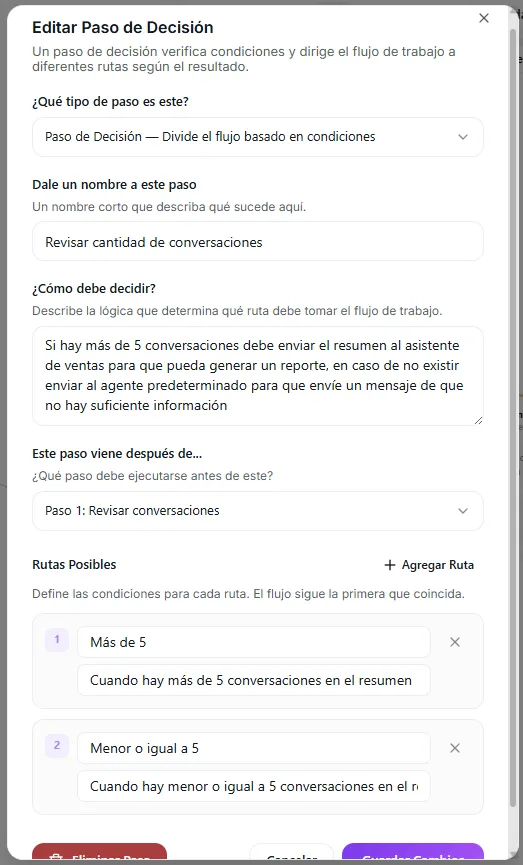 Image: A router configuration panel showing the input prompt and a list of conditions with their target steps
Configuring a router
1. The question to evaluate
Tell the router what to judge. This is usually a question about the previous step's result.
Example: "Based on the sentiment analysis results, decide whether the feedback is positive, negative, or neutral."
2. Conditions and routes
Define the possible answers and where each one leads:
| Condition | Description | Next Step |
|---|---|---|
positive | Customer is happy | → "Send Thank You" agent |
negative | Customer is unhappy | → "Escalate to Support" agent |
neutral | No strong sentiment | → "Log and Archive" agent |
Router example on the workspace
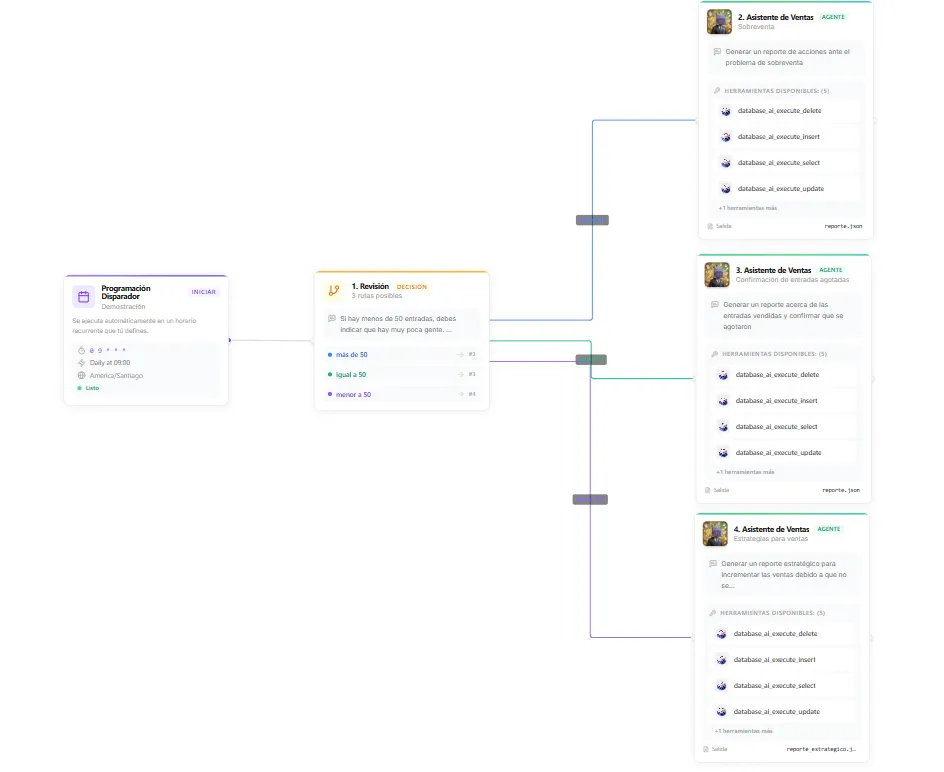 Image: A router node on the canvas with three outgoing connections to different agent steps
When to use routers
- Different responses based on input — positive vs. negative feedback, high vs. low priority
- Conditional processing — only run expensive steps when certain criteria are met
- Error handling — route to a backup step if the previous step's result points to a problem
You can chain several routers in a row for complex decision trees, but keep your automations as simple as possible. If you have more than 2-3 routers, consider splitting into separate automations.
Step Consolidation
When the same agent handles several tasks in a row, merge them into one step with a detailed set of instructions instead of creating separate steps.
Right — one step with detailed instructions:
| Step | Agent | Instructions |
|---|---|---|
| 1 | Calendar Agent | "1. Fetch this week's events from the calendar. 2. Format them into an HTML summary. 3. Email the summary to the team." |
Wrong — three separate steps with the same agent:
| Step | Agent | Instructions |
|---|---|---|
| 1 | Calendar Agent | "Fetch this week's events" |
| 2 | Calendar Agent | "Format events into HTML" |
| 3 | Calendar Agent | "Send the HTML via email" |
Only split into separate steps when:
- Different agents handle each task
- A router needs to branch between them
- Steps run side by side with different inputs
AI Setup follows this rule for you automatically. If you're building by hand, combine steps that use the same agent — it cuts down on overhead and keeps everything in one place.
Execution Mode and Step Behavior
The execution mode you choose affects how deeply each agent step works:
| Mode | Agent Behavior | When to Use |
|---|---|---|
| Agile | Agents work quickly, with a standard level of analysis | Simple tasks, frequent runs, time-sensitive automations |
| Intensive | Agents take more time for thorough, deeper analysis | Complex research, detailed reports, high-stakes decisions |
Intensive mode gives agents more working time per step, which means better results for tasks that need deep thinking — but a slower overall run.
Intensive mode is available on PRO plans. AI Setup picks the right mode based on how complex your automation is.
Tips for Effective Steps
Use specialized agents
Instead of making one agent do everything, create specialized agents for different tasks:
| Agent | Specialty |
|---|---|
| Research Agent | Web search, gathering data |
| Writer Agent | Summarizing, drafting content |
| Analyst Agent | Data analysis, classification |
| Notification Agent | Sending emails, posting to channels |
Keep steps focused
Each step should do one thing well. If an agent's instructions run longer than a short paragraph, consider splitting the task into two steps.
Plan your data flow
Before building, sketch out what information each step needs and produces:
- What does the trigger provide?
- What does Step 1 need to produce for Step 2?
- Where do routers branch?
- What's the final result?
Troubleshooting
| Problem | Fix |
|---|---|
| The agent does the wrong thing | Make the instructions more specific — say exactly what to do, what format to use, and what to focus on. Vague instructions get vague results. |
| The agent can't do what you asked | Check that you picked an agent with the right tools (for example, web search for research, or database access for lookups). |
| A step doesn't use the previous step's result | Confirm the steps are connected on the workspace and your instructions describe the information to look for. |
| The router keeps choosing the wrong path | Make each condition more specific and non-overlapping, and check the previous step's result to see what the router is judging. |
| Results aren't thorough enough | Switch to Intensive mode (PRO plans) so the agent has more time to think. |
What's next
Once your steps and routers are set up, continue to Testing and Runs to test your automation, turn it on, and watch every run in detail.