Databases
Agent Tasks
Assign AI agents to database records to run instructions on each row — immediately, on a schedule, or when a status changes
An agent task is like clipping a sticky note to a folder for a coworker: "summarize this," "score this," "draft a reply." You pick an agent, write what it should do with the record, and choose when it runs. The agent reads the row, follows your instruction, and writes the results back — updating the status, filling in fields, writing into the page body, or updating another record to start the next agent in line.
Use it for the repetitive work you'd normally do row by row: summarizing incoming leads, qualifying deals, drafting replies, scoring applications, or following up on stale conversations.
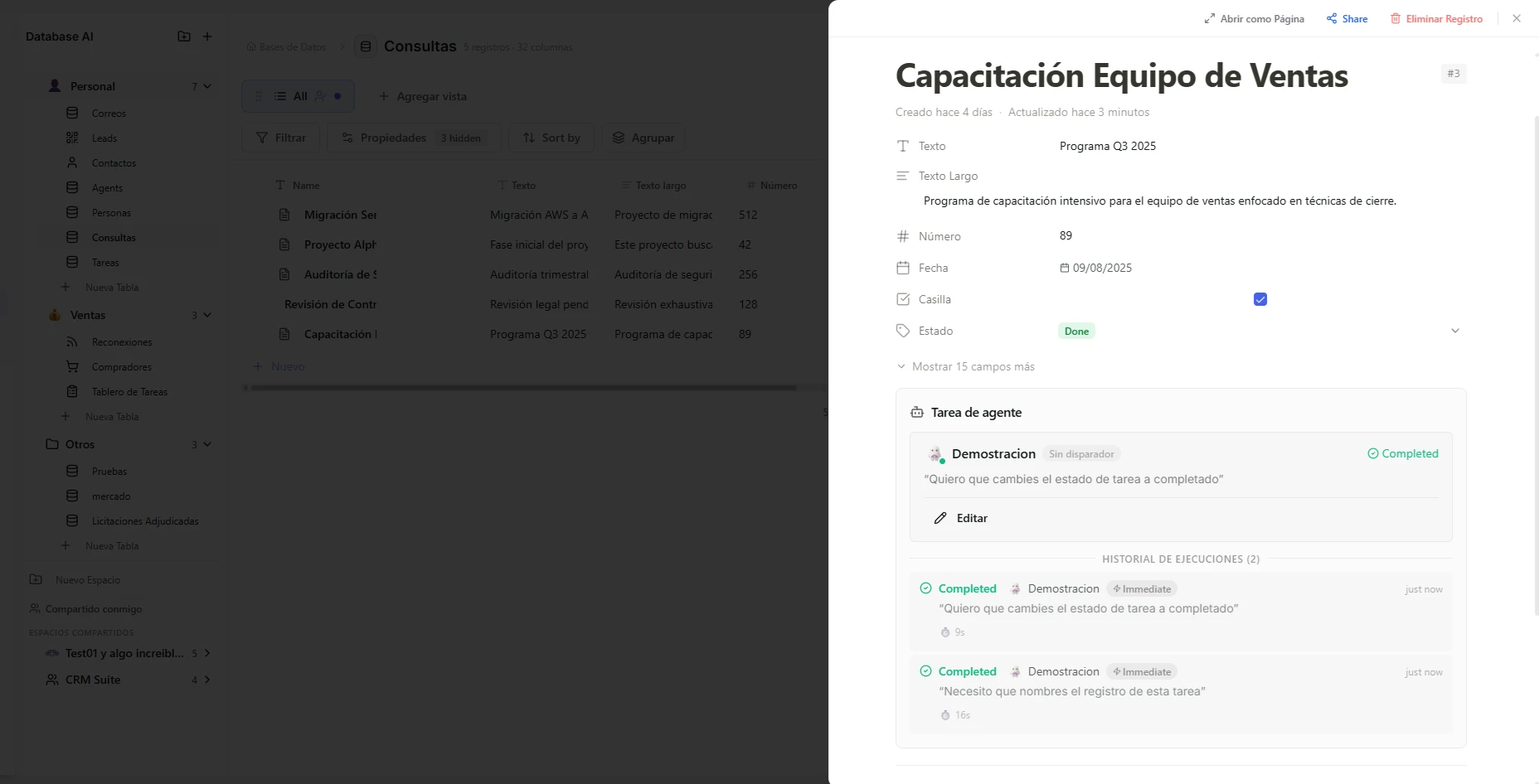 Image: Agent task section in the record drawer with execution history
Before you start
- A saved agent. Any agent works — there's no special "task" agent. Build one with New agent in the Agents center.
- The agent connected to this database, in the agent's Databases section, with a permission level: Read (look only), Write (update fields and the page body — what most tasks need), or Full (write plus deleting records).
- Agent Tasks switched on for the table (below).
With all three in place, the agent appears in the picker on every record in that database.
Turn Agent Tasks on or off
- Open the table's Create Database or Edit Database page (or Settings → Agent Tasks).
- Find the Agent Tasks card in the Special fields section and click Turn on.
This adds hidden Agent, Task, Execute, Status, and Session fields to every row. Only the agent shows in views — as a small avatar with a colored status dot (blue pulsing while running, green when done, red when failed) in List, Grid, Kanban, and Calendar. The rest lives in the record drawer. You can also adjust two limits for the table:
| Setting | Default | What it does |
|---|---|---|
| Max concurrent tasks | 3 | How many records can have an agent working at the same time. Extra tasks wait their turn. |
| Max execution minutes | 15 | After this long, a running task is marked timeout. |
To turn it off, click Disable on the same card. After a confirmation, it cancels any pending or queued tasks and removes the Agent Task fields and settings. Your records and other data stay untouched.
Assign a task to a record
- Click the record to open its detail drawer and scroll to the Agent Task card.
- Agent — pick one of the agents connected to this database.
- Task — write the instruction in plain language.
- Execute — choose when it runs (below). Execute now starts right away.
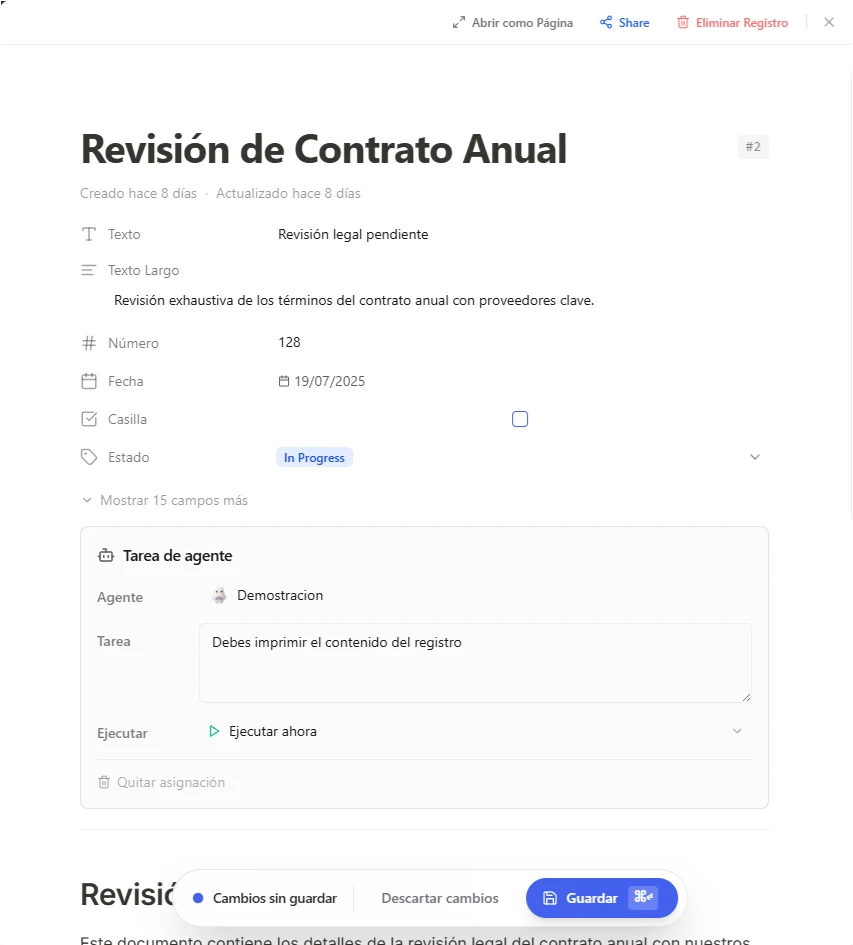 Image: A record's Agent Task card with an agent picked, an instruction written, and Execute set to run now
Agent and Task save on their own; choosing an Execute option is what starts or schedules the run. The agent receives every field of the record plus your instruction, and can use any database tool it has access to.
A good instruction says what to read, what to do, and where to write the result, using column names:
Read the lead's name, company, and the notes column. Write a friendly outreach email in the page body and update Status to "Ready to send" when finished.
Look at the contact's industry and revenue range. Score from 1–5 in the Lead Score field. If score ≥ 4, set Status to "Hot lead".
Run a new instruction once with Execute now, check the execution log, and adjust until you like the result. Then apply it to the rest.
Choose when it runs
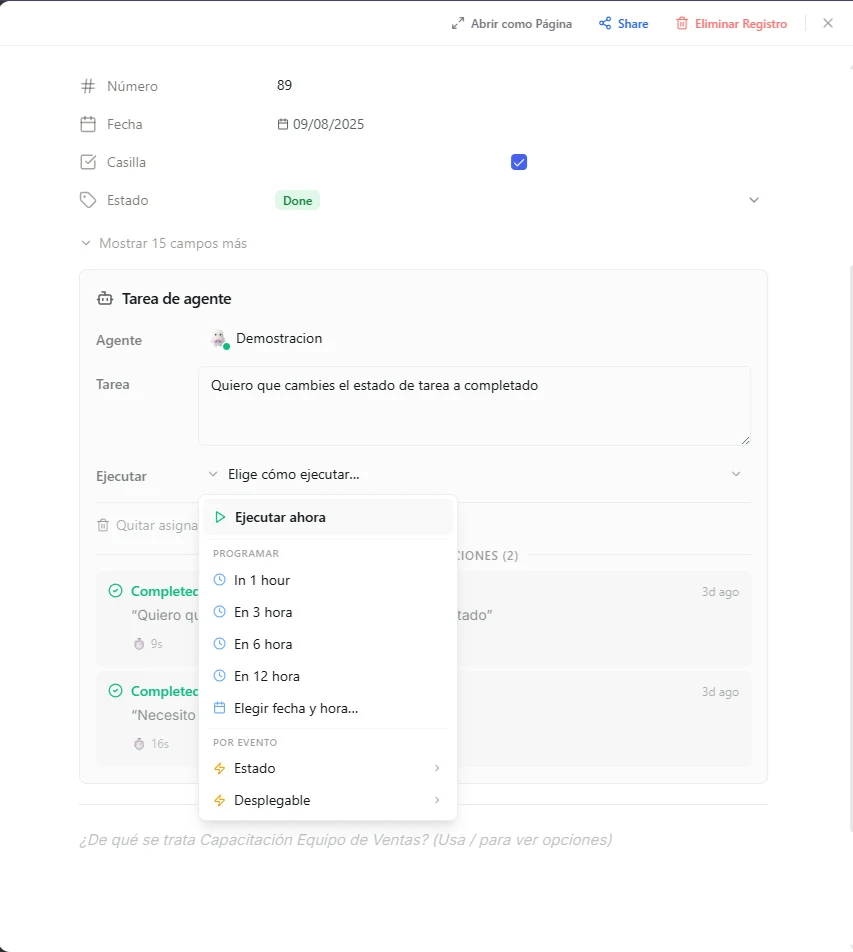 Image: The Execute dropdown open, showing Execute now, the schedule options, and the by-event triggers
| Option | When the agent runs |
|---|---|
| Execute now | Immediately. Status goes queued → running → completed (or failed). |
| In 1 / 3 / 6 / 12 hours | Once, that many hours from now. Status stays pending until then. |
| Pick date & time | Once, at the date and time you choose. |
| By event | When a Status or Select column on this record changes to a value you pick (for example, Status → "Qualified"). Stays pending until then. |
Event triggers are the cleanest way to build pipelines: a person or another agent can move the status, and the next agent picks up on its own.
Follow a task
| Status | What it means |
|---|---|
pending | Waiting for its scheduled time or event |
queued | About to start, waiting for a free slot |
running | The agent is working on this record |
completed | Finished successfully |
failed / timeout | Hit an error, or ran past the table's time limit — use Retry for a fresh run |
cancelled | You cancelled it (possible while pending or queued) |
Click View execution on a finished task to open its log: the record context the agent received, its step-by-step reasoning, and the tools it called. Use it to debug and refine your instruction. To see every task an agent has run across all tables, open the agent in the Agents center and go to its Agent tasks tab.
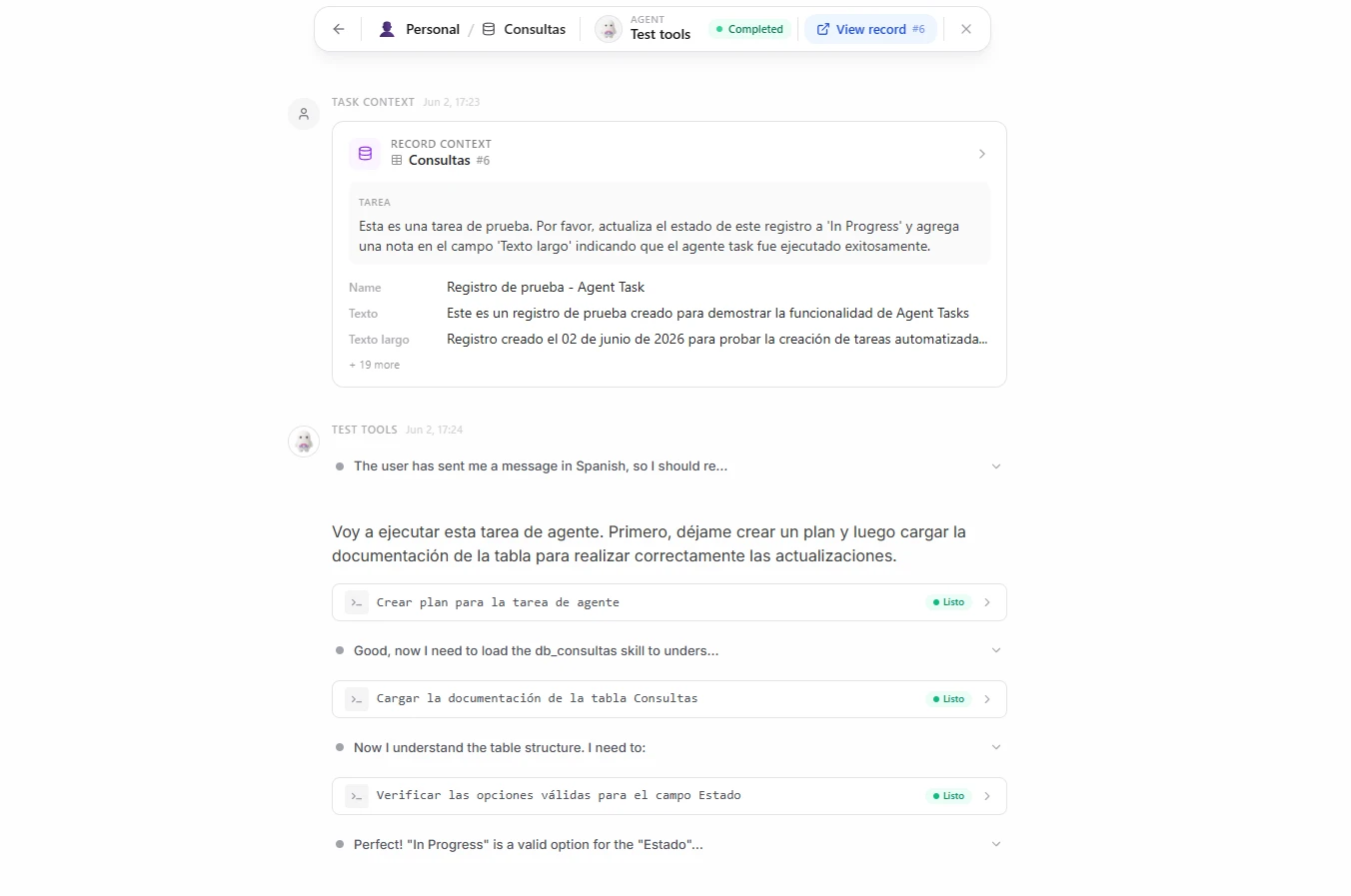 Image: Agent execution log dialog showing the task context and the agent's reasoning
Chain agents together
Agents can update other records. Combined with event triggers, this builds chains without an automation:
An agent can't re-trigger itself: Nirvai blocks new tasks on rows that are already pending, queued, or running. Chains across different records are allowed.
Credits
Every run uses credits like a chat with that agent, billed to the assigned agent. A quick summary costs little; long fields, web searches, or multi-step reasoning cost more. Scheduled and event tasks only spend credits when they actually run — a task that never meets its trigger costs nothing.
Troubleshooting
| Problem | Likely cause and fix |
|---|---|
| The agent I want isn't in the picker | It isn't connected to this database. Open the agent with Edit, add the table in its Databases section, and give it at least read permission. |
| The task ran but nothing changed | The agent only has read permission. Raise it to write or full. |
Status is stuck on pending | Expected for scheduled and event tasks — an event task runs only when the trigger column hits the exact value you set. |
The task sits in queued | The table is at its max concurrent tasks limit. Wait, or raise the limit. |
| A chain didn't start the next agent | The first agent needs write or full permission on the other record, and the trigger column and value must match exactly. |
The task ended in timeout | It ran past max execution minutes. Simplify the instruction, or raise the limit for heavy tasks. |
What's next
- Technical Reference — how records, views, connectors, and agent tasks behave under the hood.
- Automations — for work that spans several steps, branching logic, or outside triggers.