Databases
AI Features
Search your data by asking in plain language, and let AI agents add, change, and look up records for you.
Imagine having an assistant who knows your filing cabinet inside out: you ask a question out loud and they hand you exactly the right folders, and when you say "file this new one," they put it away correctly. That's what AI does for your Nirvai databases. You can ask questions in plain language, and your AI agents can read, add, change, and remove records on your behalf — turning your databases into a living set of records your automations can act on.
Throughout this page, an "agent" is an AI assistant you've set up in Nirvai.
Why it matters
- You can find records by describing what you want, instead of building filters by hand.
- An agent can keep your data up to date automatically — adding leads, updating statuses, looking up customers — while you focus on other work.
- The same agent can answer in Chat, reply on Channels like WhatsApp and Instagram, or run as part of an Automation.
Smart Search
Ask a question about your data in plain language and get answers right away. No filters to set up — just describe what you're looking for.
 Image: Smart search box with a plain-language question and its results
How to use it:
- Click the search icon in the database toolbar (or the Smart Search button)
- Type your question in plain language
- Nirvai turns your question into a database search and shows the records that match
| What you type | What it finds |
|---|---|
| "Show me all leads from last week" | Records created in the last 7 days |
| "Find customers who spent more than $1000" | Records where an amount or currency column is over 1000 |
| "List overdue tasks with high priority" | Records where the date is before today and the status is "High Priority" |
| "How many records have status Done?" | A count of records with that status |
Name the column when you can. "Show me leads where email contains gmail" works better than "show me gmail leads".
AI tools for a database
AI tools let your agents work with a specific database. When you create tools for a database, Nirvai builds a set of actions any agent can use.
How to create them:
- Open your database
- Click the tools menu in the header
- Choose Create AI Tools
- Nirvai builds tools that match your database's columns and structure
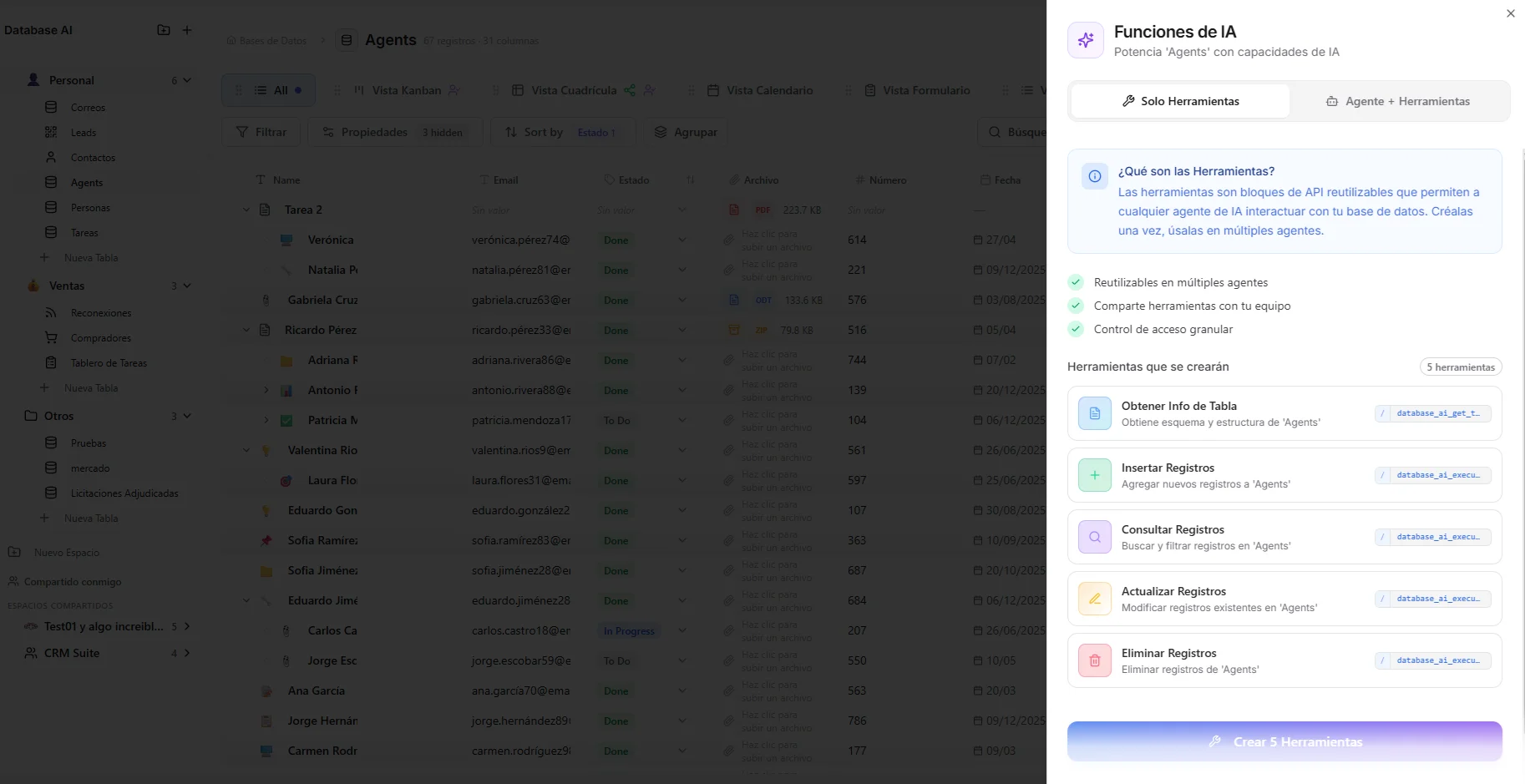 Image: Creating AI tools for a database from the header menu
What gets created
| Tool | What it does |
|---|---|
| Select records | Look up records that match conditions you give |
| Insert record | Add a new record with the values you give |
| Update records | Change existing records that match a condition |
| Delete records | Remove records that match a condition |
| Get table info | Read the database's structure (its columns, types, and settings) |
| Smart query | Search in plain language — the same as Smart Search, but for the agent |
Each tool knows your column types and gives the agent format hints so it fills in values correctly. For example:
- A
multi_selectcolumn tells the agent: "List of selected values. Available options: 'Design', 'Dev', 'Marketing'." - A
currencycolumn tells the agent: "Decimal number. Currency: USD." - A
ratingcolumn tells the agent: "Whole number from 1 to 5."
An AI agent for a database
Go one step further and create a dedicated AI agent that's already set up to work with your database.
How to create one:
- Open your database
- Click the tools menu in the header
- Choose Create AI Agent
- A new agent is created with your database's tools already attached
From there, you can use the agent in Chat, connect it to Channels like WhatsApp or Instagram, or have it run inside an Automation.
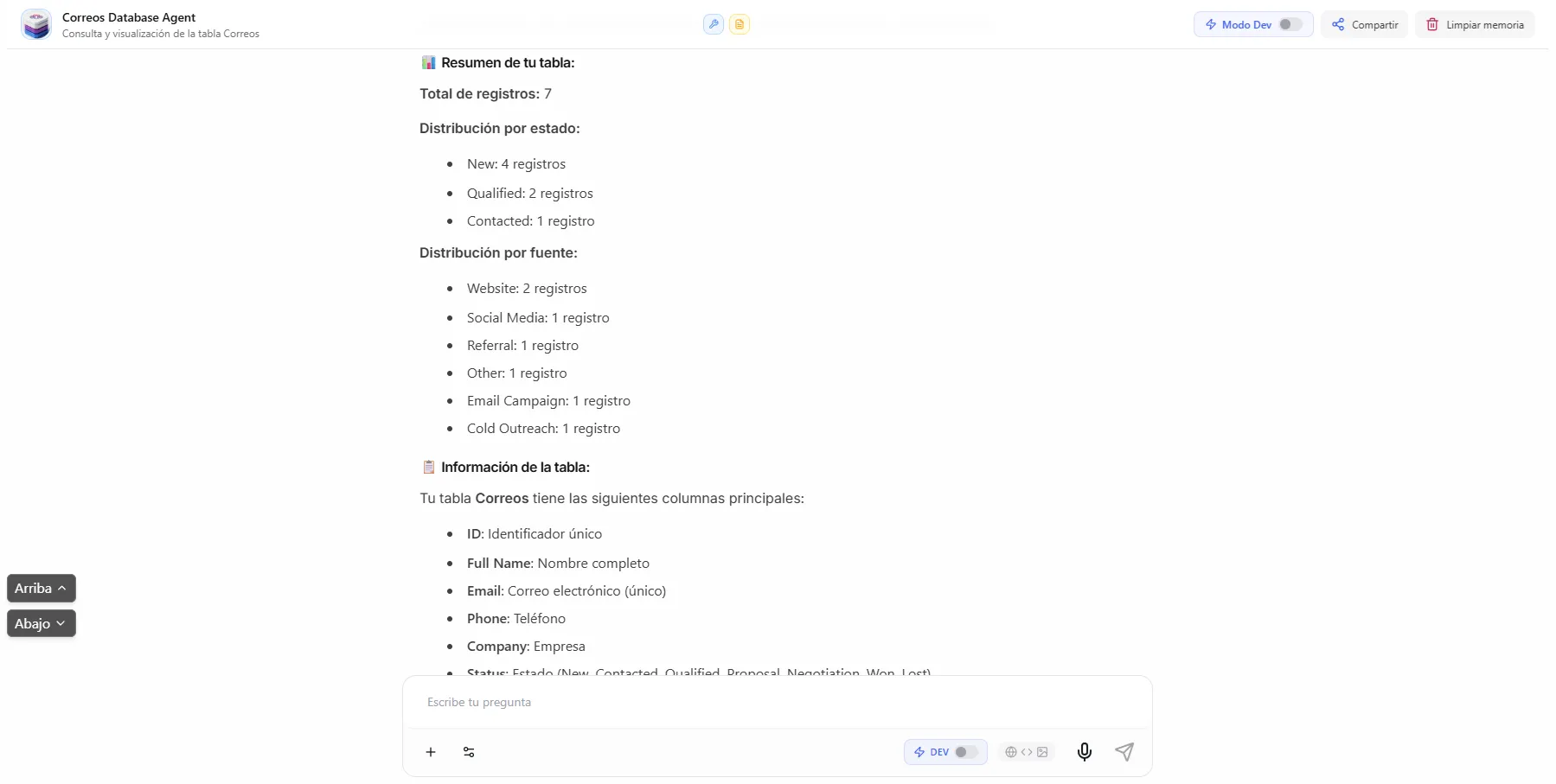 Image: Agent working with a database in chat, showing the results it found
Examples
| Scenario | How it works |
|---|---|
| Lead qualification bot | The agent gets new leads over WhatsApp, checks your database for duplicates, adds the new ones, and updates their status |
| Report generation | The agent looks up your database on a schedule and sends a summary to Slack |
| Customer lookup | The agent on your website chat finds a customer by email and answers questions about their order |
| Data entry | The agent reads incoming emails and adds the details as new records |
| Status updates | The agent reacts to outside events (a Stripe payment, a form submission) and updates record statuses |
When an agent changes your database (adds, updates, or removes a record), a live notification pops up in your browser so you see it right away. The notification says what the agent did.
How an agent works with your database
Here's the round trip when an agent acts on your data, from the first message to the live update in your browser.
Every agent action follows the same column types and checks as your manual edits. The agent knows the shape of your data and fills in values the right way.
What's next
- Agent Tasks — assign an agent to each record to run instructions automatically.
- Channels — put your database agent on WhatsApp, Instagram, and more.