Databases
AI Database Setup
Let AI design and create your database structure through a guided conversation
Think of AI Database Setup as an interior designer for your data: you describe the room you have in mind, and it draws up the whole floor plan for you. Tell it what you want to track in plain language — the AI proposes the spaces, databases, columns, and views that fit your use case, then builds everything in one click. No setup work by hand, no guessing which columns you'll need.
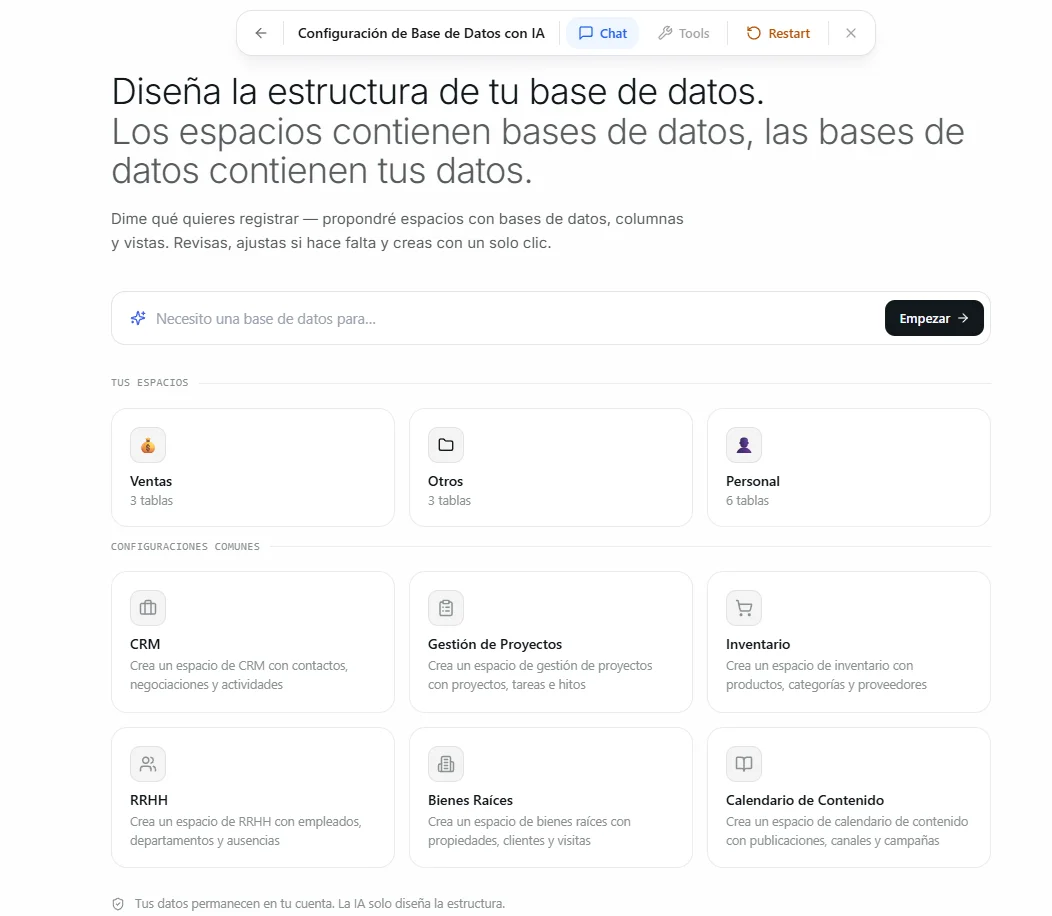 Image: The AI Database Setup page showing a conversation with the AI and a structure preview
Before you start
- A Nirvai account with access to the Databases section
- A rough idea of what you want to track or manage (a customer list, a sales pipeline, a content calendar — anything)
- Nothing to install or set up first; the AI builds the structure from scratch for you
How it works
- You describe what you want to track or manage
- The AI proposes 1-3 setup options with columns, views, and structure
- You pick an option or ask for tweaks
- You review the complete structure with a visual preview
- You click Create and the databases are ready to use
Step-by-step
- Open the Databases section from the sidebar
- Click the AI Setup card on the Databases page
- Describe what you need — for example: "I need a customer list to track contacts, deals, and follow-ups"
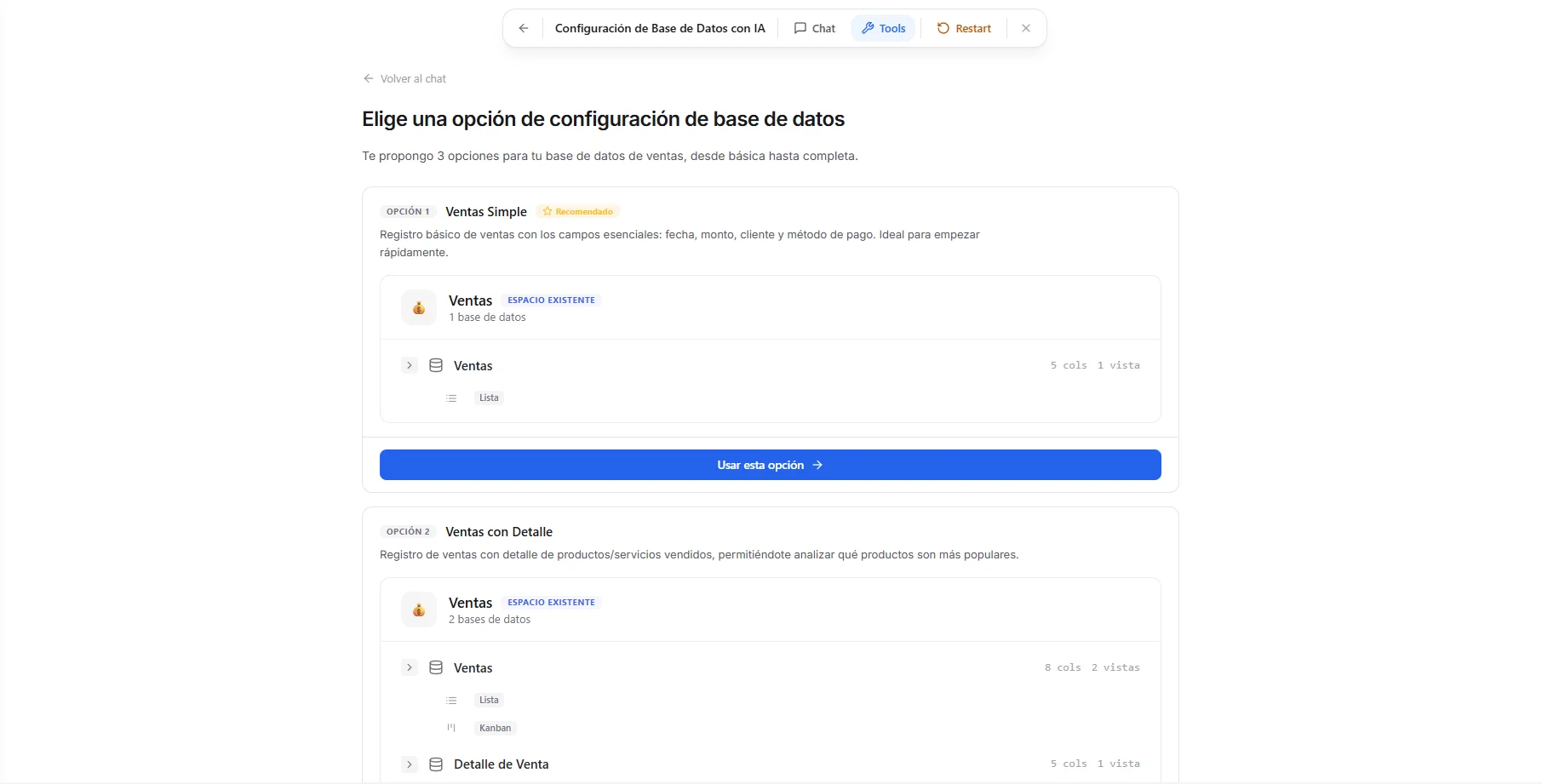 Image: Clicking the AI Setup card and entering a description
The starting page
When you start a new AI Setup session, the starting page shows:
- Your existing Spaces — a Space is a folder that groups related databases. The AI knows what you already have and can add new databases to those folders instead of making duplicates.
- Common setups — quick-start suggestions like a customer list, project tracker, or sales pipeline that fill in the description for you.
Click a suggestion or type your own description and press Start.
Answer the AI's questions
The AI guides you through a short back-and-forth to understand what you need:
- It checks your existing spaces first so it can suggest adding to them instead of creating duplicates
- It may ask follow-up questions if your request is broad (for example, "What stages should the pipeline have?")
- It shows a progress timeline in the chat so you always know where you are in the process
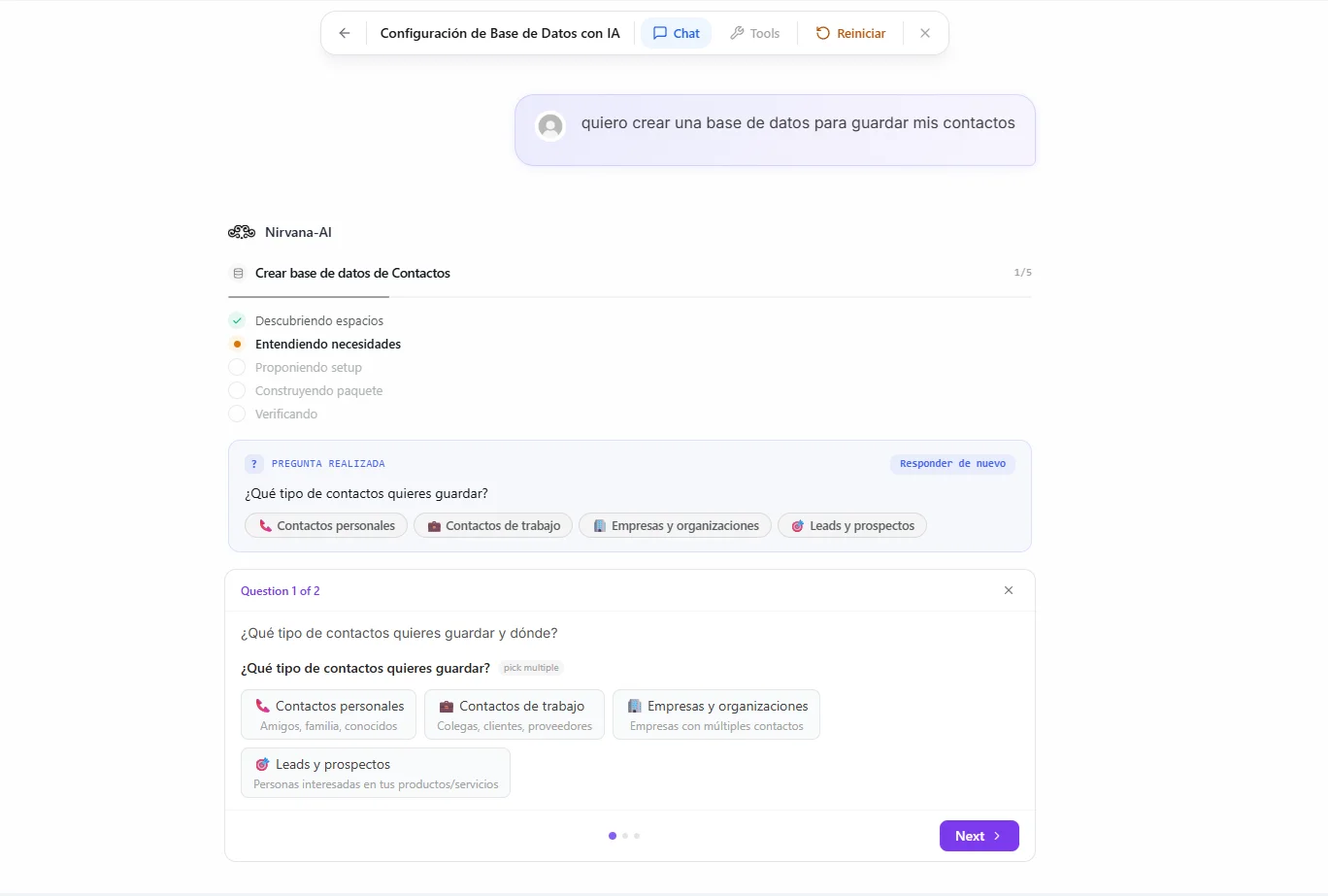 Image: Chat showing clarifying questions and progress timeline
Be as specific as you want. "I need a database" works, but "I need a sales pipeline with stages Discovery, Proposal, Negotiation, Closed Won, and Closed Lost — plus a contacts database linked to deals" gives you a better result on the first try.
Review the proposals
Once it understands your needs, the AI presents 1-3 setup options on the setup page. Each option shows:
- Title and description — what the setup is designed for
- Structure preview — a tree view showing the space, databases, columns, and views that will be created
- Pros and cons — trade-offs between options (for example, a simpler structure versus more detail)
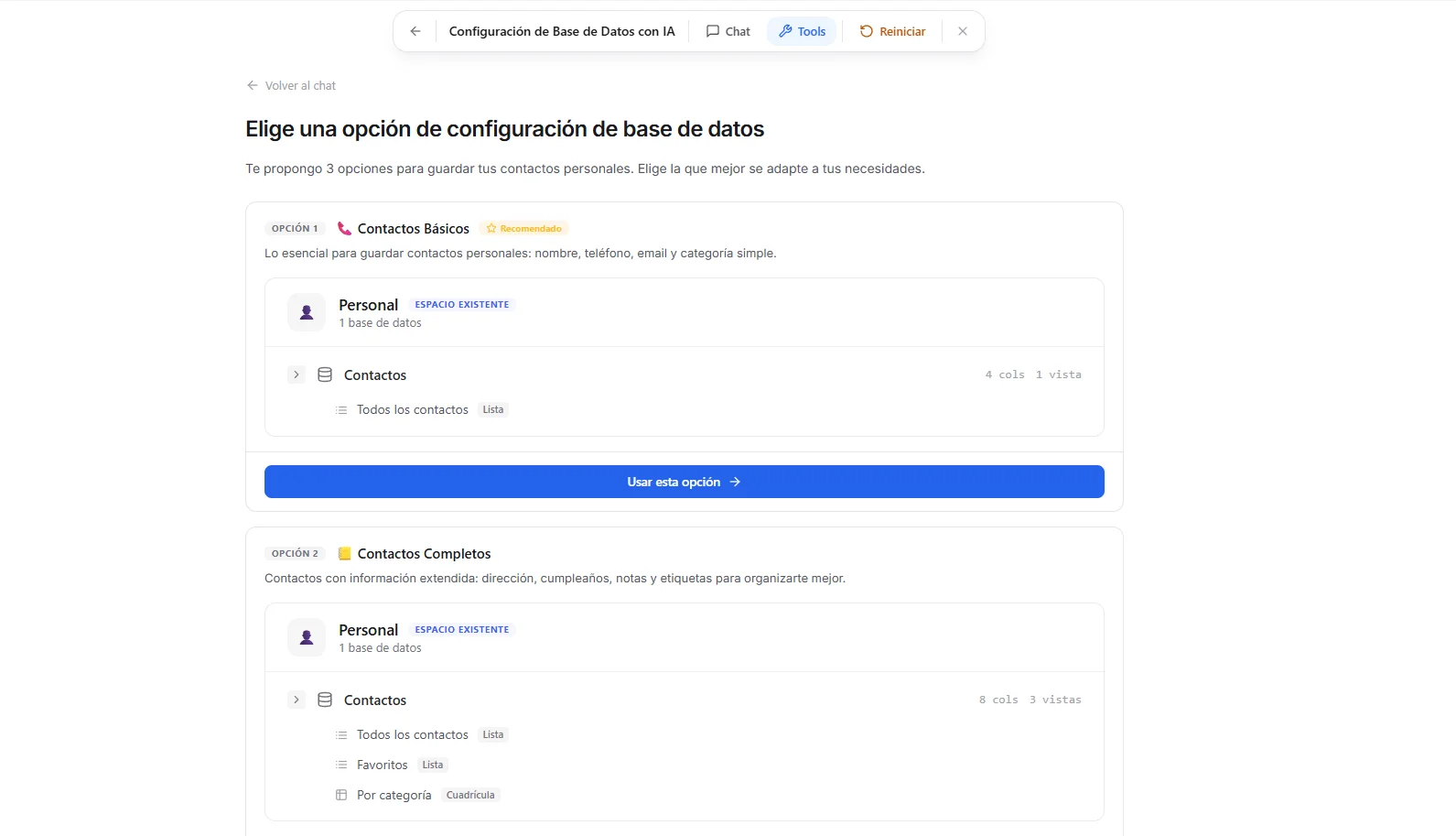 Image: Three proposal options with structure previews and pros/cons
To move forward:
- Click "Use this option" to proceed with that setup
- Or type a change in the Refine box at the bottom (for example, "Add a priority column to the tasks database") and the AI will update the proposals
Review the package
Once you select an option, the AI builds a package — the final structure ready to be created. The setup page switches to a sidebar plus main-content layout:
Sidebar — lists all packages in the session. You can build several setups in one session (for example, a CRM pipeline and a separate content calendar).
Main content shows:
- Package title and description — a summary of what will be created
- Database structure — an expandable tree with every column name, type, and setting
- Views — which views (List, Grid, Kanban, Calendar, Form) will be set up, with their filters, grouping, and sorting already in place
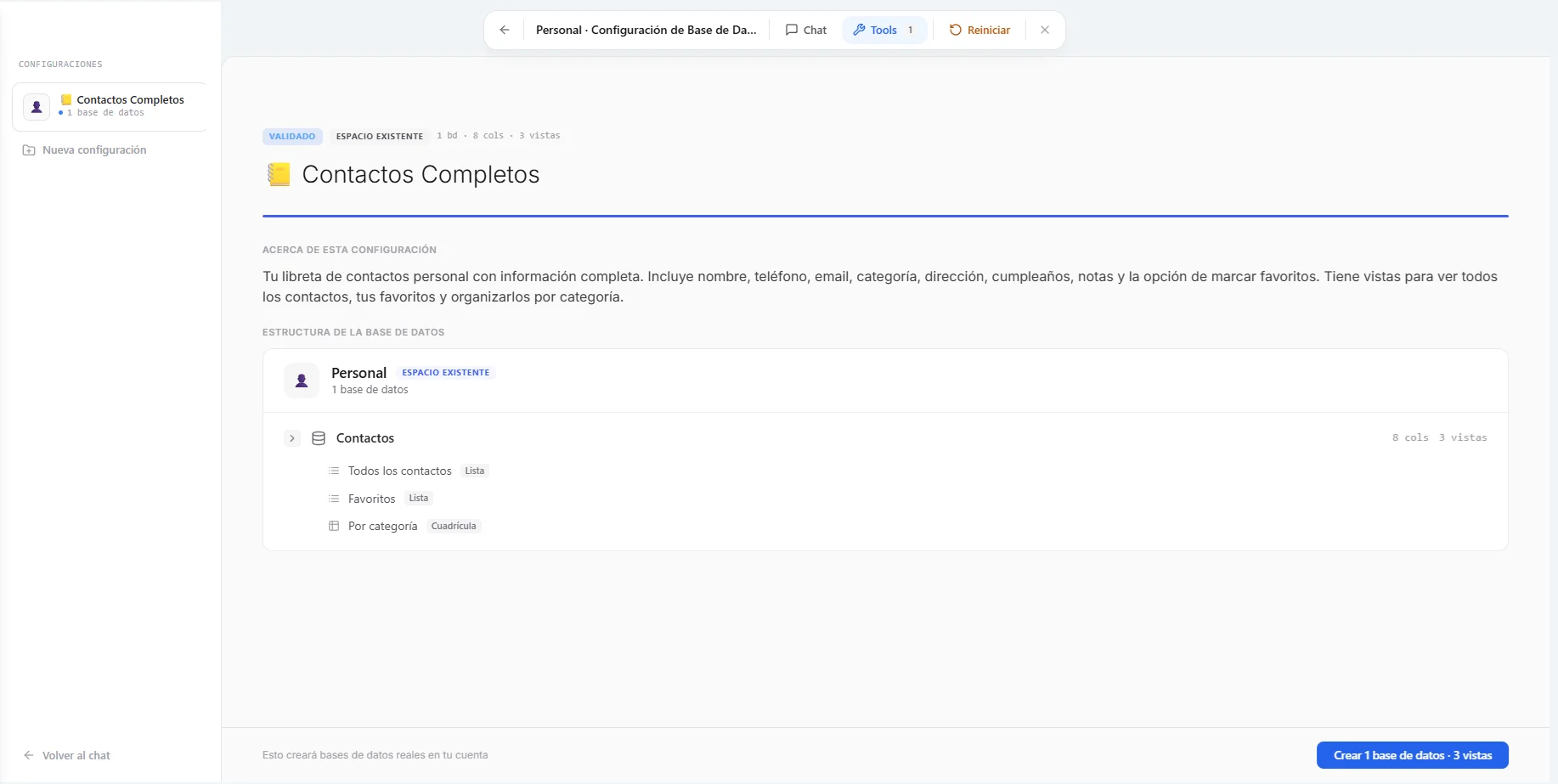 Image: Package review showing sidebar with multiple setups and the main structure preview
Create the databases
When you're happy with the structure:
- Click the "Create" button in the footer
- The AI builds the databases, tables, and views for you
- A success message appears with next-step options
From there you can:
- Open databases — go straight to your new databases and start adding records
- Build another — start a new setup in the same session
What gets created
The AI designs a complete structure using every column type and view setting available:
| Element | What the AI sets up |
|---|---|
| Space | Name, icon (or reuses an existing space) |
| Databases | Name, description, and icon for each table |
| Columns | Name, type, and settings (options for status/select columns, currency, rating scale, and so on) |
| Views | List, Grid, Kanban, Calendar, or Form — with filters, grouping, sorting, and which columns to show already set |
Every table automatically gets a default List View if no views are specified.
Build several setups in one session
You can build more than one database setup in a single session. After creating one package, click "Build another" to return to the chat and describe your next need. The sidebar keeps track of all packages — click any to review its structure.
This is handy when you need related but separate groups of databases, like:
- A customer suite (contacts + deals + activities) and a content calendar (posts + channels + campaigns)
- A support system (tickets + customers) and an internal wiki (articles + categories)
Find and resume your sessions
Your AI Setup sessions are saved automatically. You'll find them on the Databases page in the AI Setups list above your tables.
Each session shows:
- Title — set automatically from your first package name
- Status — In progress or Completed
- Time — when the session was last active
Click a session to resume it, or use the Clear all button to remove old sessions.
AI Setup creates the same spaces, databases, and views that you'd create by hand. Once they exist, you manage them exactly like any other database — AI Setup is just a faster way to design the structure.
Troubleshooting
| Problem | Fix |
|---|---|
| The AI proposes a structure that doesn't fit | Type a change in the Refine box (for example, "Remove the Notes column, add a Due Date") and the AI updates the proposals |
| You don't see your existing Space in the suggestions | Make sure you're signed in to the same account where you created it; the AI only sees Spaces on your account |
| You picked the wrong option | Go back in the chat and choose "Use this option" on a different proposal, or refine the current one |
| You closed the page before creating | Reopen the AI Setups list on the Databases page and click your session to resume right where you left off |
What's next
- Column Types — every kind of column the AI can set up, in plain language.
- Records — start filling your new databases.