Databases
Connect Meta Instant Form
Connect your Facebook and Instagram lead forms so new leads land in your database automatically
Connecting a Meta Instant Form is like hiring an assistant who watches your Facebook and Instagram lead ads around the clock: every time someone fills out one of your lead forms, their answers are copied into your database within minutes — no manual typing, no exporting spreadsheets.
Before you start
- A Facebook Page that has at least one Lead Ad form set up
- Admin or Advertiser access to that Page
- A database ready to receive the leads — it's fine if it has no columns yet, you can create them during setup
Connect it
- Open your database and click the connector icon in the header toolbar
- Select Meta Instant Forms
- Sign in with Facebook and approve the permissions it asks for
- Pick your Page — the Facebook Page that has your lead forms
- Pick a form — the specific lead form you want to connect
- Match the fields to your database columns (see below)
- (Optional) Turn on Ad Campaign Tracking to record which ad each lead came from
- Click Connect
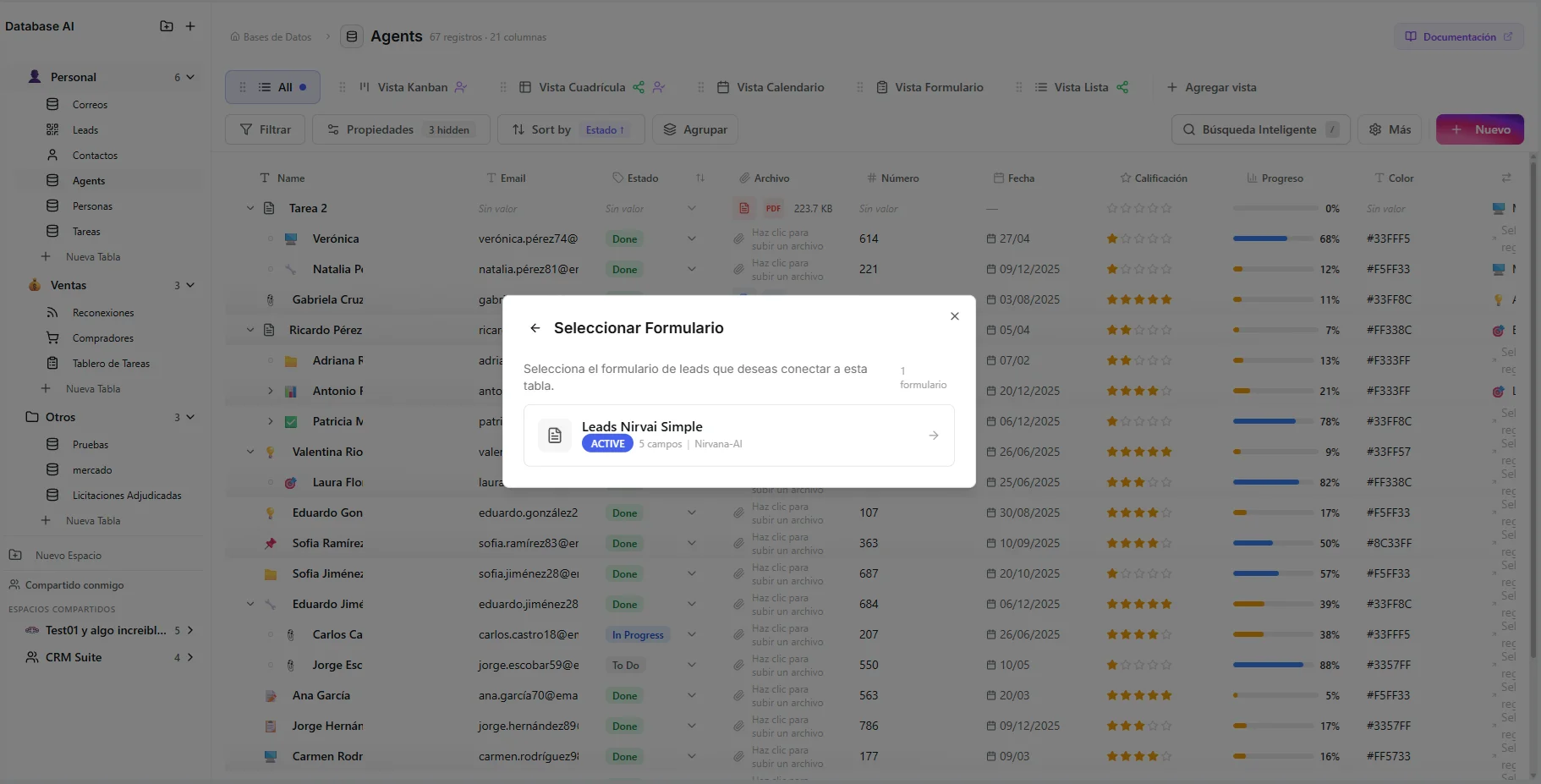 Image: Selecting the lead form to connect to your database
The Sign in with Facebook step (step 3) opens in a standard Facebook login popup, so it isn't pictured here — approve the requested permissions and Facebook returns you to Nirvai.
Match form fields to columns
For each question on your form, choose where its answer should go:
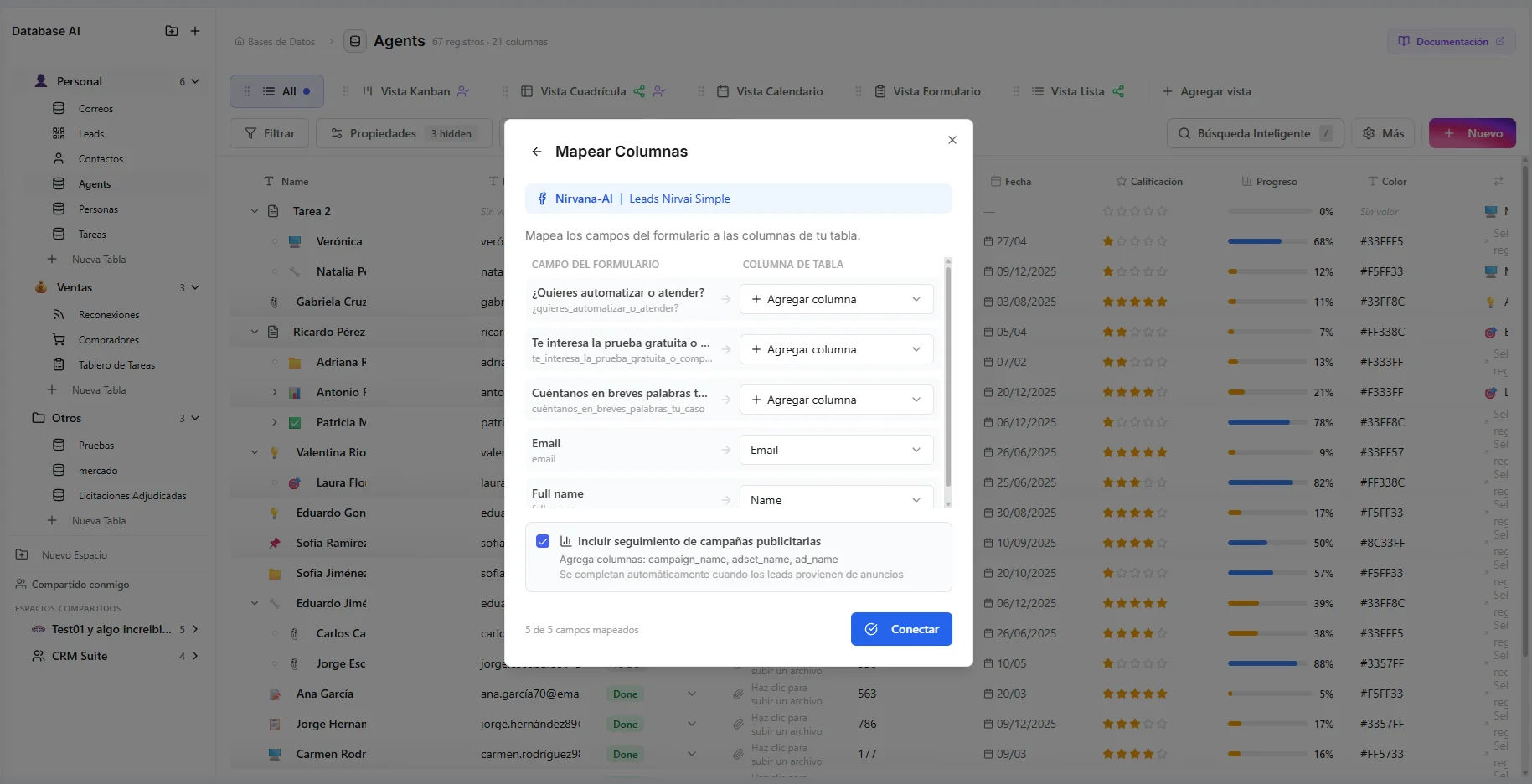 Image: Column mapping step showing source fields and target column options
| Option | What it does |
|---|---|
| Existing column | Sends the answer to a column you already have |
| + Add column | Creates a new text column for it automatically |
| Omit | Skips this question — its answer won't be saved |
Nirvai tries to match fields by name automatically. A Meta field called "email" lines up with your "email" column on its own if you have one.
Conditional questions
If your form shows follow-up questions based on earlier answers, each one gets its own row to match. Every answer is captured, no matter which path the person took.
Track which ad a lead came from
Turn on Ad Campaign Tracking to record the ad behind each lead. It adds three columns:
| Column | What it holds |
|---|---|
campaign_name | The ad campaign's name |
adset_name | The audience the ad targeted |
ad_name | The specific ad the person clicked |
These columns only fill in for leads from real, running ads. Test leads you submit through Facebook's testing tools leave them blank.
How syncing works
Nirvai checks Meta for new leads every 30 minutes rather than waiting for an instant alert from Meta. Checking on a steady schedule means no lead is ever missed, even if a service is briefly unavailable.
Nirvai only pulls leads created since the last check, and it skips any lead it has already saved — so you never get duplicates.
Your first sync
When you finish connecting a form, click Sync Now on the success screen to pull in all of that form's existing leads right away. This one-time catch-up grabs your history, not just new leads.
Manage your connector
The connector's status shows in your database header:
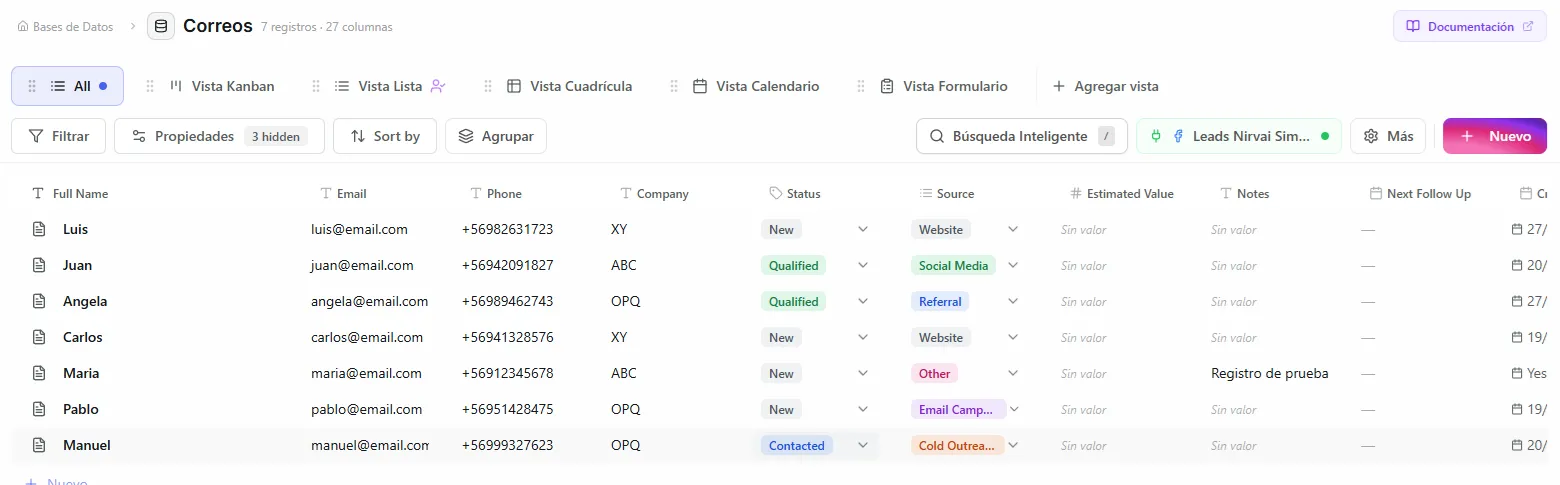 Image: Connector status indicator in the database header
| Status | Meaning |
|---|---|
| Active (green) | Checking for new leads every 30 minutes |
| Paused | Checking is paused — no new leads come in |
| Error | Something went wrong — open it to read the message |
| Pending setup | Setup wasn't finished |
- Edit — open the connector settings to see the connected form and Page, review the field matches, and check the last sync time and total leads saved.
- Delete — stops all future syncing. Leads already saved stay in your database.
Troubleshooting
| Problem | Likely cause | Fix |
|---|---|---|
| No leads coming in | Facebook permission expired | Open the connector settings and sign in with Facebook again |
| Some leads missing | The form changed after you connected it | Check whether new questions need to be matched to columns |
| Sync shows 0 new leads | No new leads since the last check | Wait for new submissions, or confirm the form is published |
| Campaign columns are blank | The lead came from a test submission | Only real ad leads include campaign info |
| Connector shows Error | Facebook permission for the Page expired | Reconnect by signing in with Facebook again |
After connecting, submit a test lead with Facebook's Lead Ads Testing Tool, then click Sync Now to confirm it lands in your database.
What's next
- AI Features — search your leads in plain language and let agents keep them up to date.
- Agent Tasks — have an AI agent qualify or follow up on each new lead automatically.