Databases
Databases
What Nirvai databases are, the key terms, and how to create, customize, export, and delete one.
A database is like a smart spreadsheet: it has columns across the top and rows of entries below, just like Excel or Google Sheets. It also understands plain language, shows the same data in several views, and updates live for your whole team and your agents — no coding required.
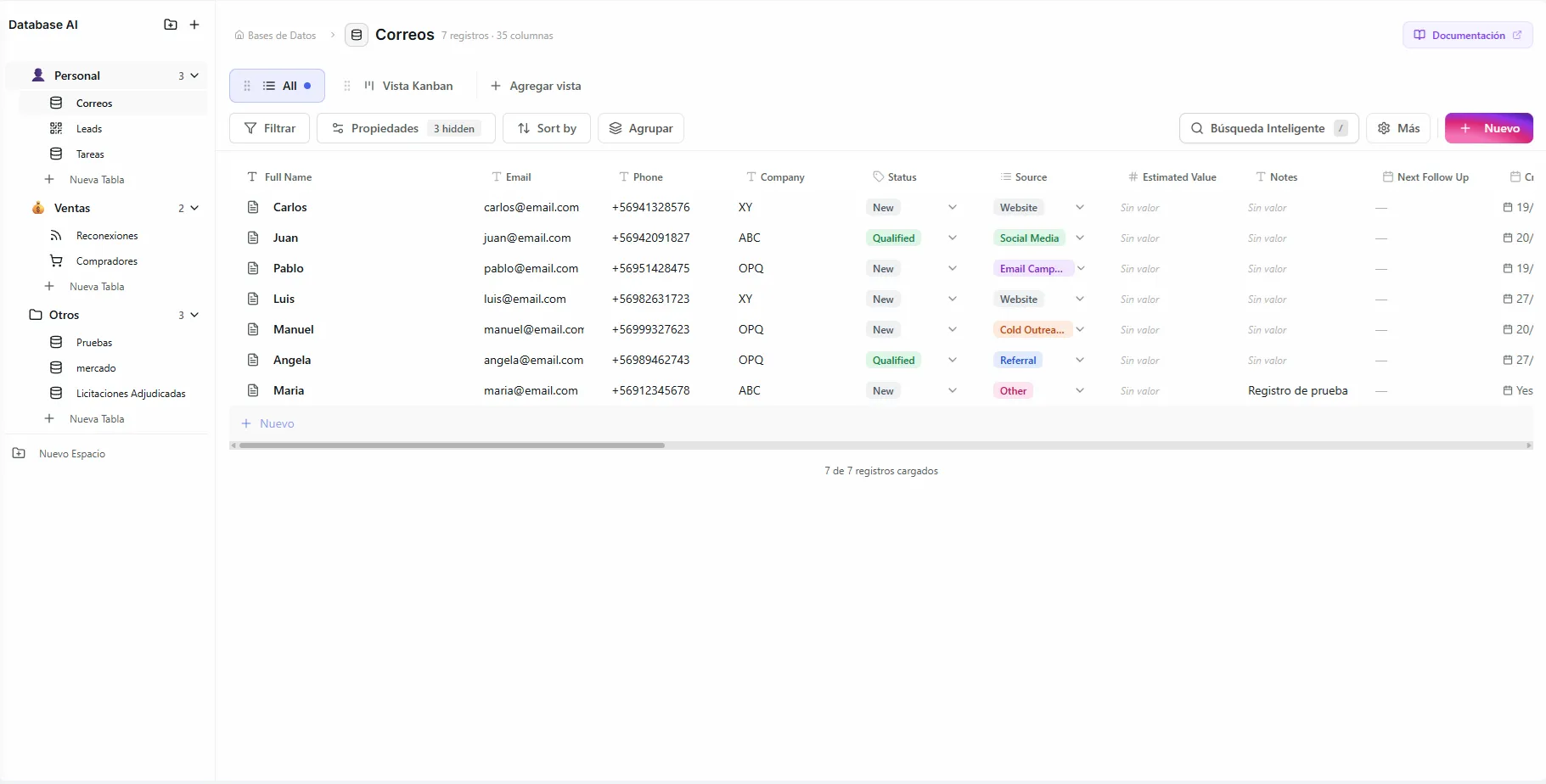 Image: A database in grid view showing records with multiple column types
| Term | What it is |
|---|---|
| Space | A folder that groups related databases (Spaces). |
| Database | A collection of records with the columns you choose — this page. |
| View | One way to show the same data: List, Grid, Kanban, Calendar, or Form. |
| Record | One row — and also a full page you can write on. |
| Connector | An outside source that adds records for you, like Meta lead forms. |
Get started
- Open Databases from the sidebar and create a Space.
- Add a Database inside it (below) — or start from a template or let AI Database Setup design it.
- Pick a View that fits the work.
- Add Records by hand, through a form, a connector, or your agents.
Create a database
- Open a Space from the sidebar (or create one first).
- Click "+ New Database" and give it a clear name (for example, "Contacts" or "Sales Pipeline").
- Add the columns you need, picking a column type for each one.
- Click "Create". You can add, remove, or change columns later.
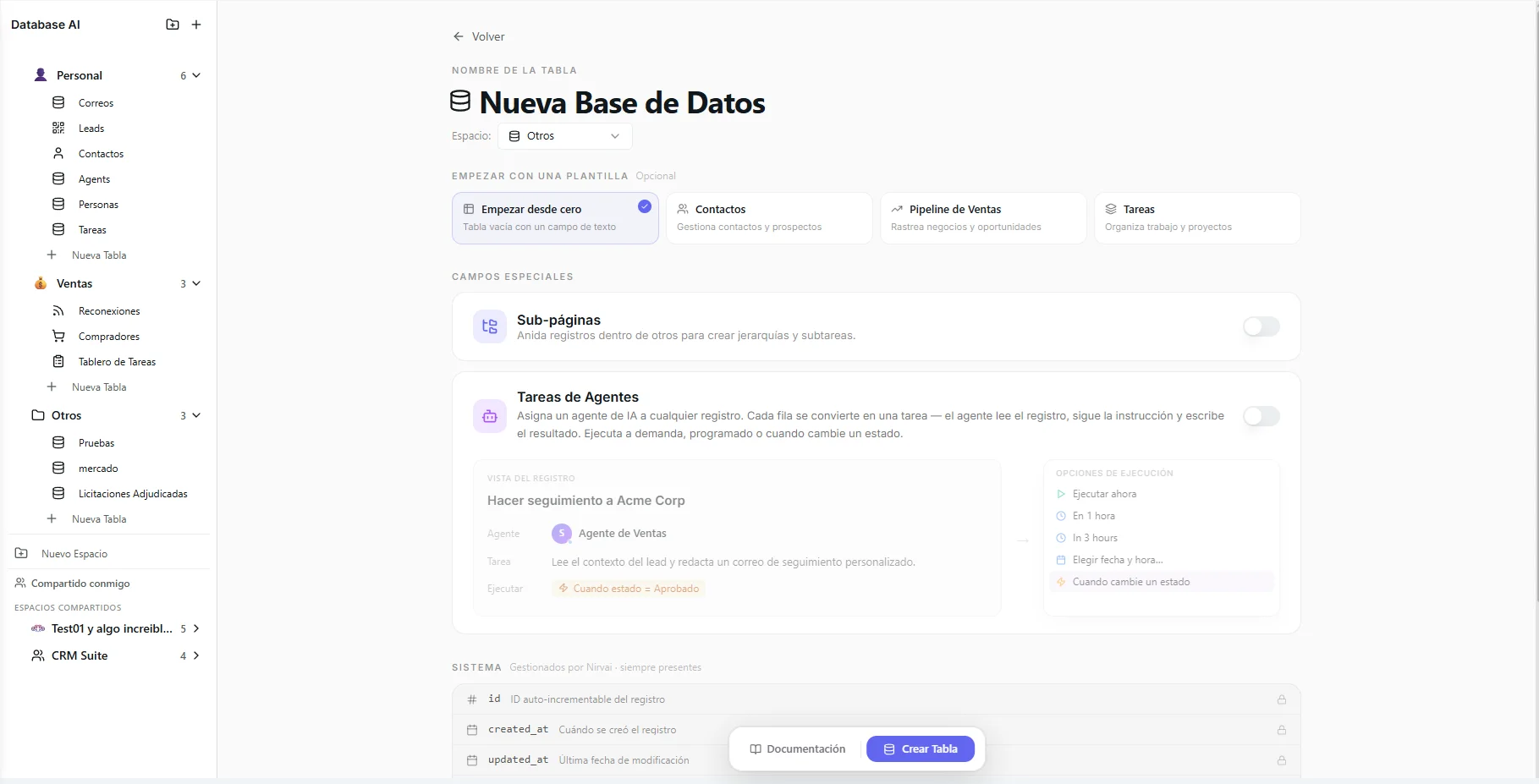 Image: Creating a new database with name and column setup
Built-in columns
Every database gets columns the system fills in for you. They can't be renamed or deleted:
| Column | What it's for |
|---|---|
id | A unique number for each record, counted up automatically. |
created_at / updated_at | When the record was created and last changed. |
nirvai_content / nirvai_icon | Hidden. The page content (saved as markdown, a simple text format) and icon behind each record page. |
Customize and manage it
- Icon — click the icon next to the name. Same picker as spaces: emoji, a built-in icon, or your own upload.
- Rename — right-click the database in the sidebar, or click the name to edit it in place.
- Description — optional text at the top of the view; handy for noting what the database is for.
- Reorder — drag databases within a space. The order is remembered.
- Add a column — in Grid view, click "+" at the end of the column headers.
- Change a column — click its header to Rename, Change type, Duplicate, or Delete it.
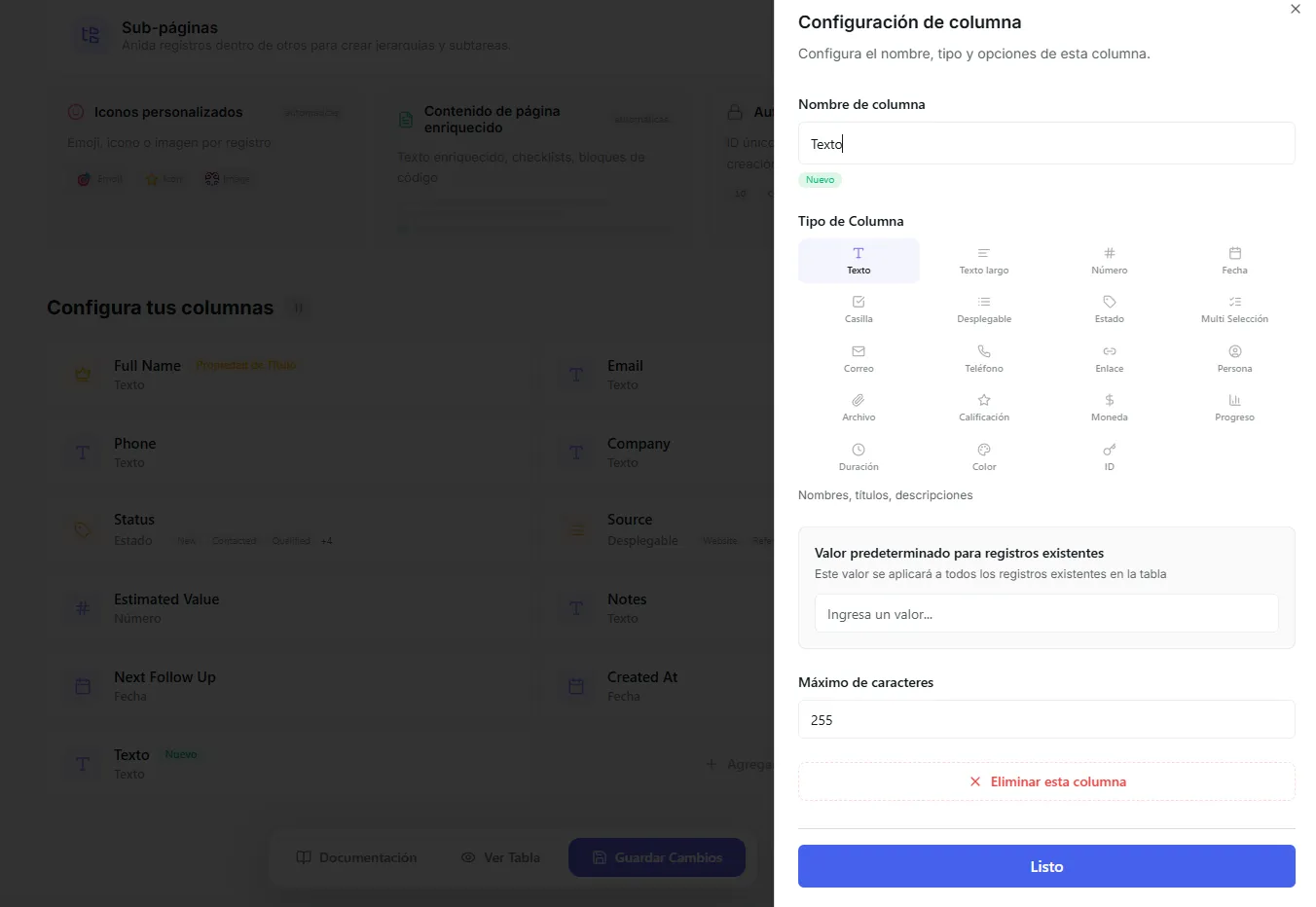 Image: Adding a new column to an existing database
Changing a column's type can erase values that don't fit the new type. For example, switching Text to Number clears anything that isn't a number.
Export, share, or delete
- Export — download a CSV file (a plain spreadsheet file for Excel or Google Sheets) of the whole database or just the current view.
- Share — with your organization, as a read-only public view, or with invited guests.
- Delete — right-click the database in the sidebar and select "Delete".
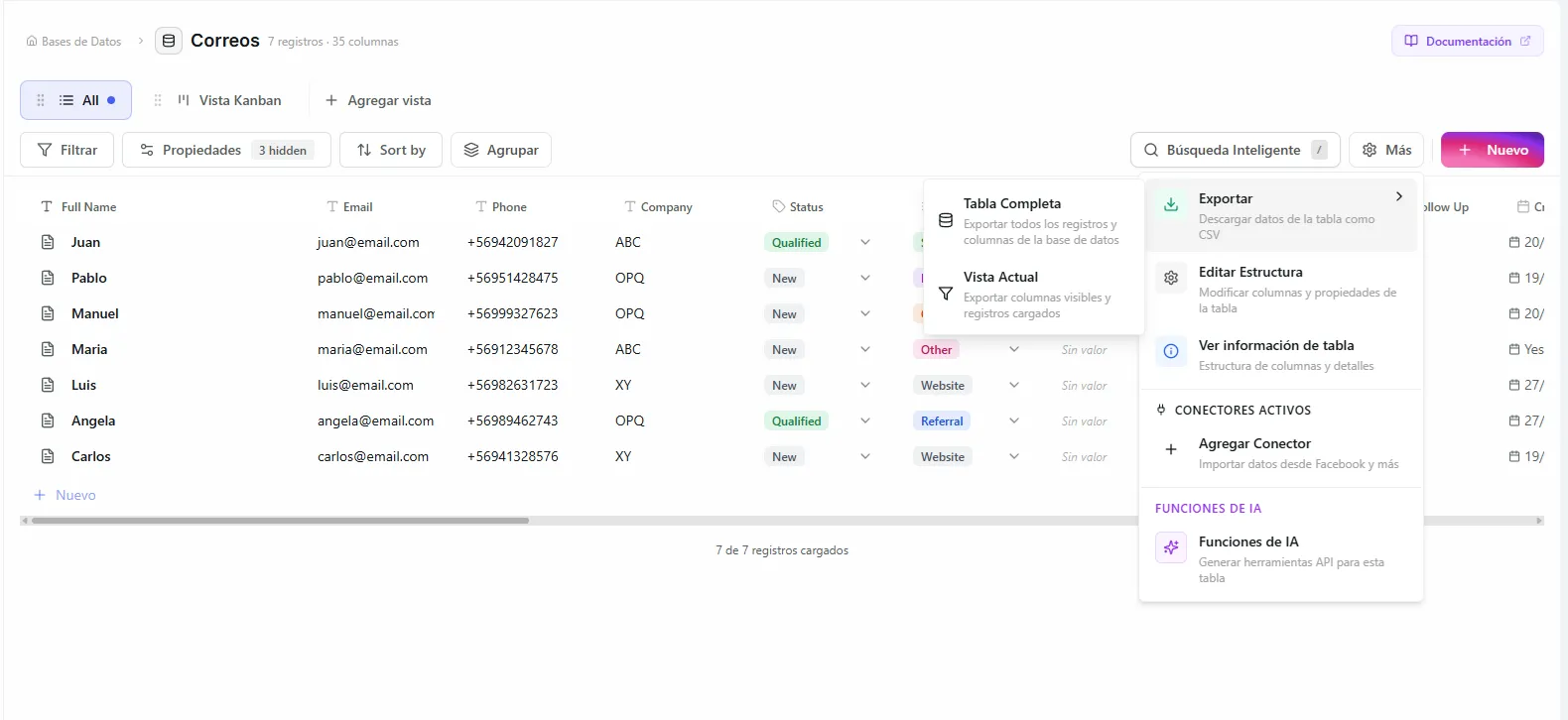 Image: Export menu showing CSV export options
Deleting a database permanently removes all of its records, views, and connections. This can't be undone. If it's shared with your organization, only the owner or an organization admin can delete it.
Troubleshooting
| Problem | Fix |
|---|---|
| The "+ New Database" button is missing | Open a space first — databases always live inside a space. |
| Changing a column type wiped my values | Some values don't fit the new type (words can't become numbers). Change the type back, or fix the values first. |
| I can't delete a shared database | Only the owner or an organization admin can delete a database shared with your organization. |
| My CSV export is missing records | "Current view" only exports what's loaded and visible. Use the whole database export. |
What's next
- Spaces — create the folder your databases live in.
- Database Templates — start from a ready-made setup instead of a blank table.