Databases
Filtering & Sorting
Narrow down and reorder the records in any view so you see only what matters right now.
A filter is like a sieve for your data — it hides the records you don't care about right now and leaves only the ones you do. Sorting is the partner step: once you've sieved out the noise, it puts what's left in a sensible order (newest first, highest score on top, A to Z). Every view type — List, Grid, Kanban, and Calendar — supports both.
Before you start
- A database with at least a few records to work with
- A view open (List, Grid, Kanban, or Calendar)
- Columns set up for the data you want to filter or sort by — see Column Types if you're still adding them
Add a filter
- Click the filter icon in the view toolbar
- Pick the column you want to filter by
- Choose an operator — the rule to test against, such as "is", "contains", or "is empty"
- Type a value, if the operator needs one
- Click Apply
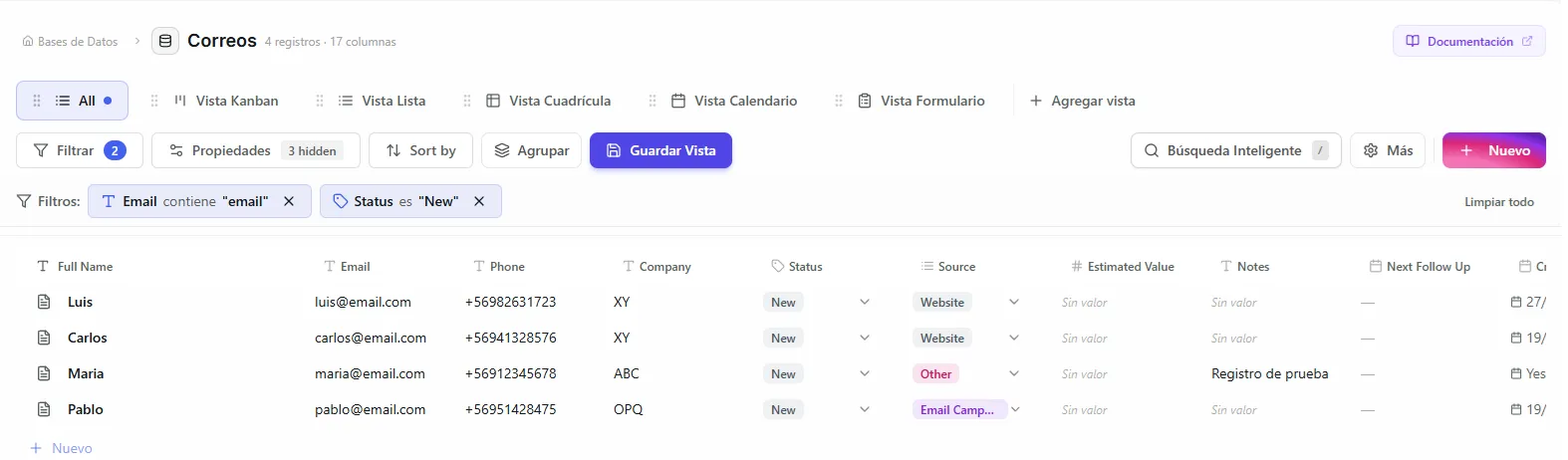 Image: Filter bar showing several active filters
You can stack several filters at once. A record has to match every active filter to show up.
Filter operators
The operators you can pick from depend on the column's type. Here's what's available for each.
Text
| Operator | What it does | Example |
|---|---|---|
| is | Matches exactly | Name is "John Smith" |
| is not | Doesn't match | Status is not "Done" |
| contains | The text appears somewhere in the value | Name contains "John" |
| does not contain | The text appears nowhere in the value | Notes does not contain "urgent" |
| is empty | No value set | Email is empty |
| is not empty | Has any value | Email is not empty |
Number
| Operator | What it does | Example |
|---|---|---|
| equals (=) | Matches this number | Score = 100 |
| not equals (≠) | Any number but this one | Score ≠ 0 |
| greater than (>) | Above this number | Amount > 1000 |
| less than (<) | Below this number | Age < 30 |
Date
| Operator | What it does | Example |
|---|---|---|
| is before | Earlier than a date | Due Date is before March 1 |
| is after | Later than a date | Created is after January 1 |
Choice (Status, Select)
| Operator | What it does | Example |
|---|---|---|
| is | Matches one specific option | Status is "In Progress" |
| is not | Doesn't match that option | Priority is not "Low" |
| is any of | Matches any option in a list | Status is any of "New", "In Progress" |
| is none of | Matches no option in a list | Category is none of "Archived", "Deleted" |
Checkbox
| Operator | What it does |
|---|---|
| is checked | The box is ticked on |
| is not checked | The box is ticked off |
File
| Operator | What it does |
|---|---|
| is empty | No file attached |
| is not empty | Has a file attached |
The "negative" operators (is not, does not contain, not equals, is none of) also include records whose cell is empty. So if you filter "Status is not Done", records that have no status at all will show up too.
Sort your records
Click any column header to sort by that column. Click it again to flip between ascending and descending order.
You can also set up sorting from the view settings:
- Open the sort options in the view toolbar
- Pick the column to sort by
- Choose Ascending (A-Z, 0-9, oldest first) or Descending (Z-A, 9-0, newest first)
You can add more than one sort rule. Records are ordered by the first rule, and when two records tie, the second rule decides, and so on.
Filters in shared views
When you share a view as a Public View or with guests, its filters become locked-in filters: visitors can't remove them and never see records outside them. Set the filters before you share. Public visitors can still add their own temporary filters on top for their visit.
Troubleshooting
| Problem | Fix |
|---|---|
| A record I expected to see is missing | Check every active filter — a record must match all of them at once. Remove filters one at a time to find the one hiding it. |
| Records with no value keep showing up in a "negative" filter | That's expected. Operators like "is not" and "does not contain" include empty cells. Add an "is not empty" filter on the same column to leave them out. |
| The operator I want isn't in the list | Operators depend on the column type. For example, "greater than" only appears on Number columns. Check the column's type in Column Types. |
| A visitor can't remove a filter on a shared view | That's a built-in filter, locked in on purpose so visitors only see the slice you shared. Edit the view's filters to change what they see. |
What's next
- Organization Sharing — let your teammates work on the same live database.
- AI Features — search your data in plain language instead of building filters by hand.