Sharing & Collaboration
Guest Edit Access
Invite specific outside people to view or edit one view of your data, confirmed by email — no Nirvai account needed.
Guest access is like handing one trusted person a key to a single room, not the whole building — you invite a specific person by email, and they can only touch the data you point them to. They get in without creating a Nirvai account, and they can only see and work with records that match the view's filters.
A guest is someone outside your team that you invite by email to a single view.
Before you start
- A view you want a specific person to see or edit. A view is one saved way of looking at your data — a chosen set of columns, filters, and sorting.
- The email address of the person you want to invite.
- A Builder plan or higher. Guest access isn't available on the Free plan (see Plan limits below).
Invite a guest
- Right-click the view tab and select Share View.
- Go to the Guest Access section.
- Type the guest's email address.
- Choose what they can do: Edit (change records) or View (read-only).
- Set how long they stay signed in (1–30 days).
- Click Add Guest.
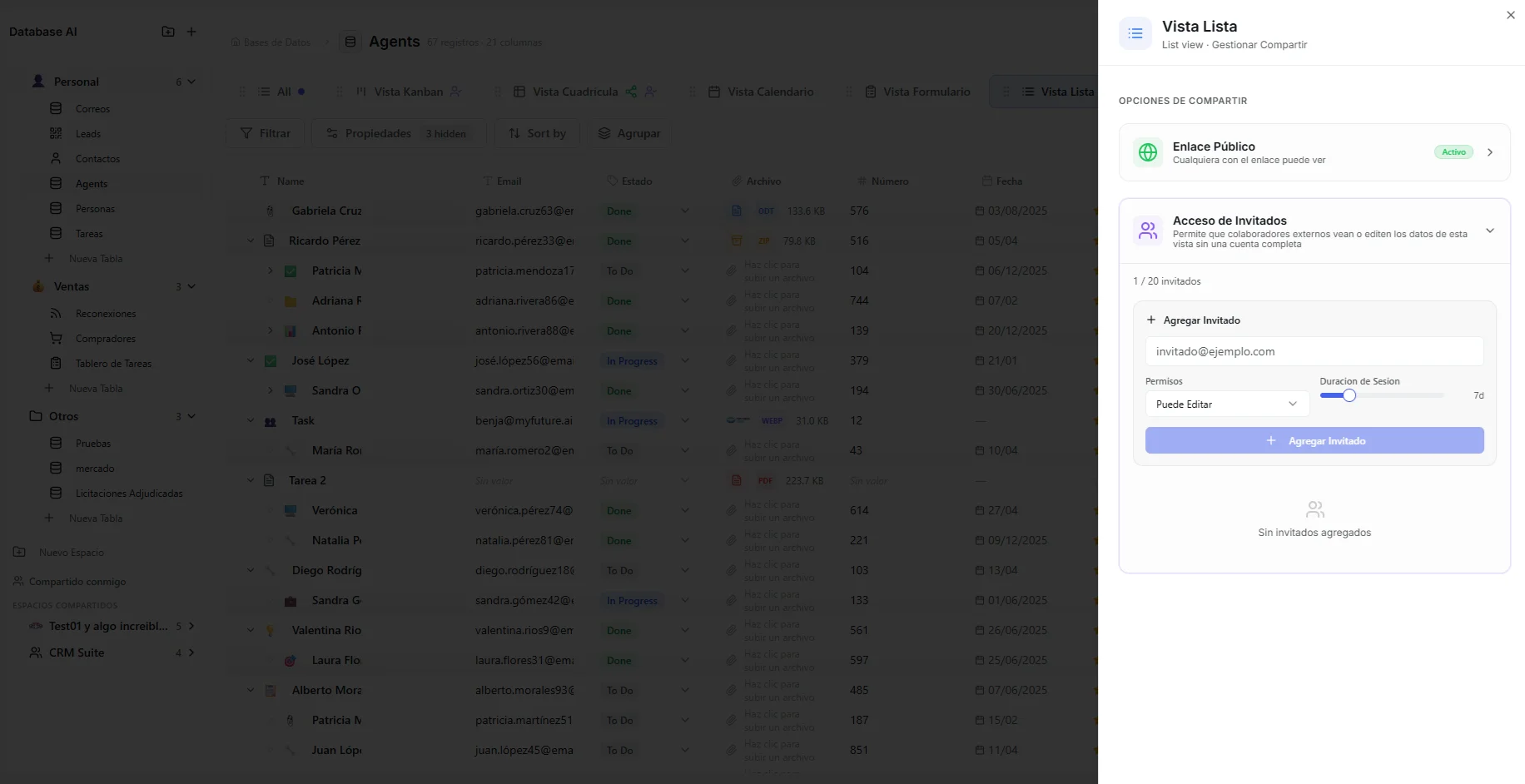 Image: Guest access section in the share window, with email box and permission settings
The guest gets an invitation email with a link to open the view.
How a guest signs in
Instead of a password, the guest proves it's really them with a short code we email them — the same way many sites confirm your identity.
- The guest opens the link from their invitation email.
- They type in their email address.
- They get a 6-digit code by email (it works for 10 minutes).
- They enter the code to open the view.
- They can tick Keep me signed in to stay signed in for the period you chose.
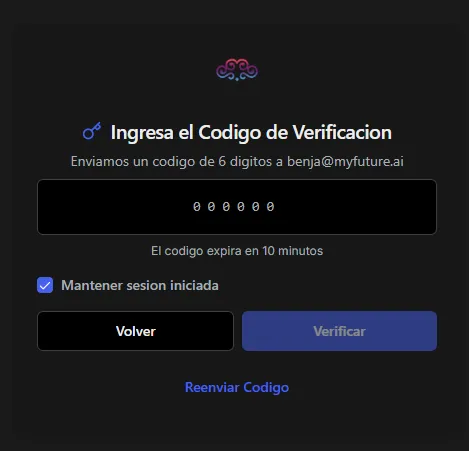 Image: Guest sign-in screen showing the email box and code step
What guests can do
The view's locked-in filters set the boundary either way — guests never see records outside them.
With Edit permission
- See all records that match the view's filters.
- Click any cell to edit it right there.
- Add new rows with the "Add Row" button.
- Delete rows with the trash icon that appears on hover.
- Drag cards between columns on a Kanban view to update their status.
- Open a record's page and edit it live — guests with Edit permission join the page as real-time collaborators, cursors and all, right alongside your team.
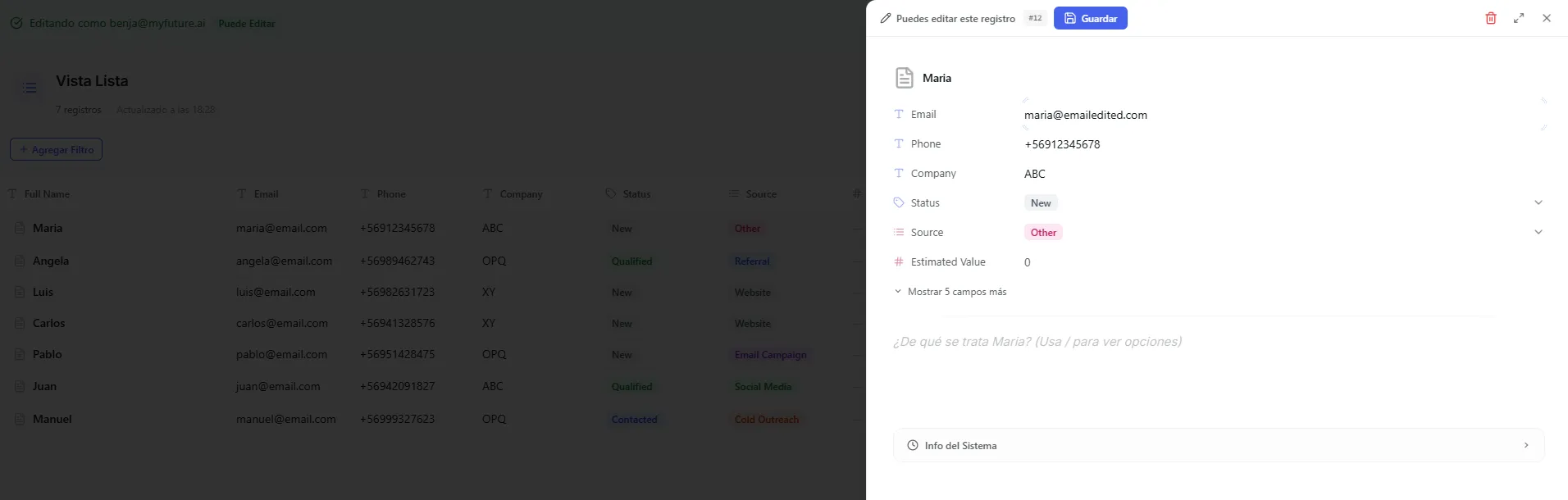 Image: A guest editing a record directly in a shared view
With View permission
- See all records that match the view's filters.
- No editing, adding, or deleting.
What guests can never do (either permission)
- See records outside the view's filters.
- Change the database structure (add or remove columns).
- Open your other views or databases.
- Change view settings or filters.
- Set up connectors (the automatic links that pull in data from other tools).
Manage your guests
In the Guest Access section of the Share window, you can:
- See everyone you've invited, with their email, what they can do, and when they last opened the view.
- Remove a guest — they lose access immediately.
- Spot pending invites — guests who haven't confirmed their email yet show as pending.
Plan limits
Whether you can invite guests depends on your plan:
| Plan | Guest limit |
|---|---|
| Free | No guest access |
| Builder | Up to 2 different guest emails |
| Pro | Up to 6 different guest emails |
| Ultra | Up to 20 different guest emails |
Each guest email counts once, even if you invite them to several views. Removing a guest frees up a slot.
On the Free plan you won't see the Guest Access option at all. Upgrade to Builder or higher to invite guests.
Separate from public sharing
Guest access has its own link, https://app.nirvana-ai.com/guest/database-view/{token}, independent of the public link. One view can have both at the same time, and turning one off doesn't affect the other.
Troubleshooting
| Problem | Fix |
|---|---|
| The guest can't find the invitation email | Ask them to check spam and junk folders. The email comes from Nirvai. |
| The code expired | Codes work for 10 minutes. The guest can request a fresh one. |
| The guest sees "Access denied" | Make sure their email is in the guest list, and that the view's guest link is still turned on. |
| The guest can't edit cells | Check their permission — they may have View (read-only) instead of Edit. |
| "Guest limit reached" error | Your plan's guest slots are full. Remove a guest you no longer need, or upgrade your plan. |
What's next
- Connect Meta Instant Form — bring Facebook and Instagram leads into your database automatically.
- Public Views — share a read-only page of your data with anyone, no invite needed.