Sharing & Collaboration
Organization Sharing
Let your teammates see and edit your databases without making copies — everyone works on the same live data.
Sharing a database with your organization is like giving your team a key to the same filing cabinet — everyone opens the exact same drawer and sees changes the moment they happen, instead of passing around photocopies. You can share an entire space (a folder that holds many databases) or just a single database with everyone on your team.
People you share with can fully edit records, columns, and views. Only the owner can do the riskier things, like deleting or sharing the database.
How it works
Your data stays exactly where it is — in your own storage. When you share a space or database, your teammates see it appear in their sidebar and can work on it live, but nothing is copied or moved.
Before you start
- A space or database you own and want your team to work on.
- The teammates you want to share with should already be active members of your organization. Organization sharing is shared with the whole team at once — not with hand-picked individuals.
Share a whole space
When you share a space, every database inside it becomes visible to your team.
- Right-click the space in the sidebar.
- Select Share with Org.
- Everyone on your team can now see and work with every database in that space.
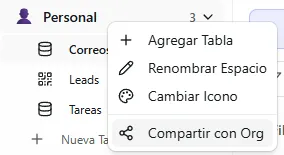 Image: Right-click menu showing the "Share with Org" option
To stop sharing, right-click the space again and select Make Private.
Share a single database
Share one specific database without opening up the rest of the space.
- Right-click the database in the sidebar.
- Select Share with Org.
- Only that database becomes visible to your team — the folder around it stays private.
This is handy when you want to work together on one dataset without exposing everything else in the space.
What your teammates see
Anything shared with someone shows up in a Shared with me section at the bottom of their databases sidebar.
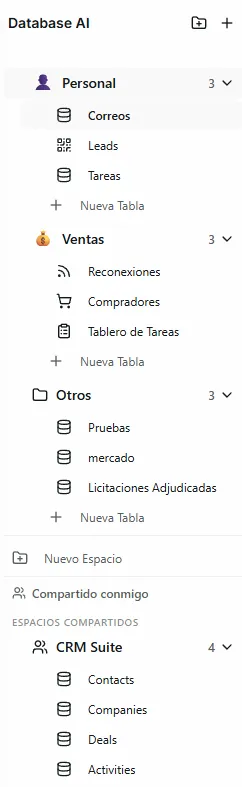 Image: Sidebar showing the "Shared with me" section with shared spaces and databases
That section has two parts:
- Shared Spaces — full spaces someone shared (with all their databases).
- Shared Databases — single databases someone shared (the folder name is shown so they know where it came from).
Who can do what
Sharing gives teammates full editing power, but keeps the destructive actions in the owner's hands. Org Admin means a teammate with an admin role in your organization — they have extra powers (like deleting a shared database) but still can't manage connectors or sharing.
| Action | Owner | Org Admin | Org Member |
|---|---|---|---|
| View records | Yes | Yes | Yes |
| Add / edit / delete records | Yes | Yes | Yes |
| Add / edit / delete columns | Yes | Yes | Yes |
| Rename database / change icon | Yes | Yes | Yes |
| Create / edit / delete views | Yes | Yes | Yes |
| View connectors (read-only) | Yes | Yes | Yes |
| Delete database | Yes | Yes | No |
| Set up connectors | Yes | No | No |
| Share / unshare | Yes | No | No |
A connector is an automatic link that pulls data into your database from another tool. Teammates can see its status but only the owner can set it up.
Working together live
When several people open the same shared database at once:
- Record changes — edits appear instantly for everyone through the live connection.
- Column changes — when someone adds, renames, or deletes a column, everyone is notified and the database refreshes on its own.
- View changes — creating or changing a view shows up for everyone.
You don't need to refresh the page. Changes to the structure (new columns, renamed fields) send an automatic notification that updates everyone's screen.
What gets shared
Sharing a space and sharing a single database stack up like this:
| Space shared | Database shared | Result |
|---|---|---|
| No | No | Private — only you see it |
| Yes | — | The whole space, with all its databases, is visible to your team |
| No | Yes | Only that one database is visible to your team |
Once a space is shared, the individual database setting no longer matters — everything inside the space is open to your team.
Troubleshooting
| Problem | Fix |
|---|---|
| I want to share with one specific person, not everyone | Organization sharing is all-or-nothing for your team. To share with a specific outside person, use Guest Edit Access instead. |
| A teammate still sees a database I just unshared | They lose access right away, but if they had it open it disappears on their next click or page refresh. No data is deleted. |
| A shared teammate can't set up a connector | Only the owner can set up connectors. Teammates can see the status but can't change it. |
| A teammate can't find the shared database | Ask them to check the Shared with me section at the bottom of their databases sidebar. |
What's next
- Public Views — share a read-only page of your data with anyone, no account needed.
- Guest Edit Access — invite specific outside people to view or edit one view.