Sharing & Collaboration
Public Views
Turn one view of your database into a read-only web page that anyone with the link can open — no account needed.
A public view is like printing one page of a report and pinning it to a public notice board — anyone who walks by can read it, but nobody can change it or flip to the other pages. You share a single view of your database as a read-only web page that anyone with the link can open, without signing in.
Each view gets its own private link. Sharing one view does not reveal your other views, your other databases, or your full dataset.
Before you start
- A view you want to show the world. A view is one saved way of looking at your data — a chosen set of columns, filters, and sorting.
- Set up the view's filters first. As you'll see below, those filters become the locked boundary of what visitors can see, so get them right before you share.
Turn on public sharing
- Right-click the tab of the view you want to share.
- Select Share View.
- Turn on Enable public sharing.
- Copy the link that appears.
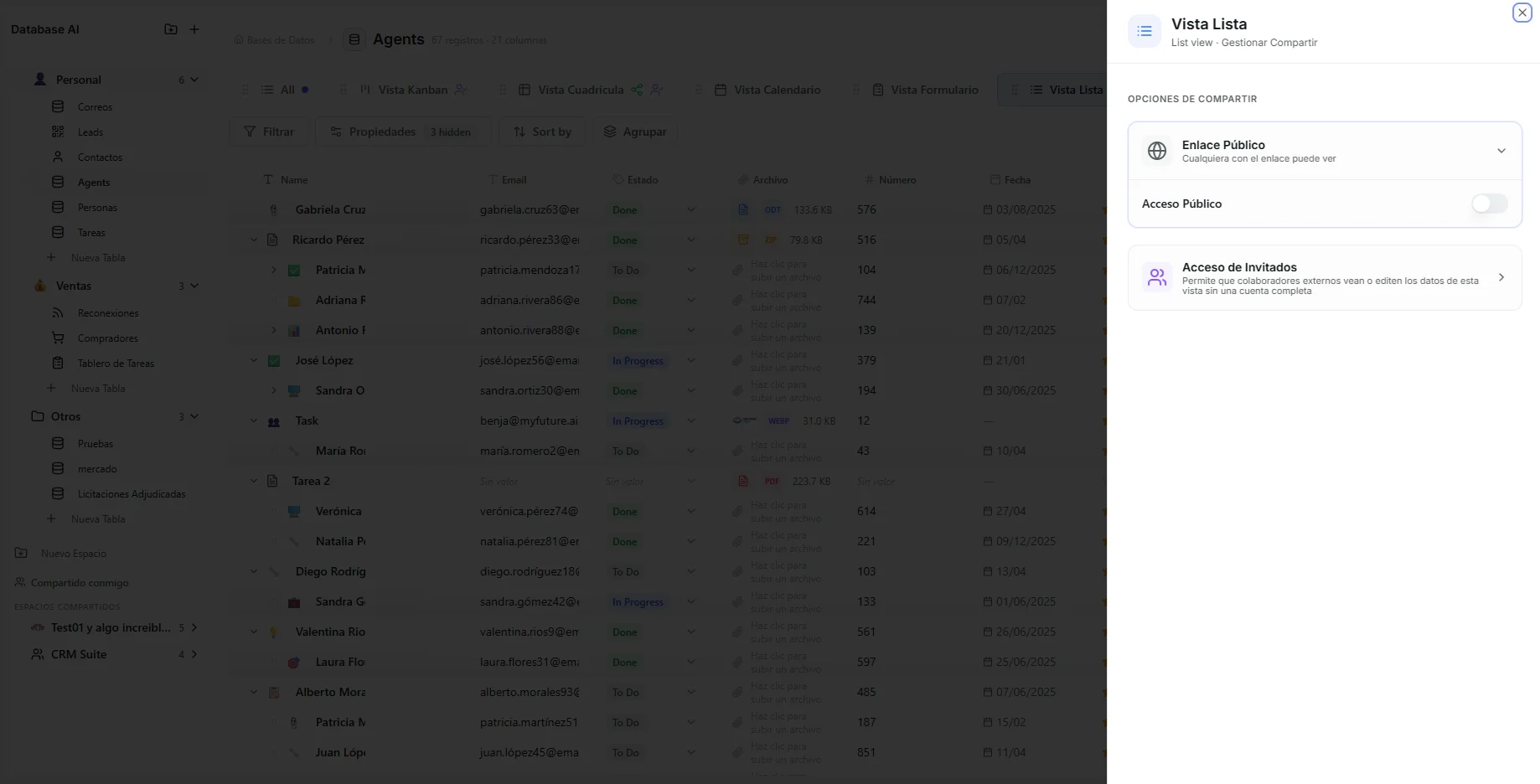 Image: Share window with the public link switch and copy button
The link looks like this, where the long code at the end is a unique pass that points to this one view:
https://app.nirvana-ai.com/public/database-view/{token}
To stop sharing, open the same window and turn the switch off. The link stops working immediately.
What visitors see
The public page is a clean, read-only display of your data:
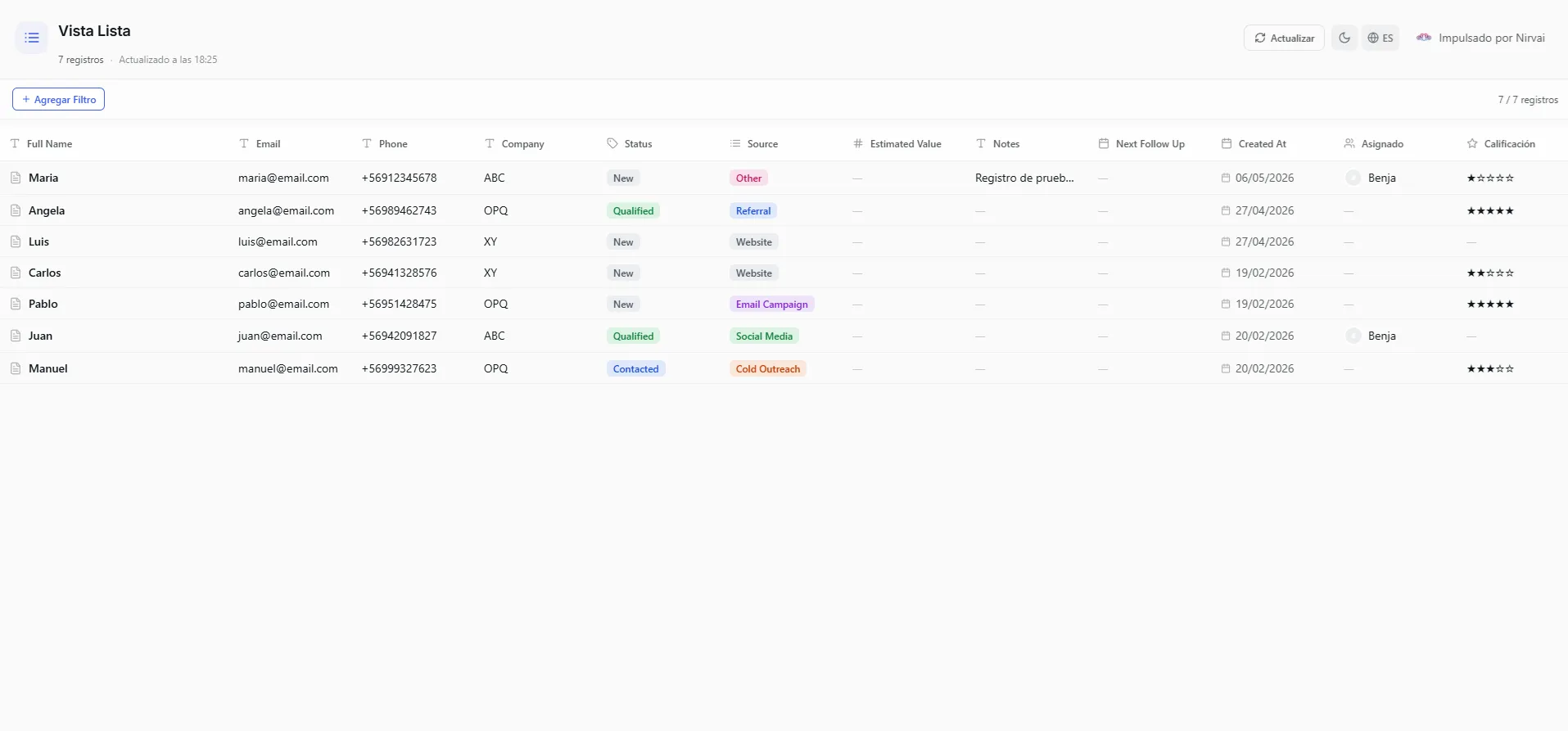 Image: The public view page as a visitor sees it
- View name and record count in the header.
- Only the columns you chose to show — columns you hid in your view stay hidden.
- Properly displayed cells — checkboxes, dates, status badges, emails, and links all show up correctly.
- A "Load more" button for large datasets (1,000 records at a time).
- A "Powered by Nirvai" badge at the bottom.
How filters keep your data safe
This is the most important thing to understand about public views. The filters on your view become locked-in filters for the public page. They are:
- Enforced on our servers — visitors have no way around them.
- Impossible to remove — they show up as locked tags in the filter bar.
- Always on — they set the exact boundary of what a visitor can see.
Example: if your view filters to "Status is Published", visitors only ever see records where Status equals "Published". They can't remove that filter or peek at unpublished records.
What visitors can adjust
On top of your locked-in filters, visitors can add their own temporary filters to narrow things down further. These last only for their visit and reset when they reload the page. Visitors can also sort the data by clicking column headers.
Public Views vs. Guest Access
Both let outside people see your data, but they work differently. A guest is a specific person you invite by email; a public link is open to anyone who has it.
| Public Views | Guest Access | |
|---|---|---|
| Signing in | None — anyone with the link | The person must confirm their email first |
| What they can do | Read-only | View or edit (you choose) |
| Link type | Public link | Guest link (a separate web address) |
| Independence | Turning it on or off doesn't affect guest access | Turning it on or off doesn't affect the public link |
Each feature uses its own separate link. You can have a public read-only link and guest edit access on the same view at the same time, with neither affecting the other.
Use public views for dashboards and reports you want to share widely. Use Guest Edit Access when you need specific people to actually change the data.
Troubleshooting
| Problem | Fix |
|---|---|
| Visitors can see records I wanted to hide | The public page shows exactly what your view's filters allow. Add or tighten the filters on the view, then the public page updates to match. |
| The link stopped working | Public sharing was turned off, which kills the link instantly. Open Share View and turn Enable public sharing back on — note this creates the link again. |
| A column is missing on the public page | Columns you hid in your view stay hidden on the public page. Unhide it in your view if you want visitors to see it. |
| I want visitors to edit, not just read | Public views are always read-only. Use Guest Edit Access to let specific people make changes. |
What's next
- Guest Edit Access — invite specific people to view or edit one view, confirmed by email.
- Organization Sharing — let your own teammates work on the same live database.