Databases
Spaces
Organize your databases into tidy folders with custom icons and drag-and-drop ordering
A space is like a folder on your computer — it keeps related databases together in one place so your sidebar stays tidy. Each space is also kept separate from the others, which makes it perfect for splitting things up by project, client, or department.
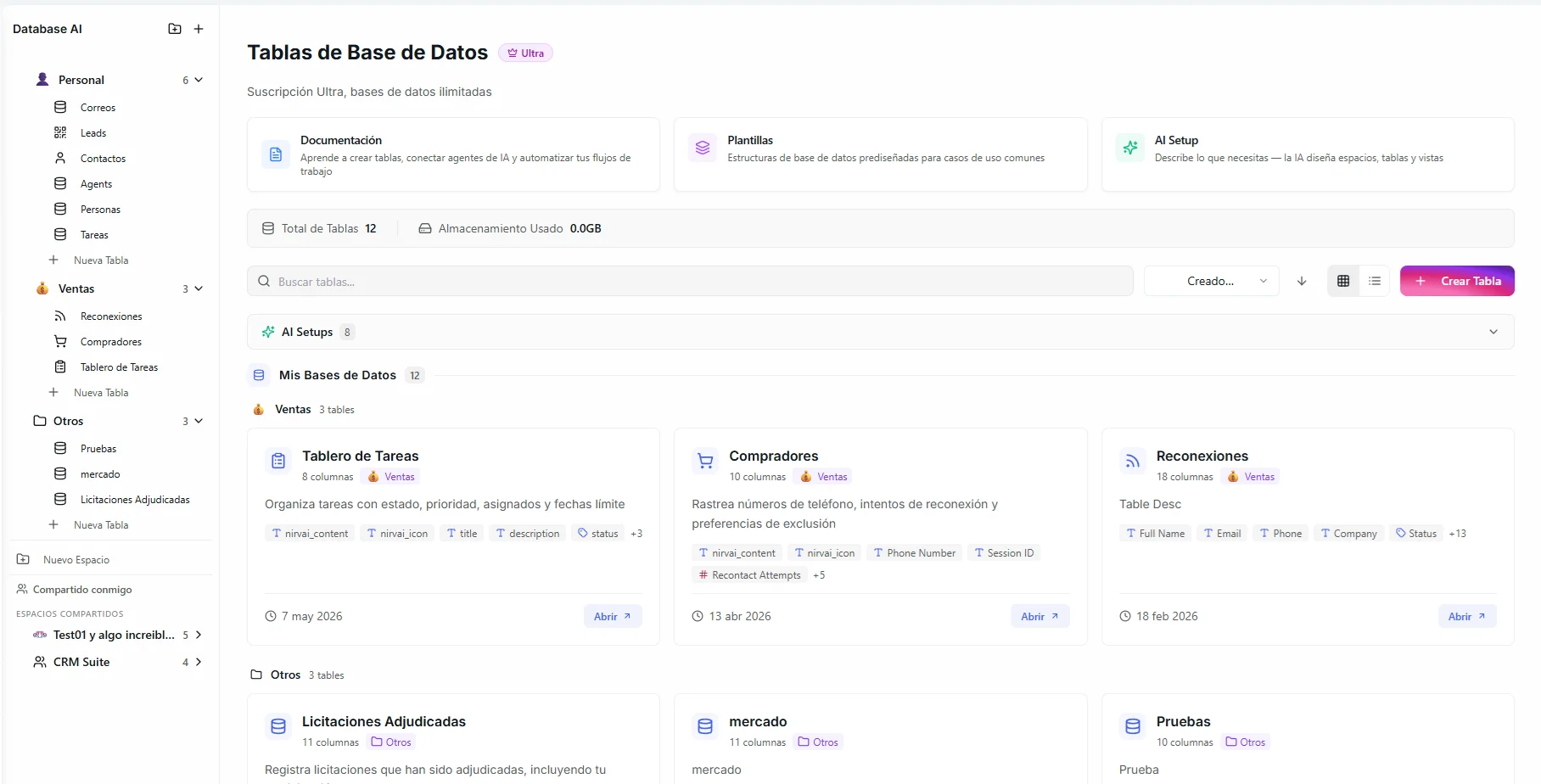 Image: The databases sidebar showing multiple spaces with custom icons and nested databases
Before you start
- You're signed in and can see the databases sidebar.
- Have a name in mind for your space (you can change it later).
Create a space
- Click "+ New Space" in the databases sidebar.
- Give it a clear name (for example, "Marketing", "Sales CRM", or "Project Alpha").
- Your space is created and ready to hold databases.
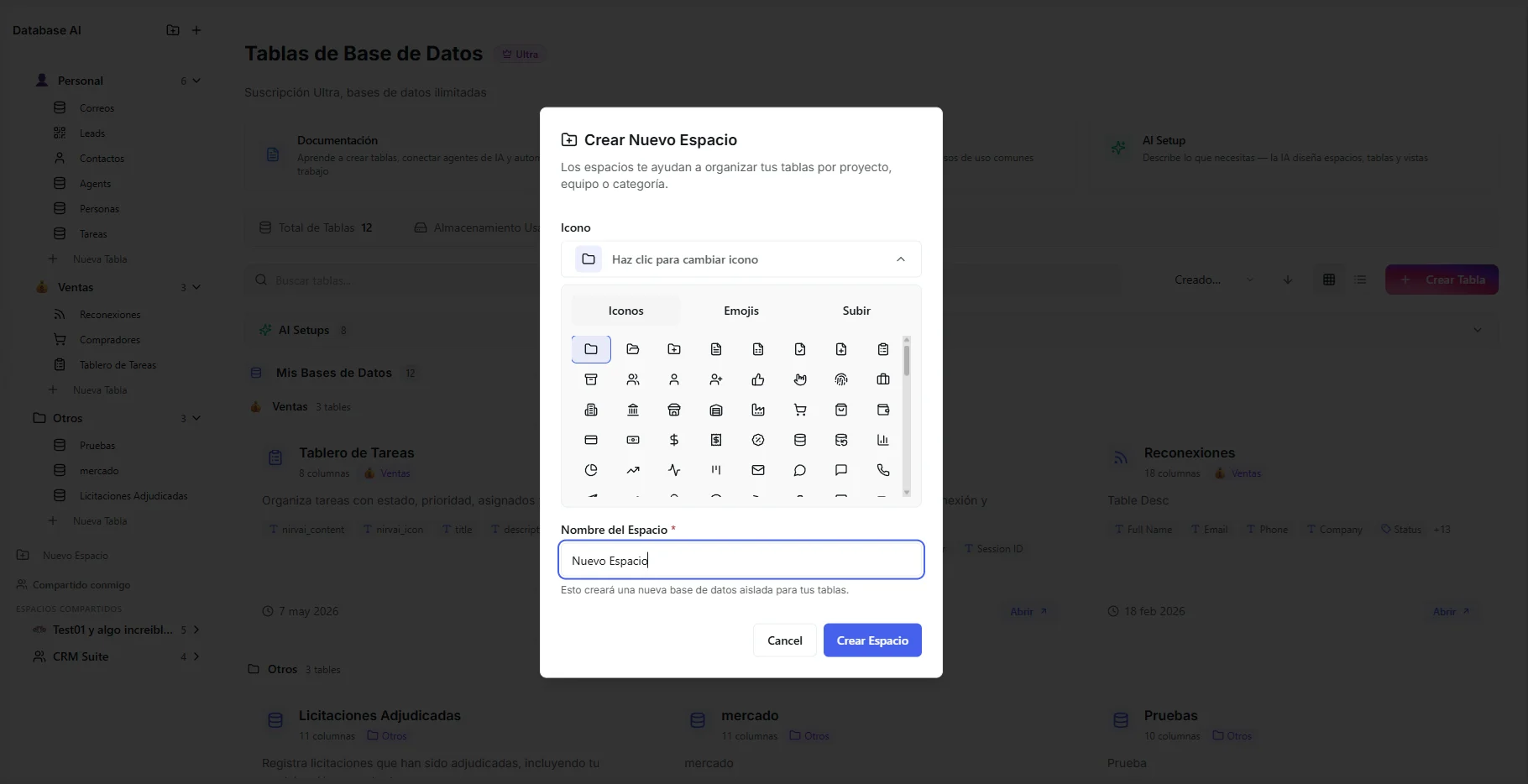 Image: Creating a new space with a name and icon
Customize your space
Icons
Every space can have a custom icon so you can spot it at a glance. Click the icon area next to your space name to open the icon picker:
| Icon type | What it is | Example |
|---|---|---|
| Emoji | Any emoji character | 📊, 🚀, 💼 |
| Lucide icon | A built-in icon from the Lucide icon set | Database, Folder, Briefcase |
| Custom upload | Your own image, saved to your organization's shared icon library | Company logo, custom graphic |
Uploaded icons are shared across your whole organization — upload one once, then use it anywhere (spaces, databases, records).
Renaming
Right-click your space in the sidebar and select "Rename", or click the space name directly to edit it in place.
Reordering
Drag and drop spaces in the sidebar to put them in the order that works best for you.
Manage spaces
Right-click any space to open its quick actions:
| Action | What it does |
|---|---|
| Rename | Change the space name. |
| Share with Org | Make all databases in this space visible to the other people in your organization (learn more). |
| Delete | Permanently remove the space and everything inside it. |
Deleting a space permanently removes all of its databases, records, views, and connections. This can't be undone.
Troubleshooting
| Problem | Fix |
|---|---|
| I don't see the "+ New Space" button | Make sure you're signed in and looking at the databases sidebar. Try refreshing the page. |
| My new space is in the wrong spot in the list | Drag and drop it to reorder — the new order is saved automatically. |
| Teammates can't see databases in my space | The space (or its databases) must be shared with your organization first. See Org Sharing. |
| I deleted a space by mistake | Deleting is permanent and can't be undone. You'll need to create the space and its databases again. |
What's next
- Database Templates — fill your new space from a ready-made setup.
- Databases — create a database from scratch inside it.