Databases
Database Templates
Start faster with ready-made database setups for CRM, sales, project management, and more
A template is like a furnished apartment instead of an empty one — everything is already in place, so you can move in right away. Rather than building columns, views, and filters from scratch, you pick a template and get a fully set-up database in seconds.
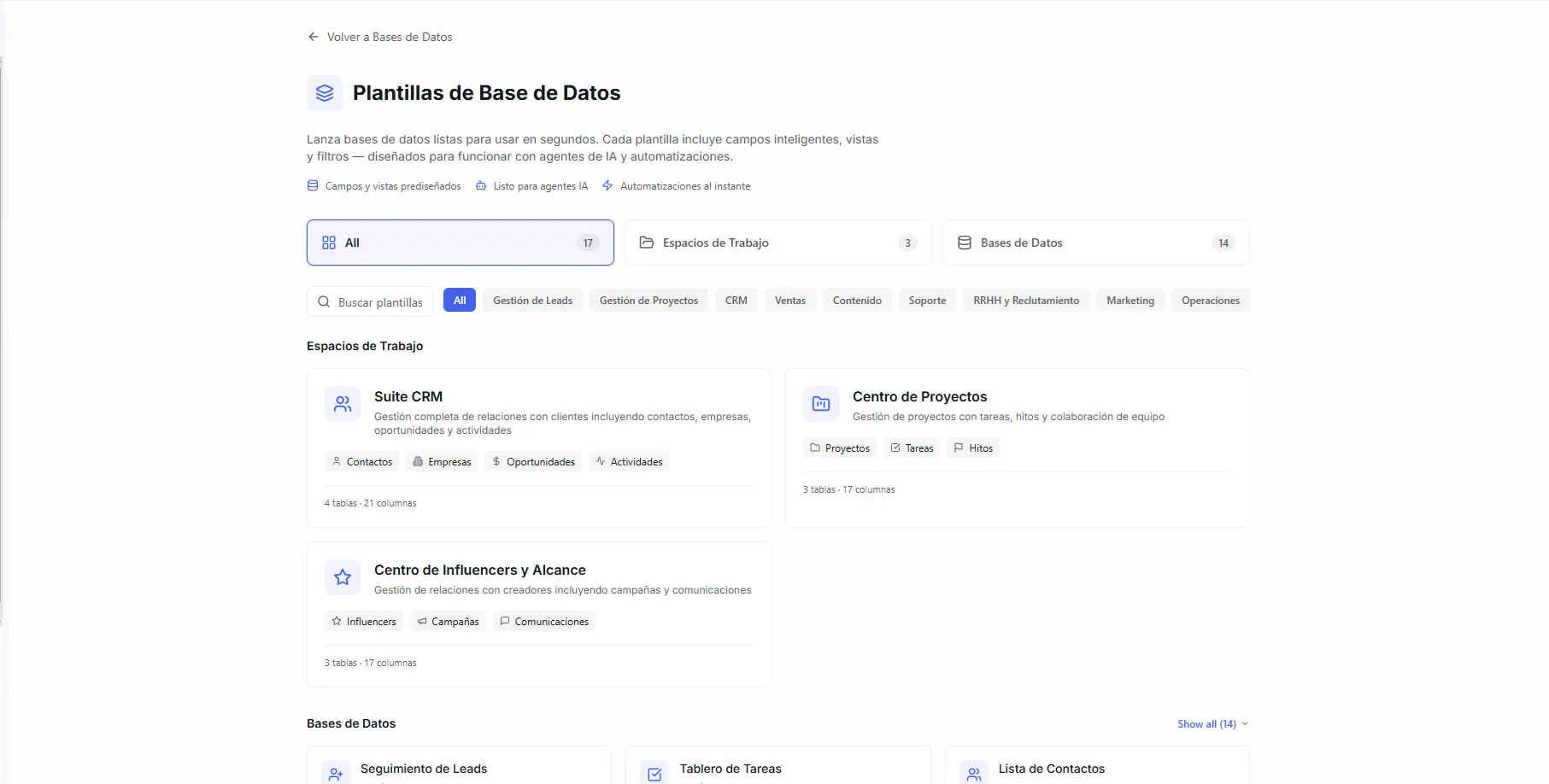 Image: The templates page showing category filters and template cards in a grid
Before you start
- You have a Space ready (for most templates). Space templates create their own space, so you don't need one in advance.
- Have an idea of what you want to track — there's a template for many common business needs.
Find templates
You can get to templates in two ways:
- From the Databases page — Click the "Templates" card on the main databases screen.
- While creating a new database — The template picker pops up during the creation flow.
Browsing
The templates page gives you a few ways to find what you need:
| Control | What it does |
|---|---|
| Tabs | Switch between All, Spaces (bundles of several databases), and Databases (single-table templates). |
| Search | Type to filter templates by name or description. |
| Category filters | Click a category chip to show only templates in that category. |
Template cards
Each template card shows:
- Name and description — What the template is for.
- Category badge — A color-coded label (for example, CRM, Sales, HR).
- Column preview — The first few column names, so you can see the structure at a glance.
- Column count and views — How many columns and ready-made views are included.
- Featured badge — Top templates are marked with a featured label.
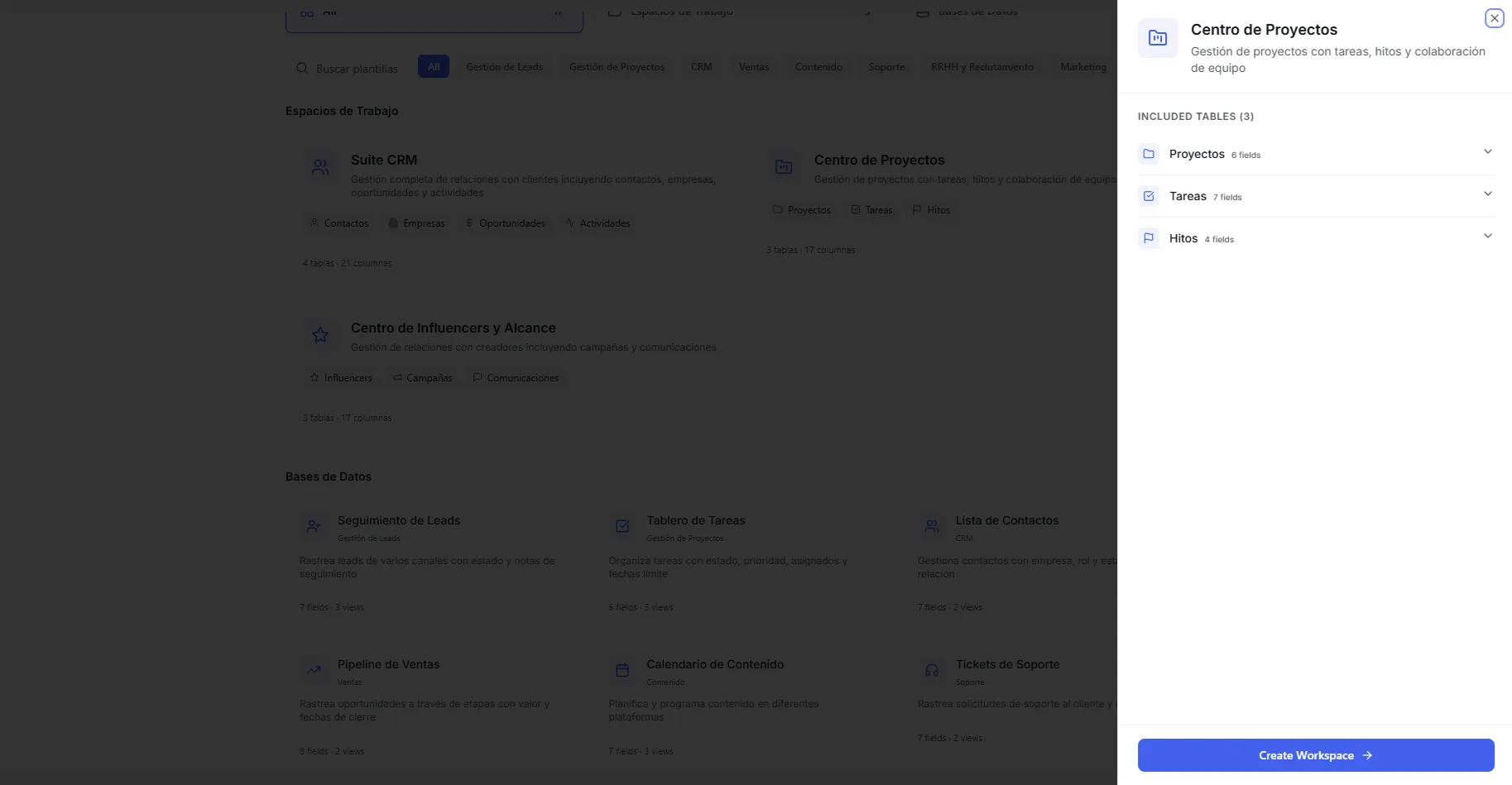 Image: A template card showing column pills, view count, and a featured badge
Use a template
- Browse or search for a template that fits what you want to do.
- Click the template card to select it.
- Choose the Space where the new database will go.
- Click "Use Template".
Nirvai builds your database with all the columns, views, filters, and grouping already set up. You're taken straight to the new database, ready to start adding records.
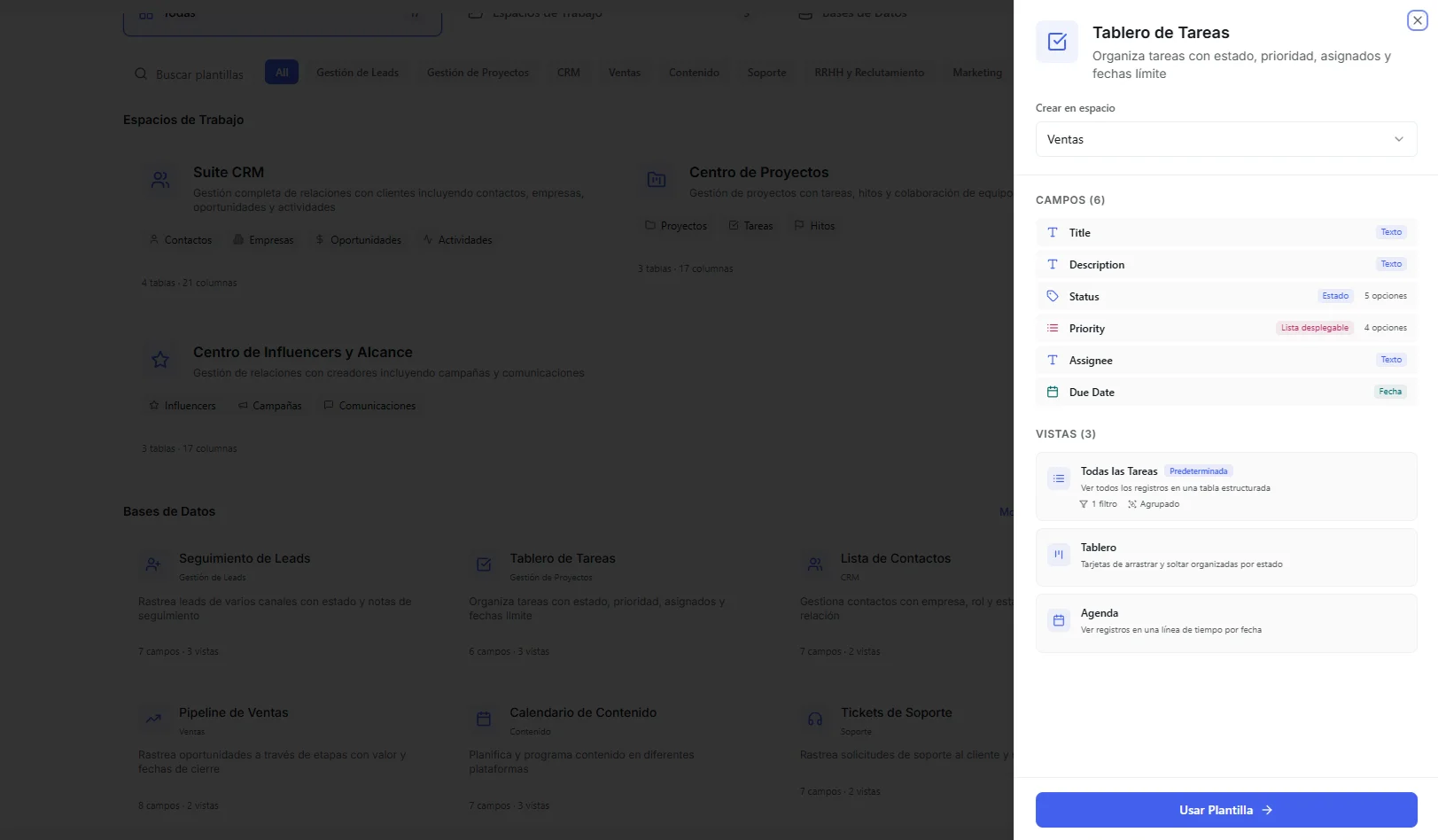 Image: Selecting a space and clicking Use Template to create a database from a template
You can rename columns, add new ones, or change views after creating a database from a template. A template is just a starting point — everything is yours to customize.
Available categories
Templates are grouped into business categories:
| Category | Example templates | Best for |
|---|---|---|
| Lead | Lead Tracking | Capturing and sorting incoming leads |
| CRM | Contact List, Client Feedback | Managing customer relationships and communication |
| Sales | Sales Pipeline, Partnership Tracker | Tracking deals, revenue, and sales stages |
| Project | Task Board, Meeting Notes | Organizing tasks, deadlines, and project milestones |
| HR | Candidate Tracker | Hiring pipelines and employee management |
| Content | Content Calendar | Planning and scheduling content across channels |
| Marketing | Campaign Tracker, Influencer List | Managing campaigns, budgets, and partnerships |
| Support | Support Tickets | Tracking customer issues and how they were resolved |
| Operations | Product Launches, Supplier Directory | Managing logistics, vendors, and launches |
What's inside a template
Every template includes:
Ready-made columns
Columns come set up with the right types and options for the job. For example, the Lead Tracking template includes:
- Name (text) — Contact name
- Email (email) — Checked for a valid email format
- Phone (text) — Contact number
- Channel (select) — Where the lead came from: Website, Instagram, Facebook, WhatsApp, Referral, Other
- Status (status) — Color-coded pipeline stages: New, Contacted, Qualified, Proposal, Won, Lost, Archived
- Notes (long text) — Free-form notes
Ready-made views
Templates come with views that are already set up with filters, grouping, sorting, and which columns to show. A single template might include:
- A List view that hides archived records and groups by status.
- A Kanban view that arranges cards by pipeline stage with drag-and-drop.
- A Calendar view that shows records on a timeline by due date.
These views work right out of the box — nothing to set up.
Space templates
Space templates go a step further: they create a whole workspace with several related databases at once. For example:
CRM Suite creates three connected databases in one space:
- Contacts — Your customer directory
- Opportunities — Sales deals and pipeline
- Activities — Calls, emails, and meetings
Influencer Hub creates:
- Influencers — Creator profiles and reach numbers
- Campaigns — Campaign details and budgets
- Communications — Outreach and follow-up tracking
Space templates are ideal when your work spans several related sets of data that you want kept together.
Image: A space template card showing the included databases
Space templates create a new space for you automatically — you don't need to make one first.
Troubleshooting
| Problem | Fix |
|---|---|
| I can't find a template for what I need | Try the Search box, or clear the category filters to see every template. If nothing fits, create a database from scratch or try AI Database Setup. |
| "Use Template" asks me to pick a space | Single-database templates need a space to live in. Pick one, or create a space first. Space templates skip this and make their own. |
| The template isn't exactly what I wanted | A template is only a starting point. Rename columns, add or remove them, and change views after it's created. |
| I picked a Space template but expected one database | Space templates create several connected databases in a brand-new space. Check the Spaces tab for single-database templates instead. |
What's next
- AI Database Setup — describe what you need and let AI design the database instead.
- Column Types — understand the columns a template gives you.