Views
Calendar View
See date-based records laid out on a calendar, with multi-day events and color coding
A Calendar view turns your records into appointments on a wall calendar: anything with a date lands on the right day, so you can see your schedule at a glance. It's ideal for planning events, tracking deadlines, and spotting busy weeks before they sneak up on you.
The view places each record on the calendar based on one of its date columns.
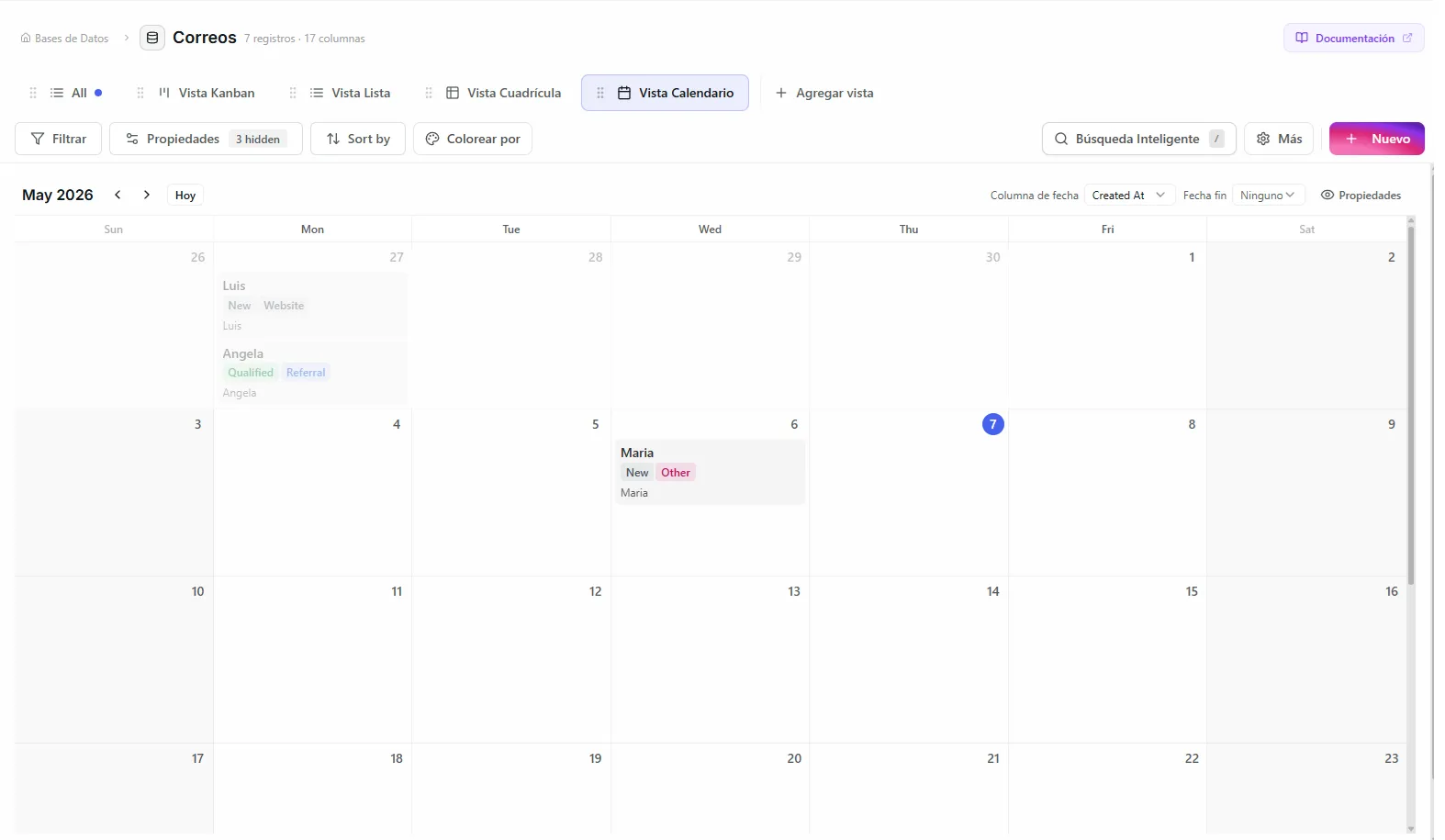 Image: Calendar view showing colored events across multiple days
Before you start
- A database with at least one Date column. Records that have no date won't show up on the calendar.
Set up a calendar
- Create a new view and choose Calendar
- Pick the Date column — this decides where each record lands on the calendar
- Your records appear on the calendar automatically, placed by their date
What the calendar offers
View modes
Switch between three modes using the toolbar:
| Mode | Shows | Best for |
|---|---|---|
| Month | A full month grid | An overview of everything |
| Week | Seven days side by side | Detailed weekly planning |
| Day | A single day | A focused daily schedule |
Multi-day events
If your database has two date columns, you can set an end date column in the calendar settings. Records that span several days show up as a bar stretching across the date range.
Example: A project with a Start Date of "March 1" and an End Date of "March 5" appears as one continuous bar across those 5 days.
Color by column
Give events colors based on a Status or Select column:
- Open the calendar settings
- Pick a Color column
- Each status or select value gets its own color, so events are easy to tell apart at a glance
When no color column is set, every event uses a neutral gray.
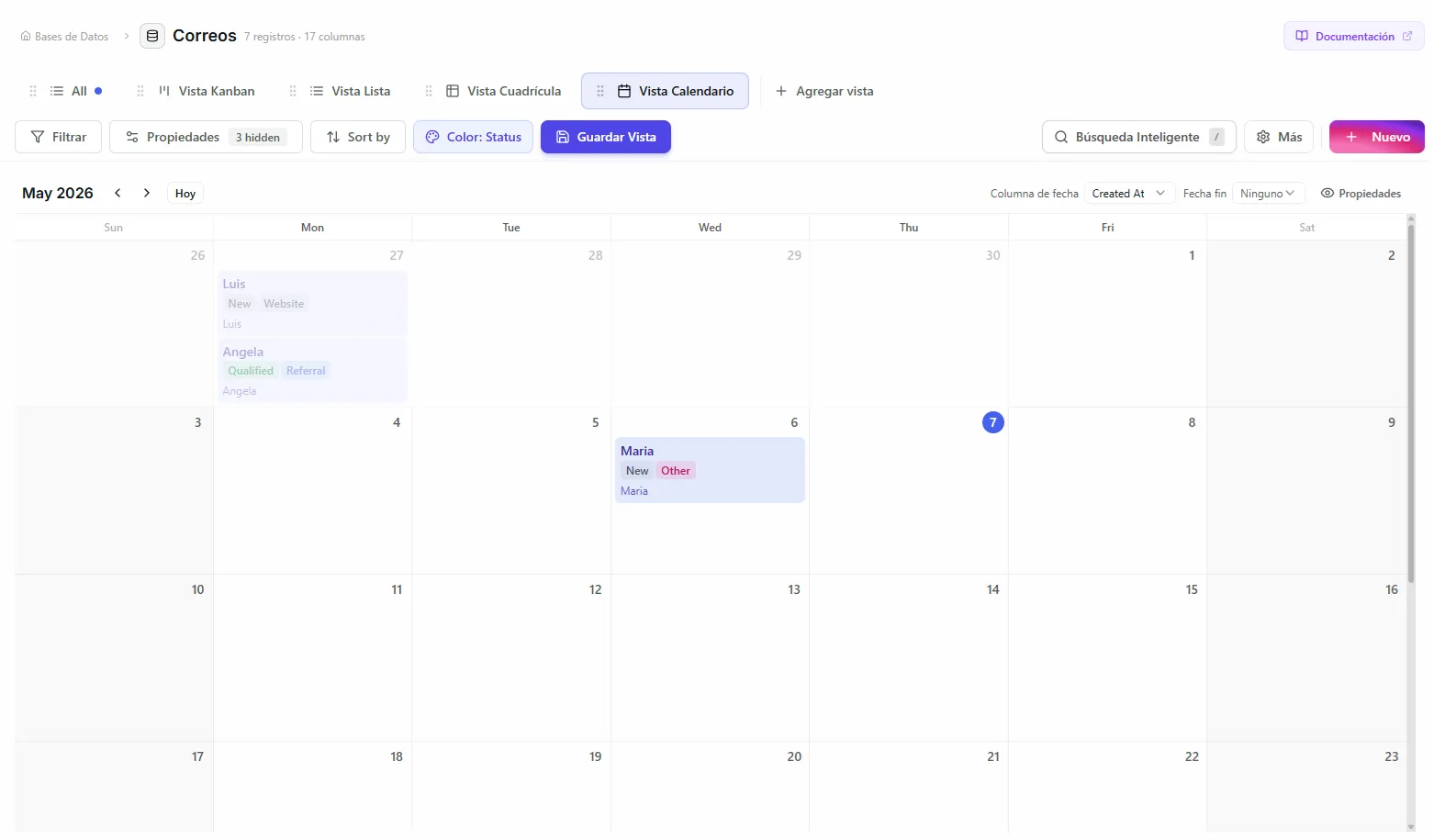 Image: Calendar toolbar showing date column and color column configuration
Event details
Choose which record details appear on each event card (up to 5). By default only the record title is shown. Add more details to see the key facts without clicking into the record.
Records per cell
Set how many events show in each day's cell before a "+X more" indicator appears. This keeps the calendar tidy on your busy days.
Working with events
- Click an event to open the record's detail panel
- Drag and drop an event to move it to a different day — the record's date updates automatically
Pair the Calendar view with filters to focus on one category at a time. For example, filter by "Assigned to: Me" to see only your own events.
Troubleshooting
| Problem | Fix |
|---|---|
| Some records don't show up on the calendar | Those records have no value in the date column. Open them and add a date, and they'll appear. |
| I can't pick a Date column when setting up | The Calendar view needs at least one Date column. Add one to your database first, then set up the view. |
| Multi-day events show as a single day | Make sure you've set an end date column in the calendar settings, and that both date columns have values. |
| A day looks empty even though it's busy | You may be over the "records per cell" limit — click the +X more indicator to see the rest, or raise the limit in settings. |