Views
Form View
Build a shareable form that drops every response straight into your database
A Form view is like putting a sign-up sheet on the internet: you build it from the columns in your database, share a link, and every answer someone fills in lands as a new record — no copying and pasting on your end. It's perfect for collecting sign-ups, survey answers, leads, and applications.
Two layouts are available:
| Layout | Style | Best for |
|---|---|---|
| Classic | A single page you scroll through (like Google Forms) | Longer forms and detailed data collection |
| Step-by-step | One question per screen (like Typeform) | Engaging surveys and lead capture |
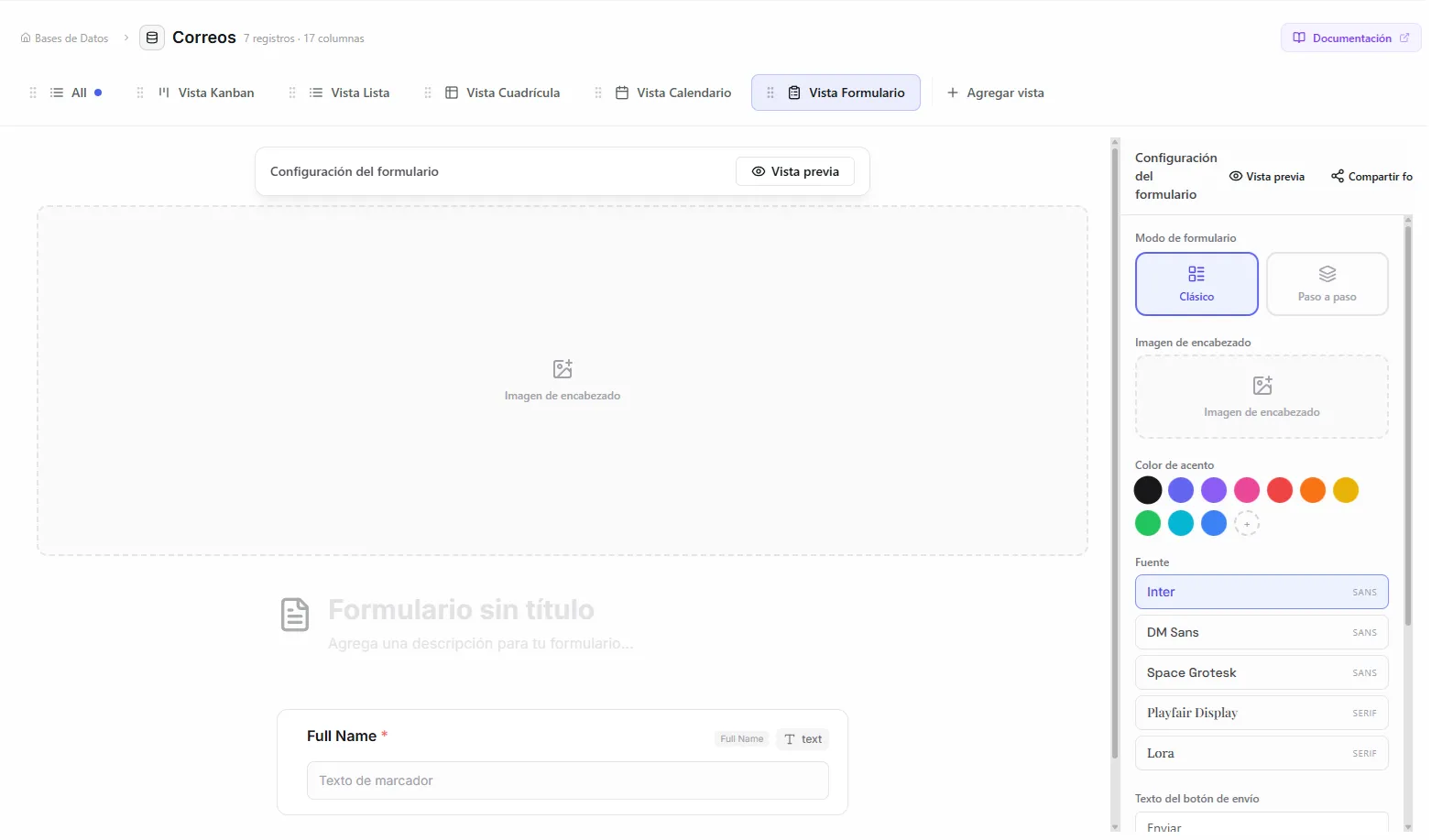 Image: Form builder interface showing the classic mode preview
Create a form
- Create a new view and choose Form. The form builder opens.
- Your database columns show up as draggable fields. Drag them up or down — the builder order is the order visitors see.
- Set up each field (below), then click Save.
The first text column (usually "Name" or "Title") is always included as a required field. System columns (id, created_at, updated_at), page content columns, unique-ID (UUID) columns, and self-reference columns are left out automatically.
Set up form fields
Click any field in the builder to set it up:
| Setting | What it does |
|---|---|
| Custom label | Replace the column name with a friendlier label for the form |
| Description | Helper text shown under the field's label |
| Placeholder | Hint text shown inside the input box |
| Required | Whether the field must be filled in before submitting |
For Status, Select, and Checkbox fields you can also relabel each option without changing the stored value. For example, the option "Company" can read "I represent a company with 50+ employees" — the record still stores "Company".
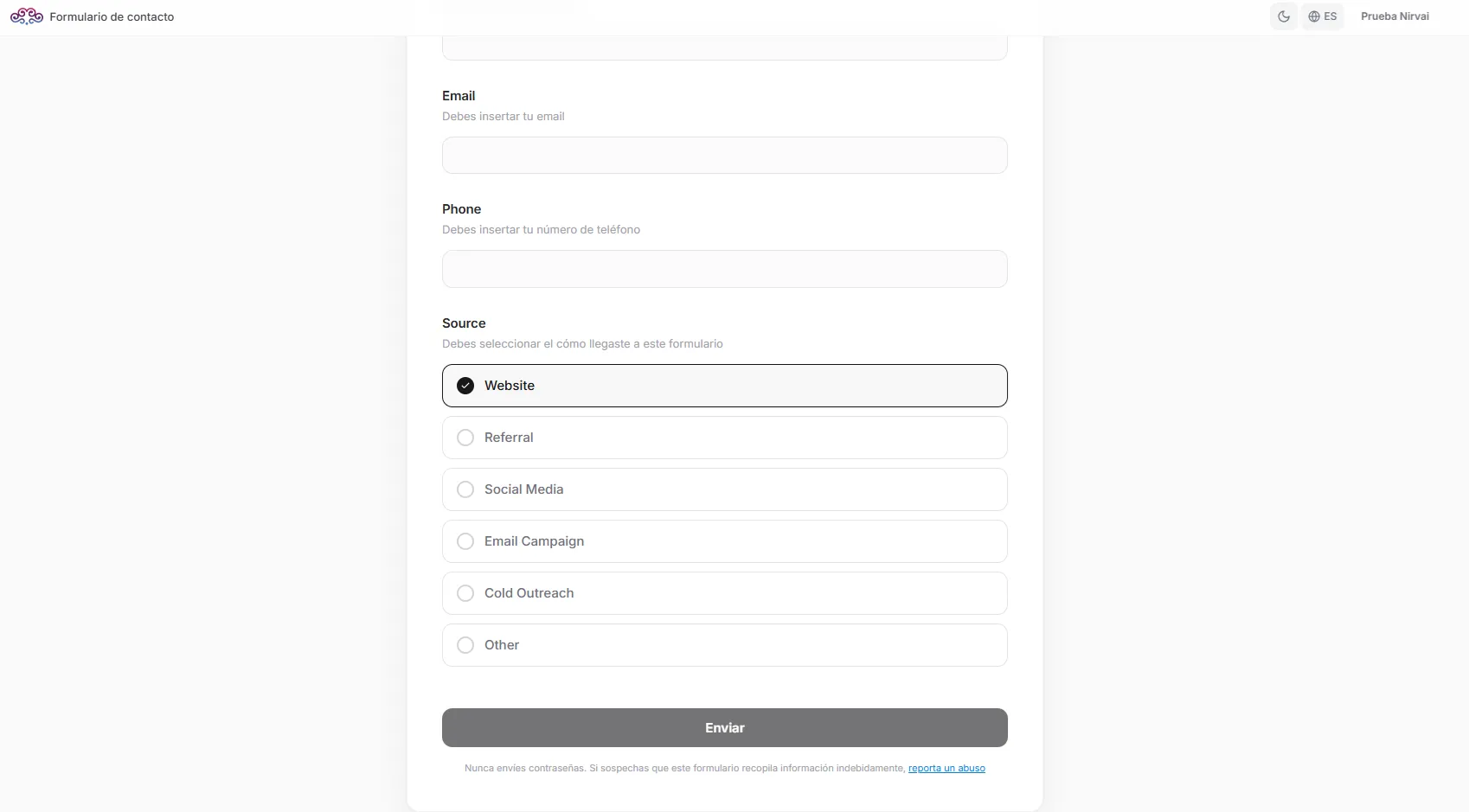 Image: Form field with custom option labels for a select column
Design your form
| Option | What you can set |
|---|---|
| Cover (Classic) | A gradient preset or your own image at the top; drag an uploaded image to reposition it. Uploads go to your organization's image library (up to 25) for reuse. |
| Background (Step-by-step) | A full-screen gradient or 16:9 image, with questions in frosted-glass cards on top. |
| Accent color | A hex color for selected options, the submit button, and active fields. |
| Font | Inter (default), DM Sans, Space Grotesk, Playfair Display, or Lora. |
| Form icon | An icon above the title — the same picker as records (emoji, built-in icon, or upload). |
| Submit button text | Replace "Submit" with "Send", "Apply", "Register", or text in any language. |
| Thank you message | The message on the animated success screen, which also shows a summary of the answers. Turn on Allow another submission to offer a fresh form. |
The Classic layout shows every field on one scrolling page and checks required fields before submitting. The Step-by-step layout shows one question per screen with a progress bar and a back button. It moves on by itself after a choice in Status, Select, Checkbox, and Date fields (after a short 600ms pause), and on Enter for text and number fields.
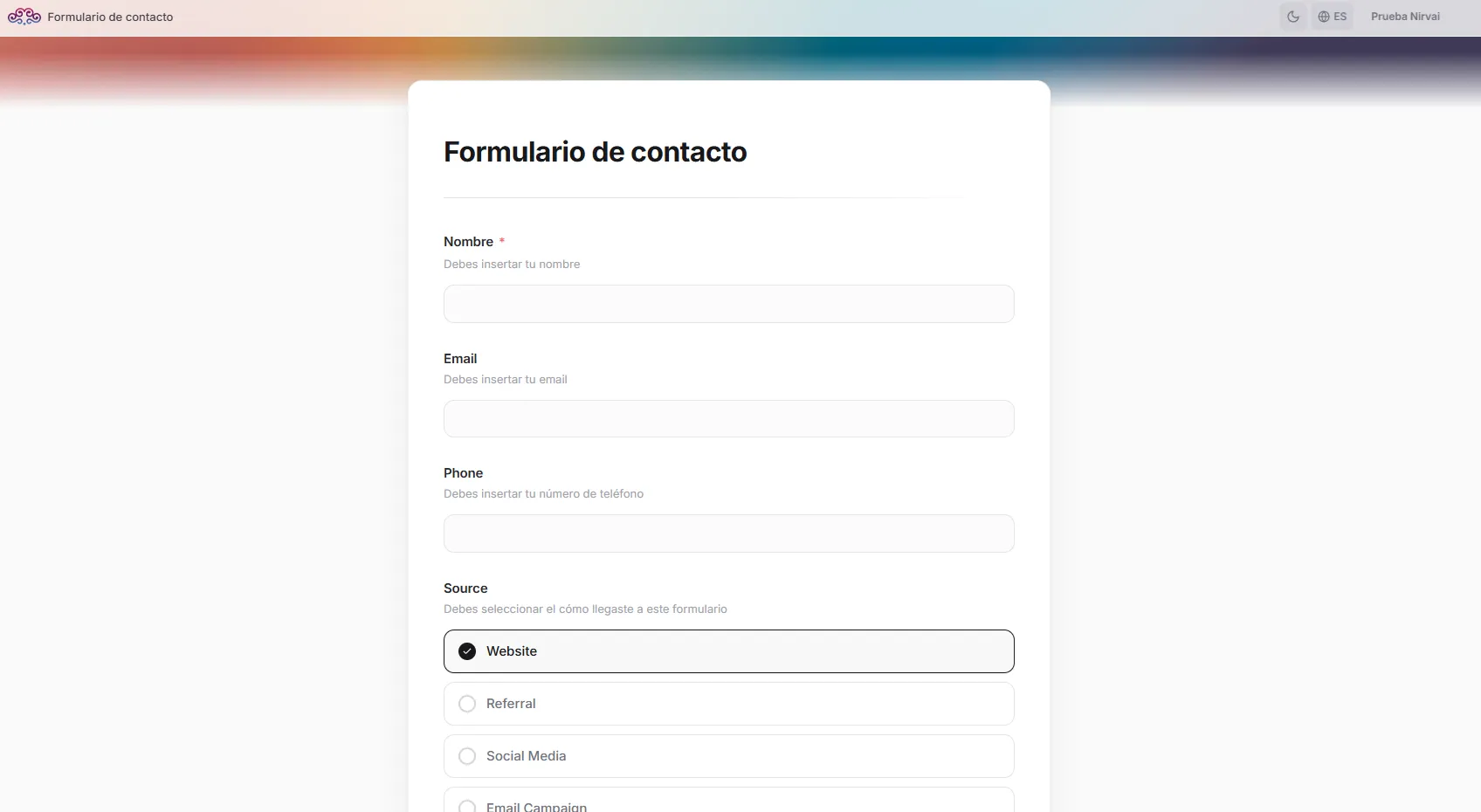 Image: Public classic form with cover image and fields
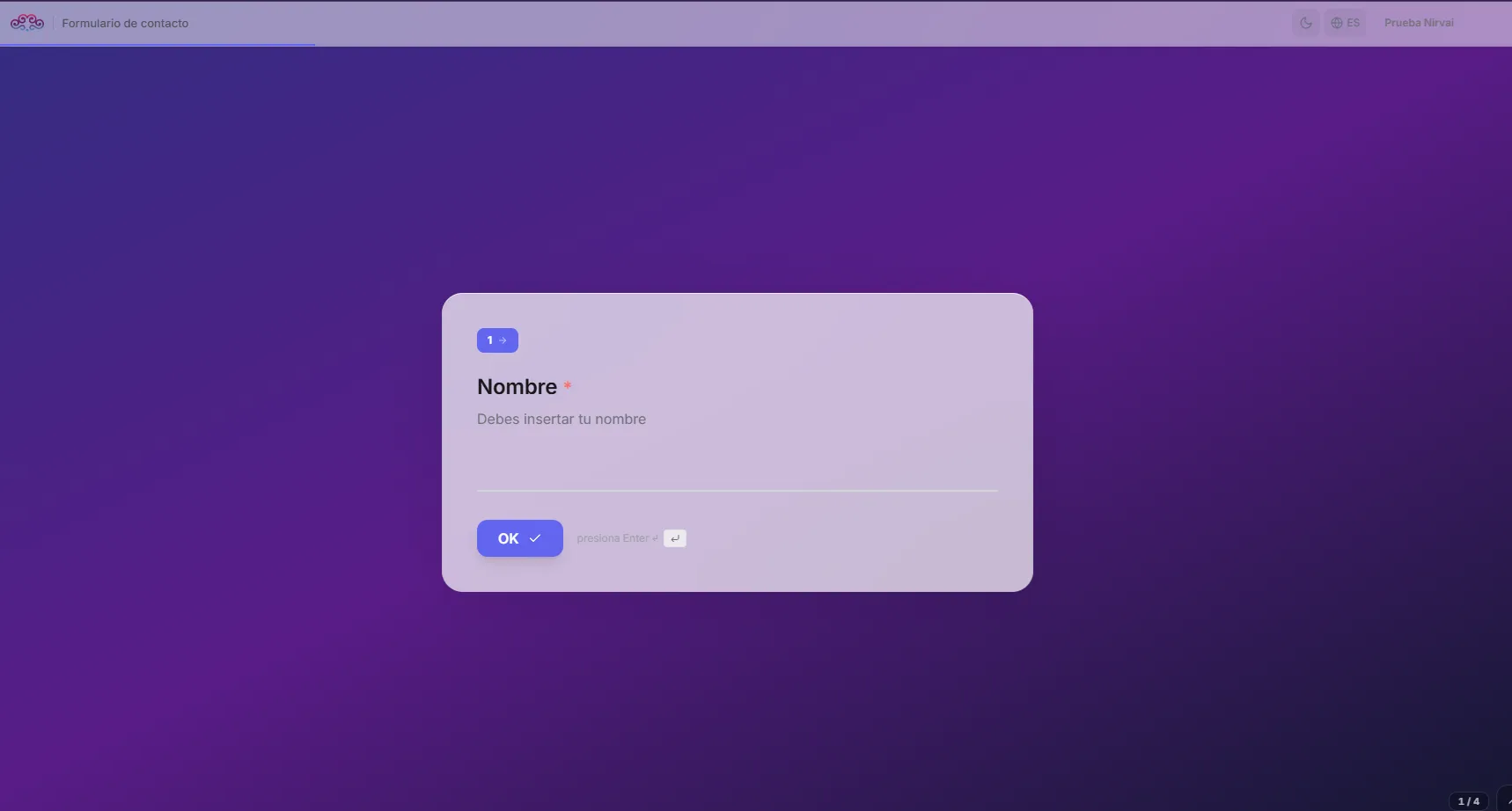 Image: Public stepper form with background and frosted glass card
Preview and share
Click Preview in the builder's action bar. The preview opens on its own page, looks exactly like the published form, and actually submits — responses become real records, so you can test the whole flow and delete the test records afterward.
To publish, right-click the form view tab, select Share View, turn on the public link, and copy it. It looks like https://app.nirvana-ai.com/public/form/{token}. Anyone with the link can fill in the form without signing in, and each submission appears as a new record in every view of the database.
Forms also work with Guest Access: guests verify their email before filling in the form, so you know exactly who answered.
Troubleshooting
| Problem | Fix |
|---|---|
| The submit button is always greyed out | Make sure every required field has a value. Check that the right fields are marked as required in the builder. |
Options show up as [object Object] | The status or select column's options may need re-saving. Edit the column and confirm the options. |
| The form doesn't scroll properly | The preview opens on a separate page. Make sure you're using the Preview button, not viewing the form inline. |
| A visitor can't upload a file | File uploads do work in forms. Check the maximum file size set on the file column. |
What's next
- Filtering & Sorting — narrow any view down to the records you care about.
- Public Views — more ways to share your views with the world.