Views
Kanban View
Organize records as cards on a board you can drag between columns
A Kanban view is like a wall of sticky notes sorted into labeled columns: each record becomes a card, and you slide it from one column to the next as its status changes. It's a great fit for tracking projects, sales deals, and content as they move through stages.
The board groups your cards into columns based on a Status or Select column, so a quick glance shows you exactly where everything stands.
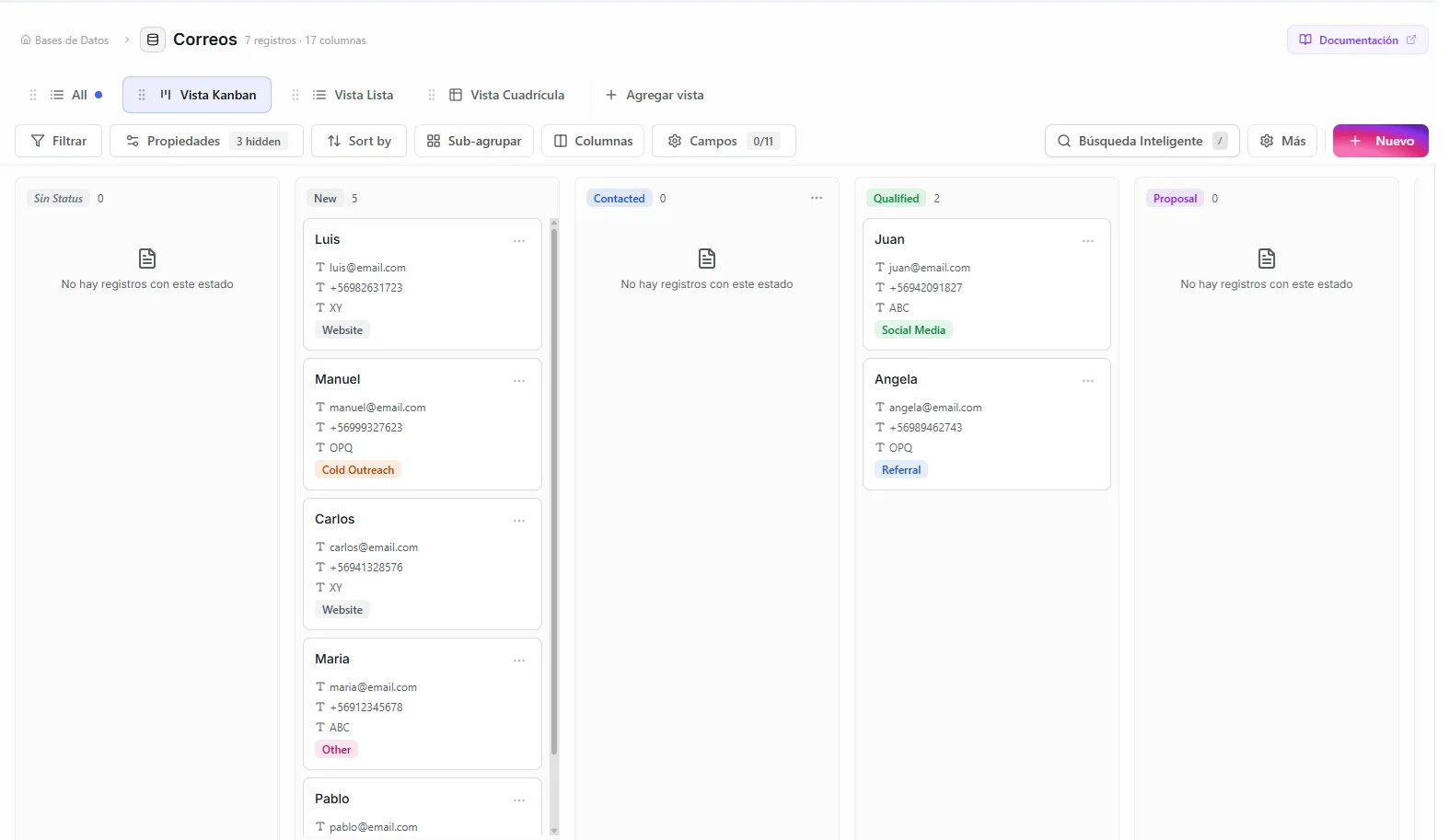 Image: Kanban board with records organized by status columns
Before you start
- A database with at least one Status or Select column — this is what the board's columns are based on.
Set up a Kanban board
- Create a new view and choose Kanban
- Pick the Group by column — this decides what the columns on your board are. It must be a Status or Select column.
- Your records sort themselves into columns automatically, based on each one's current value
If a record has no value in the group-by column, it shows up in a special No status column on the left.
Move cards around
Drag a card from one column to another to change its status. The moment you drop it, the record behind the card updates automatically — no extra step needed.
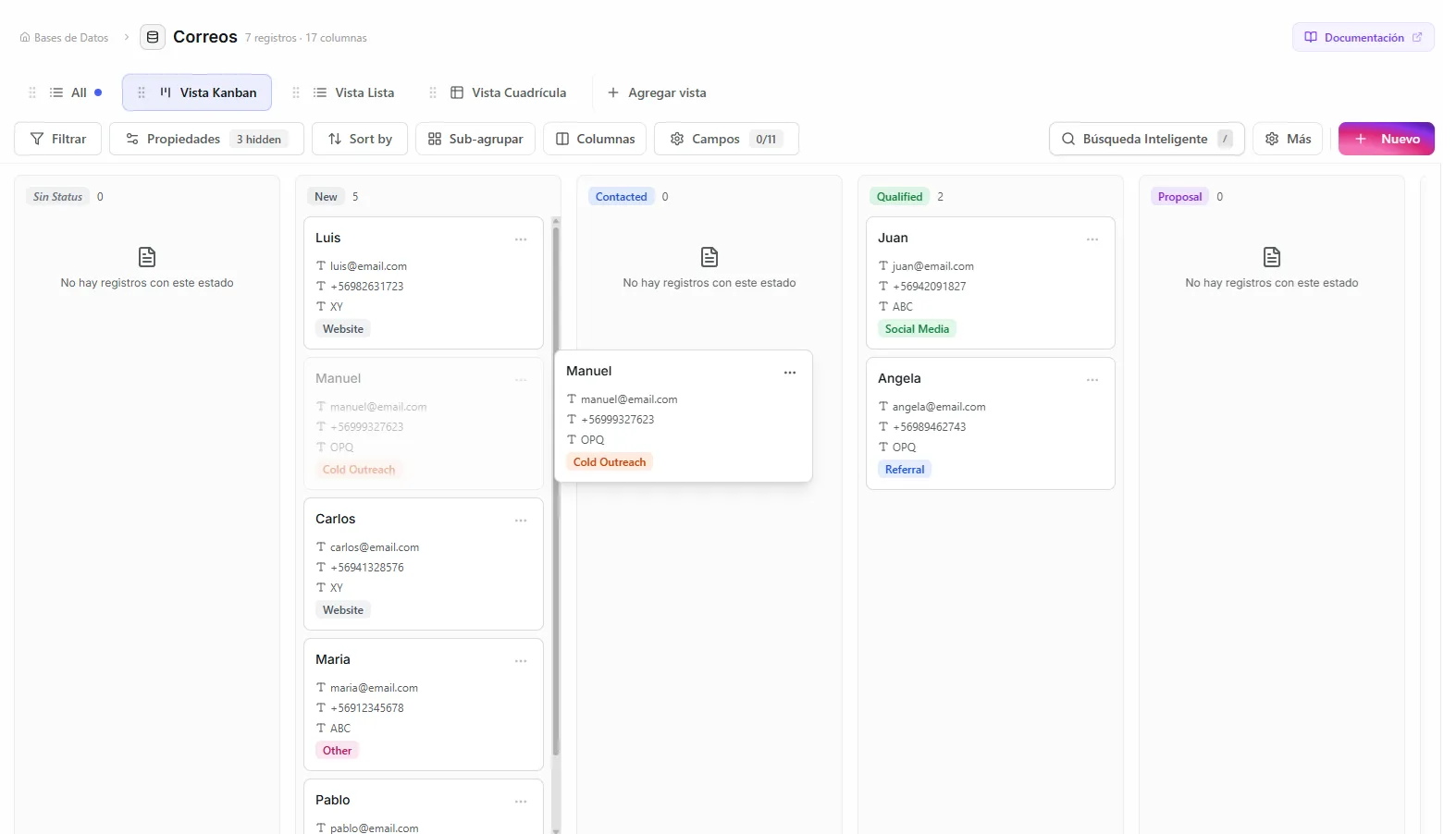 Image: Dragging a card from one column to another
Set up the board
Visible columns
You can show or hide individual status columns. This helps when you only want to focus on part of your pipeline.
- Click the settings icon in the toolbar
- Turn each status value on or off
- The No status column can be turned on or off on its own
Card details
Choose which record details appear on each card (up to 5). This lets you see the key information without opening the record.
Sorting
Sort the cards inside each column by any column's value — for example, sort by due date so the most urgent items rise to the top.
Swimlanes (a second layer of grouping)
A swimlane is like drawing horizontal lanes across your board so each status column is split into rows. It adds a second level of grouping inside each column, based on another Status or Select column.
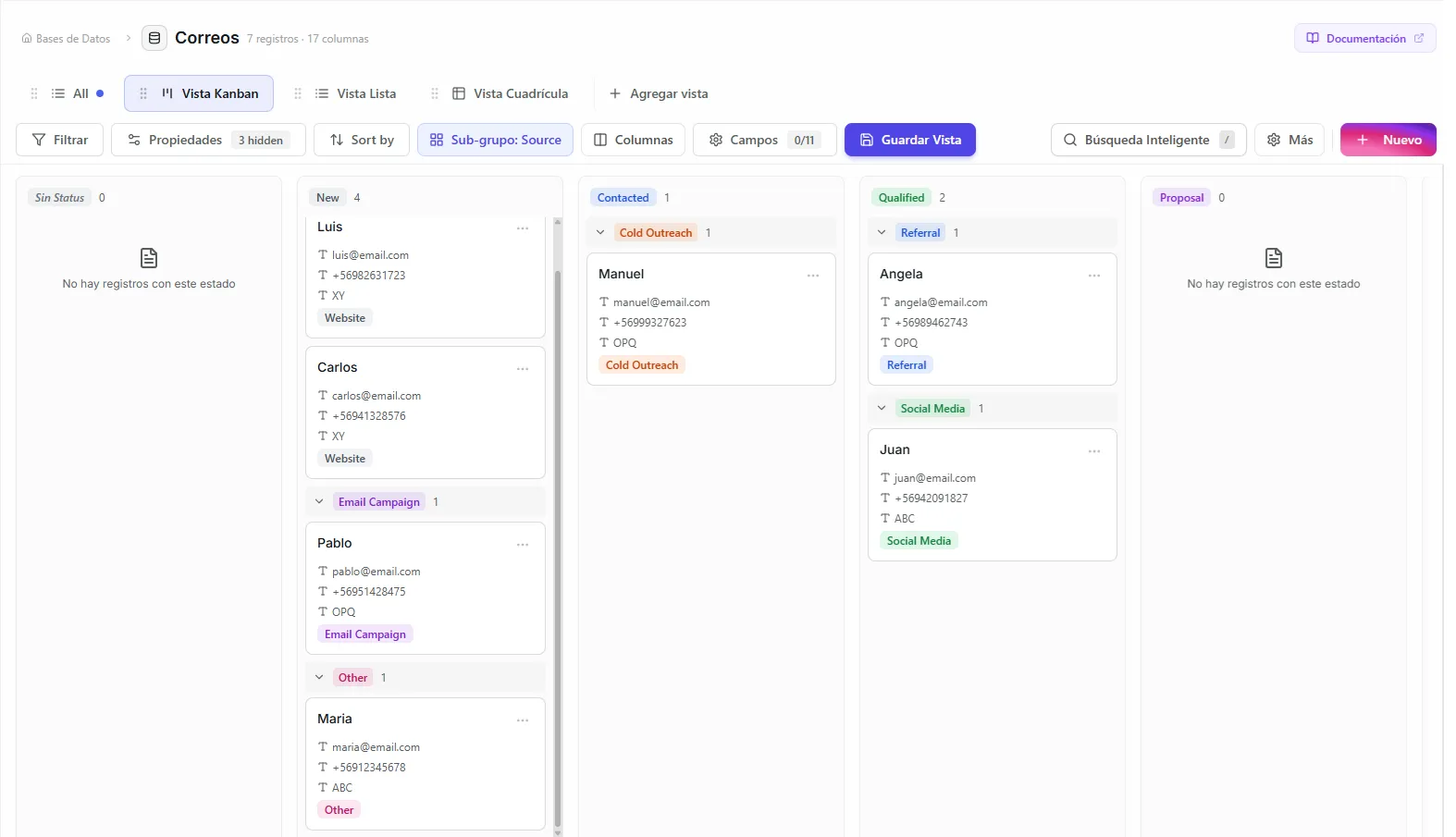 Image: Kanban board with swimlane sub-grouping
To turn on swimlanes:
- Open the Kanban settings
- Pick a Swimlane by column (it must be a Status or Select column, and different from the main group-by column)
- The cards in each column are now split into horizontal sections
Records with no value for the swimlane column appear in a No {column name} section.
Try this: Group your board by "Stage" (New, Qualified, Proposal, Won) and add swimlanes by "Priority" (High, Medium, Low) to see your sales pipeline organized by both stage and priority at once.
Troubleshooting
| Problem | Fix |
|---|---|
| The board won't let me pick a Group by column | Kanban needs a Status or Select column. Add one to your database first, then come back and pick it. |
| All my cards are stacked in the "No status" column | Those records have no value in the group-by column. Open each card and set its status, or drag it into the right column. |
| The Swimlane by option is greyed out | Swimlanes need a second Status or Select column that's different from the one you grouped by. Add another such column to use this. |
| Dragging a card didn't change anything | Make sure you dropped the card fully inside the new column. If it snaps back, the record's value didn't change — try again. |
What's next
- Calendar View — See the same records laid out by date instead.
- Filters — Show only the cards that match what you're working on right now.