Views
List & Grid Views
Show the same data as a tidy list for browsing or a full spreadsheet for editing
A view is like a different pair of glasses for the same set of records: the data underneath never changes, but you can choose to see it as a clean reading list or as a full spreadsheet. List and Grid are the two most common ways to look at a database, and you can switch between them — or keep both — without copying anything.
Every database starts with one default view. You can add more views to show the same records in different ways, and editing a record in one view updates it everywhere.
Managing views
Create a view
- Click + Add view in the row of view tabs above your database
- Choose a view type: List, Grid, Kanban, Calendar, or Form
- Give the view a name
- The new view opens with the same records as every other view
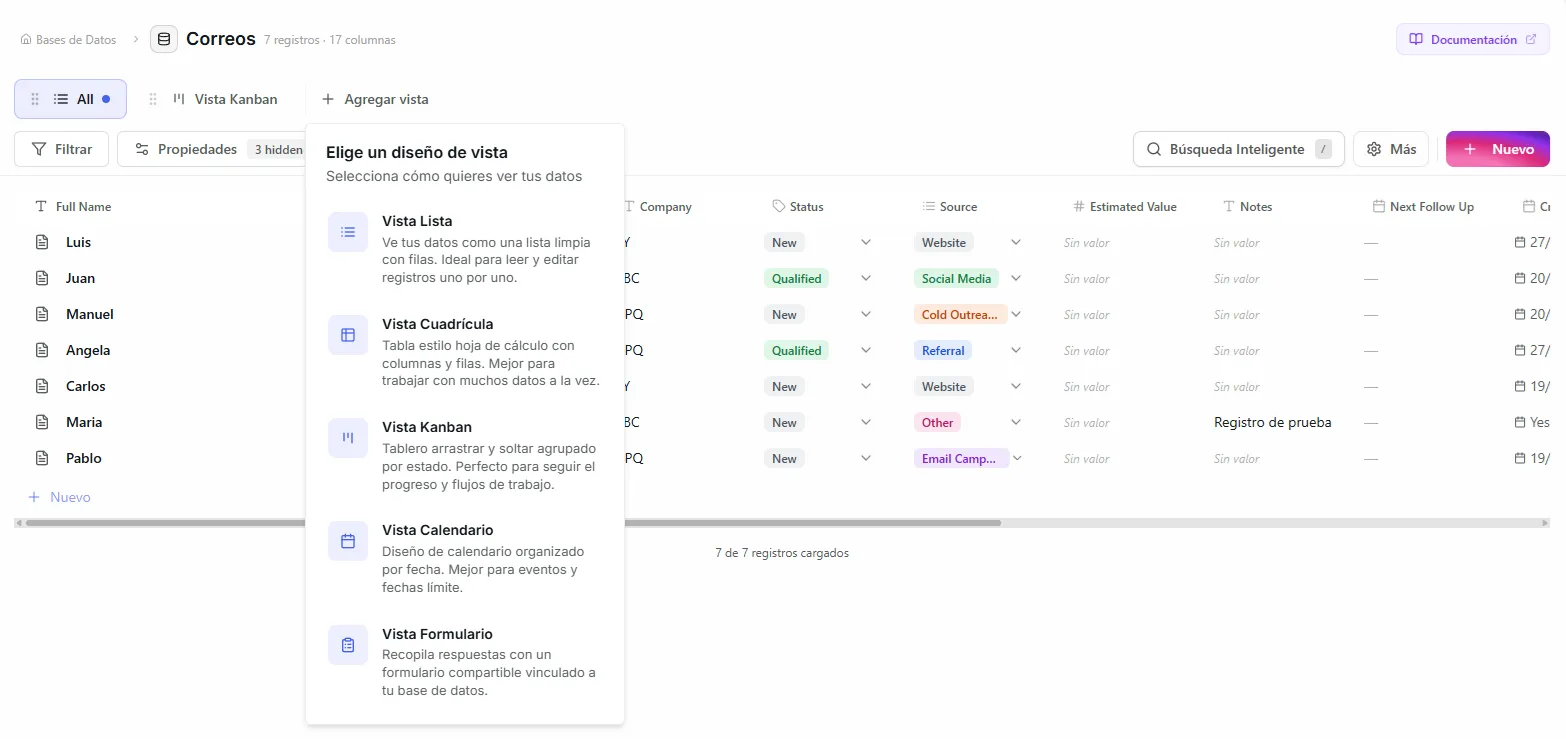 Image: Creating a new view and switching between view types
What you can do with a view tab
Right-click any view tab to:
- Rename — Change the view name
- Duplicate — Make a copy with the same setup
- Set as default — Make this view load first when the database opens
- Share View — Share it publicly or invite guest editors (learn more)
- Delete — Remove the view (your records stay safe in the other views)
Reorder views
Drag the view tabs left or right to change their order.
List view
A clean, top-to-bottom list, best for reading and browsing your records.
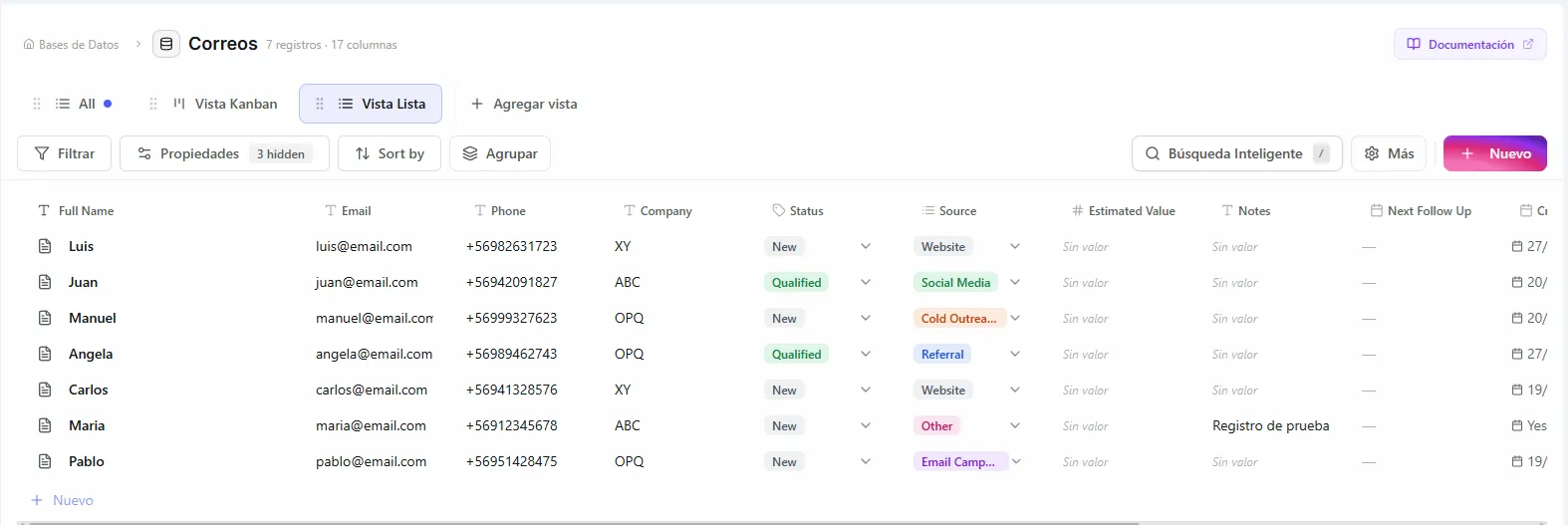 Image: List view showing records with titles and preview information
What it offers
- Title column — Each record shows its main text column as the title
- Description preview — Optionally show a peek at other columns under the title
- Hierarchy — A database with a parent-child structure shows its records as a collapsible tree
- Group by — Sort records into sections based on any column
- Inline editing — Click any visible field to change it right there
Settings
| Setting | What it does |
|---|---|
| Title column | Which column shows as the record's title |
| Show description preview | Show extra column values below the title |
| Collapsed by default | Whether grouped sections start folded up |
| Hidden columns | Columns to leave out of the list |
| Group by | The column used to sort records into sections |
Grid view
A full spreadsheet, with rows and columns — best for seeing all your data at once and making lots of edits quickly.
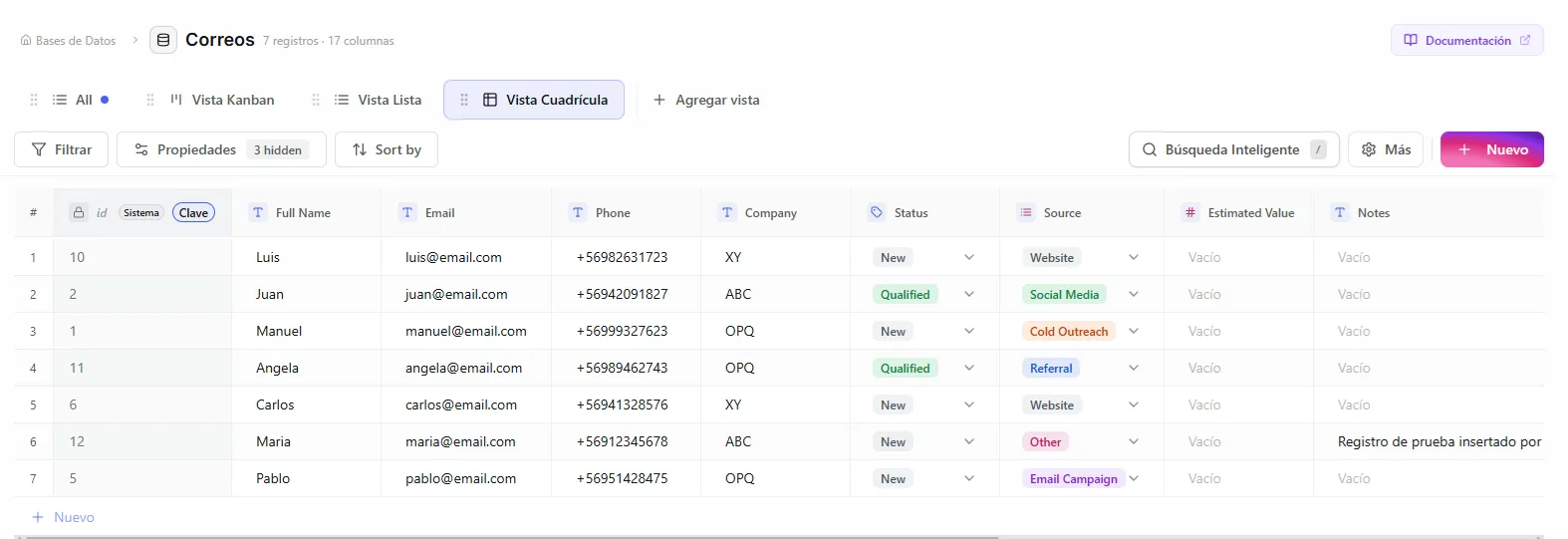 Image: Grid view with multiple columns and inline editing
What it offers
- Every column visible — See all your columns side by side
- Inline editing — Click any cell to edit it on the spot
- Column actions — Add, rename, reorder, and delete columns from the grid header
- Add rows — Click the "+" row at the bottom or use the New button
- Keyboard navigation — Press Tab to jump between cells and use the arrow keys to move around
Working with columns in the grid
Click a column header to rename, change type, duplicate, or delete it, or drag headers to reorder — see managing columns.
Settings
| Setting | What it does |
|---|---|
| Hidden columns | Columns to leave out of the grid |
| Column widths | A custom width for each column |
Use Grid view for entering data — it gives you the most direct access to every column. Use List view for browsing — it stays clean and keeps the focus on the most important information.
Troubleshooting
| Problem | Fix |
|---|---|
| A column I need is missing from the view | Check the Hidden columns setting — the column may be hidden in this view. Unhide it to bring it back. |
| I deleted a view by mistake and lost my data | Your records are safe. They still live in every other view of the database; only the view layout was removed. |
| Records aren't grouped the way I expect in List view | Open the view settings and check the Group by column. Each unique value in that column becomes its own section. |
| Edits I make don't seem to save | Click outside the field after editing, or press Tab to confirm the change. Edits apply to the underlying record, so they show up in every view. |
What's next
- Kanban View — Organize the same records on a drag-and-drop board.
- Filters — Narrow a view down to just the records you care about.