Channels
Automatic follow-ups
Have your agent gently check back in when a customer stops replying — send up to three friendly reminders, and stop the moment they answer.
Automatic follow-ups are like a polite assistant who notices when a customer goes quiet and sends a friendly "still there?" so the conversation doesn't fall through the cracks. When your agent answers someone and they don't reply, Nirvai can send a short reminder a little while later — and stop the moment the customer responds.
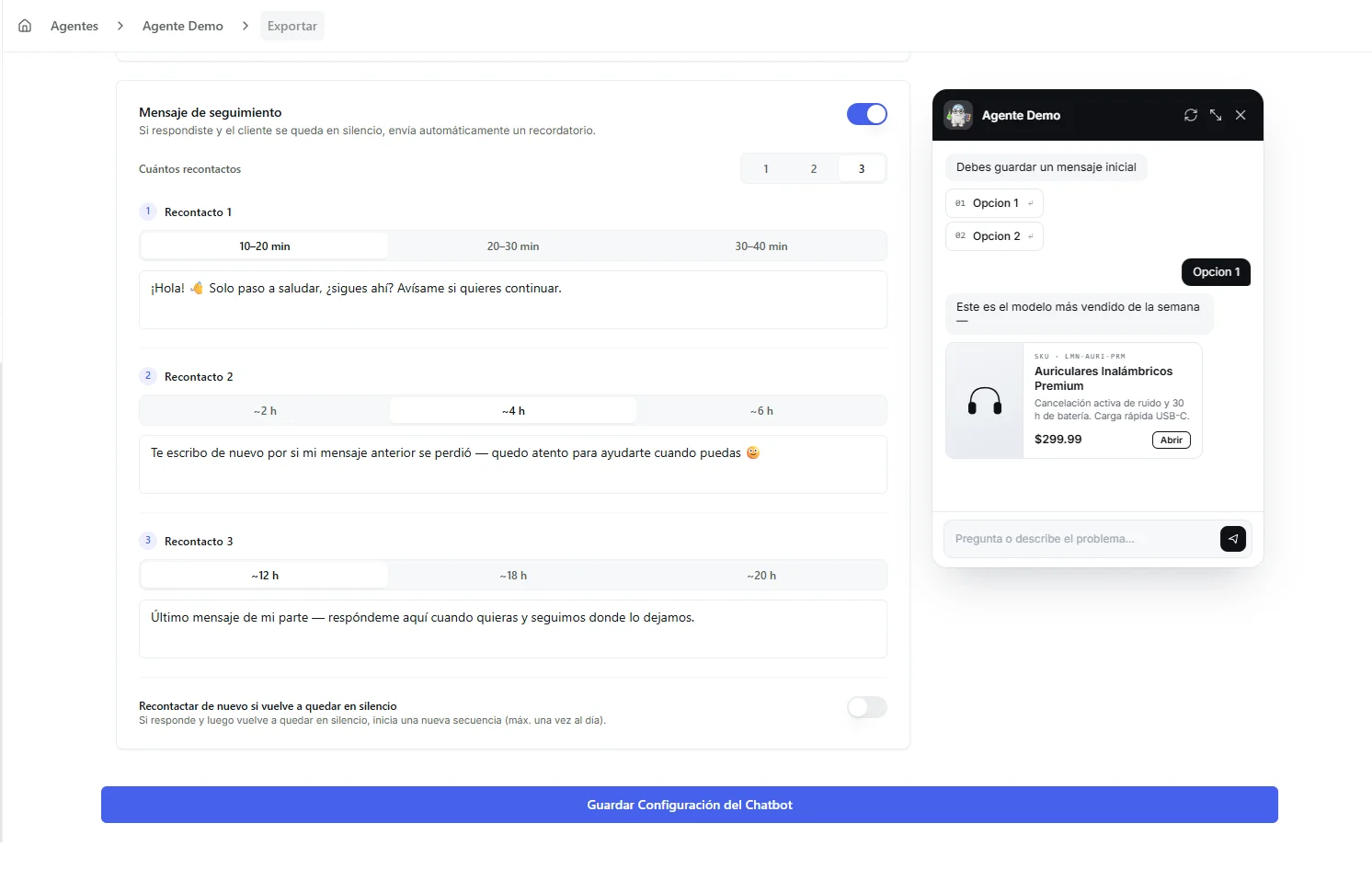 Image: The Automatic follow-up settings: an on/off switch, how many reminders, the timing for each one, and the message to send
What you can do here
| You can… | What that means for you |
|---|---|
| Turn on automatic reminders | If a customer stops replying after your agent answered, they get a gentle nudge |
| Send up to three reminders | Choose 1, 2, or 3 — each one is spaced further apart |
| Pick the timing for each | Decide how long to wait before each reminder |
| Write each message | Each reminder has its own text (we fill in a friendly default you can edit) |
| Stop chasing automatically | The moment the customer replies, the reminders stop |
Where it works
Automatic follow-ups are set up per channel — turn them on for the channels where you want them:
- Messenger
- Website chatbot
Each channel keeps its own settings, so you can use a different message (or none at all) on each.
Before you start
- A saved agent connected to at least one of the channels above. New to channels? Start with Choose a channel.
- A clear idea of the reminder you want to send — keep it short, friendly, and easy to reply to.
Step-by-step
- Open your agent and go to the channel you want — for example WhatsApp.
- Find the Automatic follow-up section in that channel's settings.
- Turn the switch on.
- Choose how many reminders to send: 1, 2, or 3.
- For each reminder, pick when to send it and edit the message (a friendly default is filled in for you).
- Click Save.
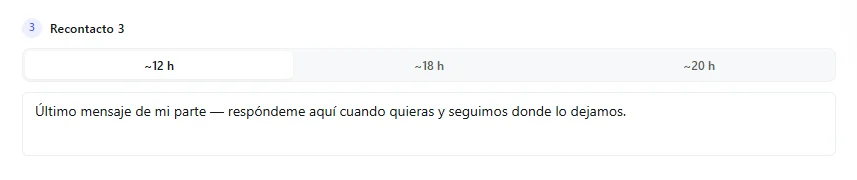 Image: Choosing how many reminders to send and writing each message
You can set this up while you're connecting the channel or later by editing it — both work the same way.
How the timing works
The wait is measured from your agent's last reply. If you choose more than one reminder, each is spaced further apart than the last, so they feel like a natural check-in rather than a pile-up.
Here's the whole flow at a glance — how the reminders are spaced out, and every point where they stop:
You choose how many reminders to send (1, 2, or 3), so the flow above simply ends after your last one.
| Reminder | Roughly when it sends |
|---|---|
| First | A few minutes to about half an hour later |
| Second | A few hours later |
| Third | Around half a day later |
You pick the exact spacing from a small set of options for each reminder. All reminders are sent within 24 hours of the customer's last message — that keeps them inside the messaging rules for apps like WhatsApp.
Why these times?
The spacing isn't random — it follows what actually works for winning a conversation back without annoying anyone:
- Not instant. The first reminder waits a little, so you're not pinging someone the moment they pause to think — that reads as pushy.
- Escalating gaps. Each reminder waits longer than the last (minutes → a few hours → later the same day), so it feels like a natural "still there?" rather than nagging.
- Three at most. Re-engagement works best with two or three gentle touches — beyond that you mostly cause annoyance (and risk getting blocked), so Nirvai caps it at three.
When follow-ups stop
Reminders are meant to re-open a conversation, not to pester. They stop in all of these cases:
- The customer replies. As soon as they answer, the remaining reminders are cancelled.
- The agent decides it's done. Your agent has a built-in tool it can use to switch reminders off for a single conversation. If the person says they're not interested or asks not to be messaged again — or the conversation is clearly finished — the agent uses that tool to quietly turn reminders off for that chat, while leaving every other conversation untouched.
- You step in. If you pause the agent on a conversation to reply yourself, no reminders are sent.
- The channel is turned off. Pausing the whole channel stops reminders too.
If they go quiet again
There's an optional setting — "Recontact again on future drop-offs" — that's off by default. With it on, if a customer replies and then goes quiet again later, your agent can start a fresh round of reminders. Leave it off if you only want to nudge a quiet customer once.
Even with that setting on, a single conversation can only start one new round of reminders per day. So a customer who keeps drifting in and out won't be chased every hour — at most once a day. This keeps your messaging respectful and protects your account from being flagged as spam.
Messaging apps like WhatsApp only allow free messages within 24 hours of the customer's last message (this is Meta's "customer service window"). Nirvai keeps every reminder inside that window — which is exactly why the longest reminder you can set tops out at under a day. After 24 hours of silence, no reminder is sent.
Troubleshooting
| Problem | Fix |
|---|---|
| My customer didn't get a reminder | Check that follow-ups are turned on for that channel and saved. Reminders only send after your agent answered and the customer hasn't replied. |
| The reminder never arrived even though they stayed quiet | More than 24 hours may have passed since their last message, which is outside the messaging window. Reminders only go out inside that window. |
| Reminders stopped after one round | That's expected — by default a conversation gets one round of reminders. Turn on "Recontact again on future drop-offs" if you want a fresh round when they go quiet again. |
| A customer asked to stop and still got messaged | Your agent stops reminders when it understands the customer wants to be left alone. If you see this, check that the conversation actually reached the agent (the channel wasn't paused). |
| I want to stop reminders on one conversation only | Pause the agent on that single chat (step in as a human) — reminders won't be sent while it's paused. |
What's next
- Technical Reference — how channels work under the hood.
- WhatsApp — the channel where follow-ups are most used.