Connect your AI agent to Instagram so it answers your followers' Direct Messages automatically
 Meta Platform
Connecting your agent to Instagram is like hiring a tireless assistant who sits inside your inbox — every time a follower sends a Direct Message (a DM), your agent reads it and replies right away, so no one is left waiting. You stay in control and can step in by hand at any time.
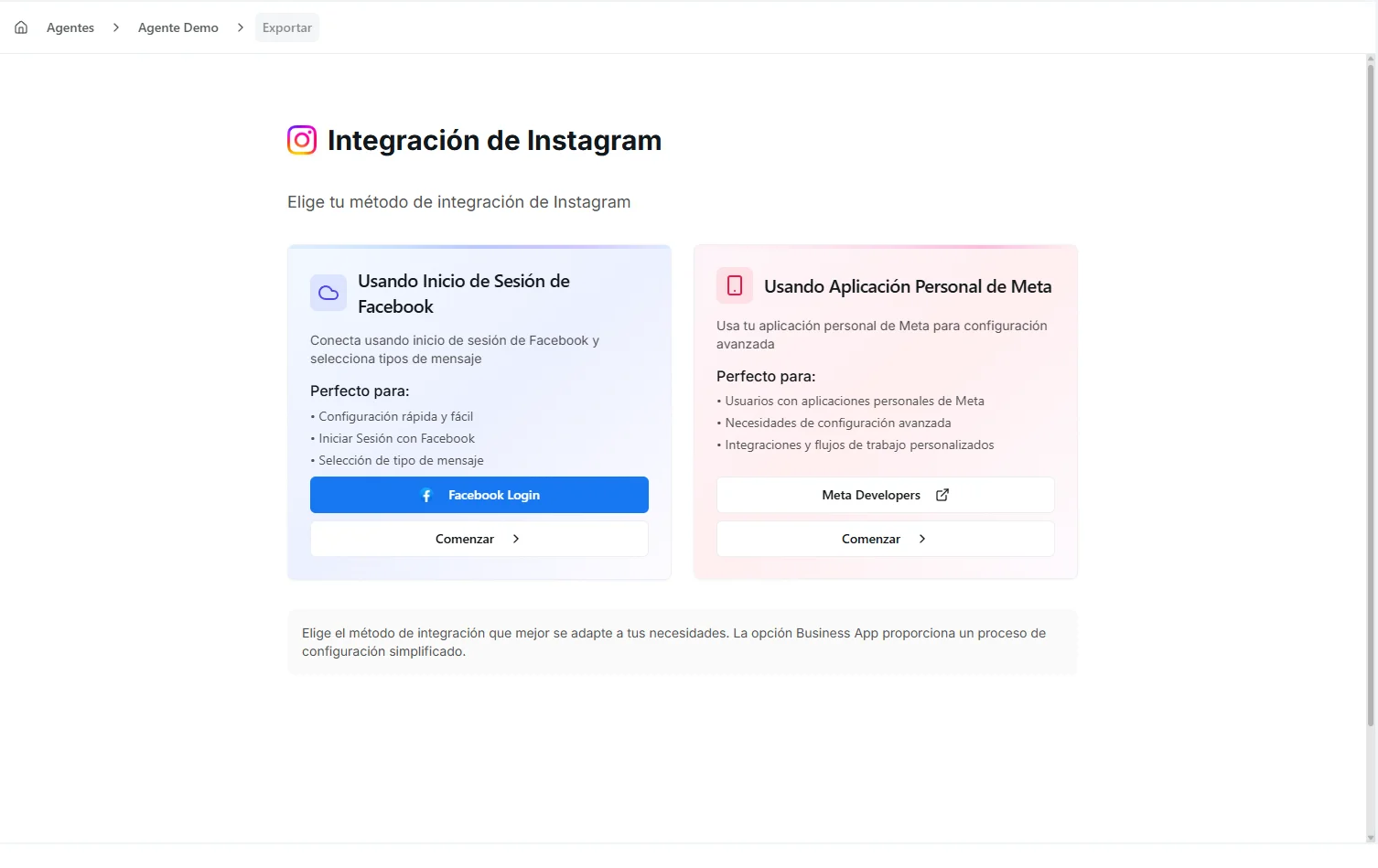 Image: Instagram channel export showing a connected business account
Before you start
You'll need a few things ready before you connect:
- A saved agent in the Agent Builder
- An Instagram Business or Creator account — the professional kind of Instagram account that businesses use. A regular personal account won't work
- A Facebook Page linked to your Instagram account. (A Page is the public profile a business has on Facebook, separate from a personal profile.)
- Admin access to that Facebook Page — meaning you're allowed to manage it — through a Meta Business account (the free hub Meta gives businesses to manage their Pages and accounts)
- "Allow access to messages" turned on in the Instagram mobile app: profile → Settings → Privacy → Messages → Connected Tools
This switch is the number-one reason Instagram connections silently fail. Without it, your agent never sees a single message.
If your Instagram account isn't a Business or Creator account yet, you can switch it in the Instagram app: Settings → Account → Switch to Professional Account. It's free and takes a minute.
Step-by-step
There are two ways to connect. Most people should use the Business App option — it's faster and Nirvai handles the technical parts for you.
Option A — Business App (Recommended)
This option signs you in with your Facebook account, much like clicking "Log in with Facebook" on other websites, and sets everything up for you automatically.
- Open your agent in the builder (Edit in the Agents center)
- Choose Channels in the left menu
- Select Instagram from the Meta platform group
- Choose Business App
- Click Start Setup — a Facebook login window opens
- Sign in and approve the permissions Instagram asks for (this is how you confirm it's really you and that Nirvai is allowed to answer your messages)
- Select the Facebook Page linked to your Instagram Business account
- Your Instagram account appears as connected
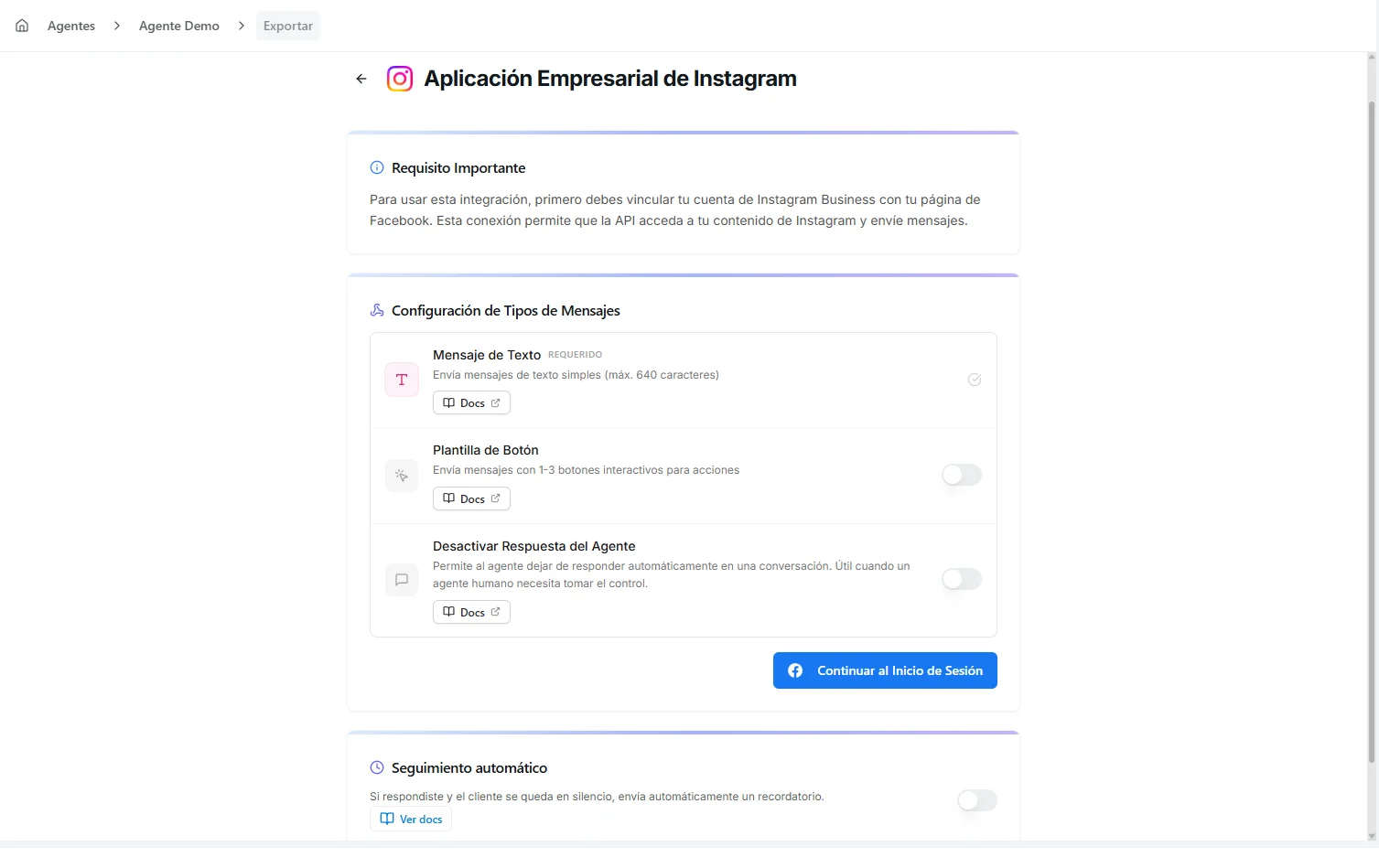 Image: Instagram Business App setup with page selection
If you already have a Meta Platform Credential for Instagram — the saved sign-in that lets Nirvai talk to your account — you can pick it during setup instead of signing in with Facebook again.
Option B — Manual Configuration
Choose this only if you already manage your own Instagram connection elsewhere and want to plug Nirvai into it by hand.
- Select Instagram → Existing Flow
- Enter the details you already have — your long-lived Access Token (a secure access pass that lets Nirvai send and receive your messages), your Page ID, and your Instagram Business Account ID
- Save the configuration
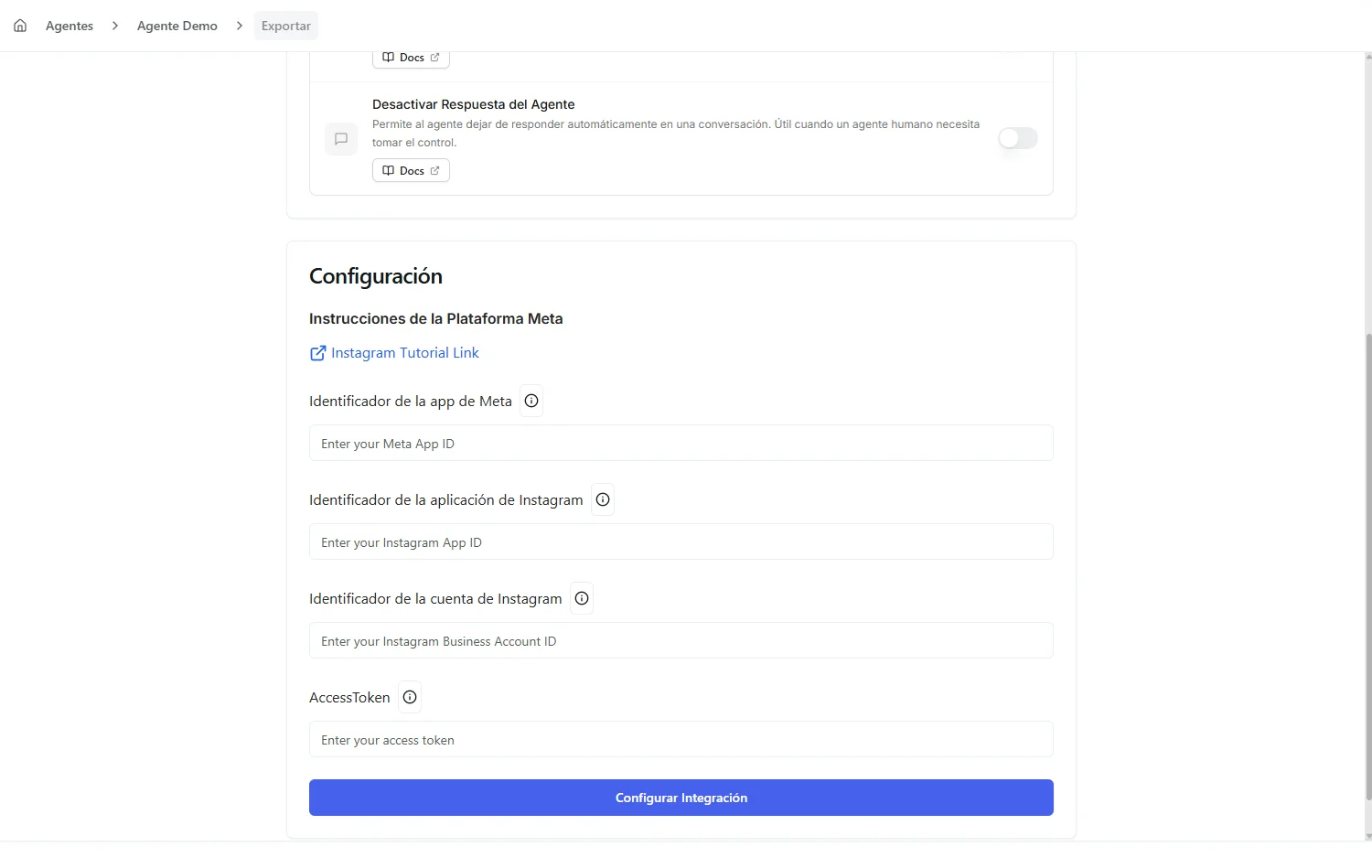 Image: Instagram manual configuration form
What your agent can do
Once connected, here's what your agent can and can't send on Instagram:
| Capability | Supported |
|---|---|
| Respond to DMs | ✓ |
| Send text messages | ✓ |
| Send images | ✓ |
| Send button templates | ✓ |
| Reply to story mentions | ✓ |
| Send files/documents | — |
| Send audio | — |
Conversations & human takeover
The Instagram conversation view (in the Agents center: the Inbox, or the agent's Conversations) lets you watch DM conversations as they happen and take over from the agent whenever you want.
Switching between the agent and yourself
Each conversation has its own switch:
| Mode | What happens |
|---|---|
| Auto (on) | The agent answers incoming DMs automatically |
| Manual (off) | The agent pauses on this conversation — you reply by hand |
When you switch a conversation to Manual:
- The agent stops replying to that one conversation (others keep running)
- You can type and send messages directly to the follower
- Switch back to Auto when you're ready for the agent to take over again
Managing your export
- Edit — Update which message types are active or view your connected account
- Remove — Disconnect Instagram from your agent (your Instagram account stays exactly as it is)
Troubleshooting
| Problem | Fix |
|---|---|
| My Instagram account isn't in the list | Make sure it's a Business or Creator account linked to a Facebook Page |
| No DMs are coming through | Most often "Allow access to messages" is off in the Instagram app. Turn it on (see Before you start), check that the Facebook Page has Instagram messaging turned on, then send yourself a test message |
| The agent isn't replying | Make sure the conversation's switch is set to Auto |
| The Facebook login window is blocked | Allow pop-up windows from Nirvai in your browser settings, then try again |
What's next
- Instagram Platform Guide — the 24-hour reply window, what you can send, and best practices.
- Messenger — answer messages to your Facebook Page too.