Messenger
Messenger
Connect your AI agent to Facebook Messenger so people who message your Facebook Page get an instant reply
 Meta Platform
Connecting your agent to Messenger is like putting a helpful assistant behind your Facebook Page — whenever someone sends your Page a message, your agent answers right away, day or night. You can also step in and reply by hand whenever a conversation needs your personal touch.
A Page is your business's public profile on Facebook (the one people follow and message), not your personal account.
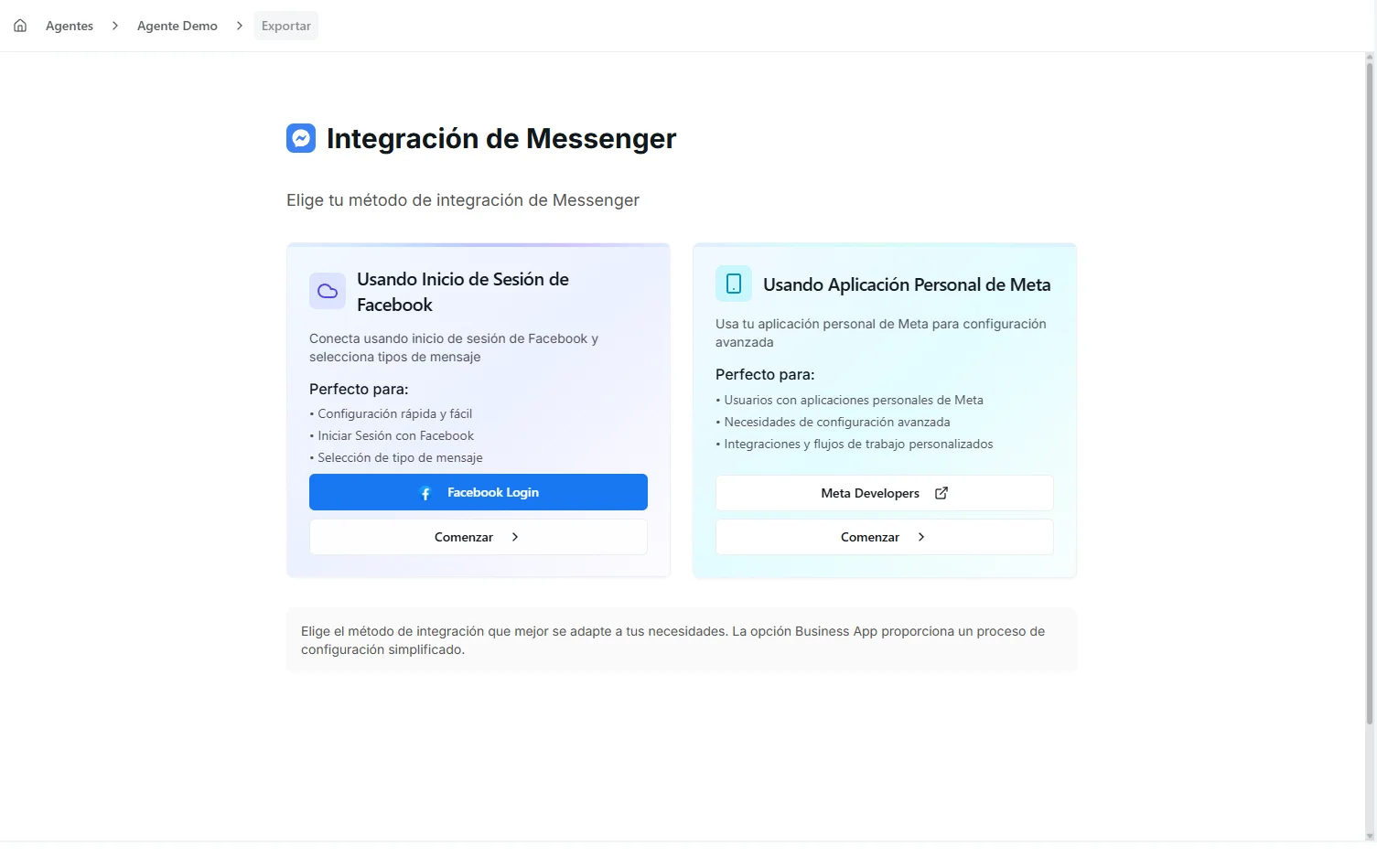 Image: Messenger channel export showing a connected Facebook Page
Before you start
- A saved agent (at least the Profile section saved in the Agent Builder)
- A Facebook Page for your business — the one you want people to message
- Admin access to that Page (you can manage its settings), through a Meta Business account — the free workspace where you manage your Pages, ads and other business assets
If your Page is still in draft or unpublished, publish it first. Messenger only works on a live Page.
Setting up Messenger
There are two ways to connect. Business App is recommended for almost everyone — Meta sets everything up for you from one popup, with no developer settings to touch.
Option A — Business App (Recommended)
This option uses "Log in with Facebook" — the same secure sign-in button you see on many websites. You sign in once, approve the permissions, pick your Page, and Meta wires up the rest behind the scenes.
- Open your agent in the builder (Edit in the Agents center) and choose Channels in the left menu
- Select Messenger from the Meta platform group
- Choose Business App
- Click Start Setup — a Facebook login popup opens
- Sign in with the Facebook account that manages your Page
- Approve the permissions Nirvai asks for (these let your agent send and receive messages on your behalf)
- Select the Facebook Page you want to connect
- Your Messenger connection is ready — the Page appears as Connected
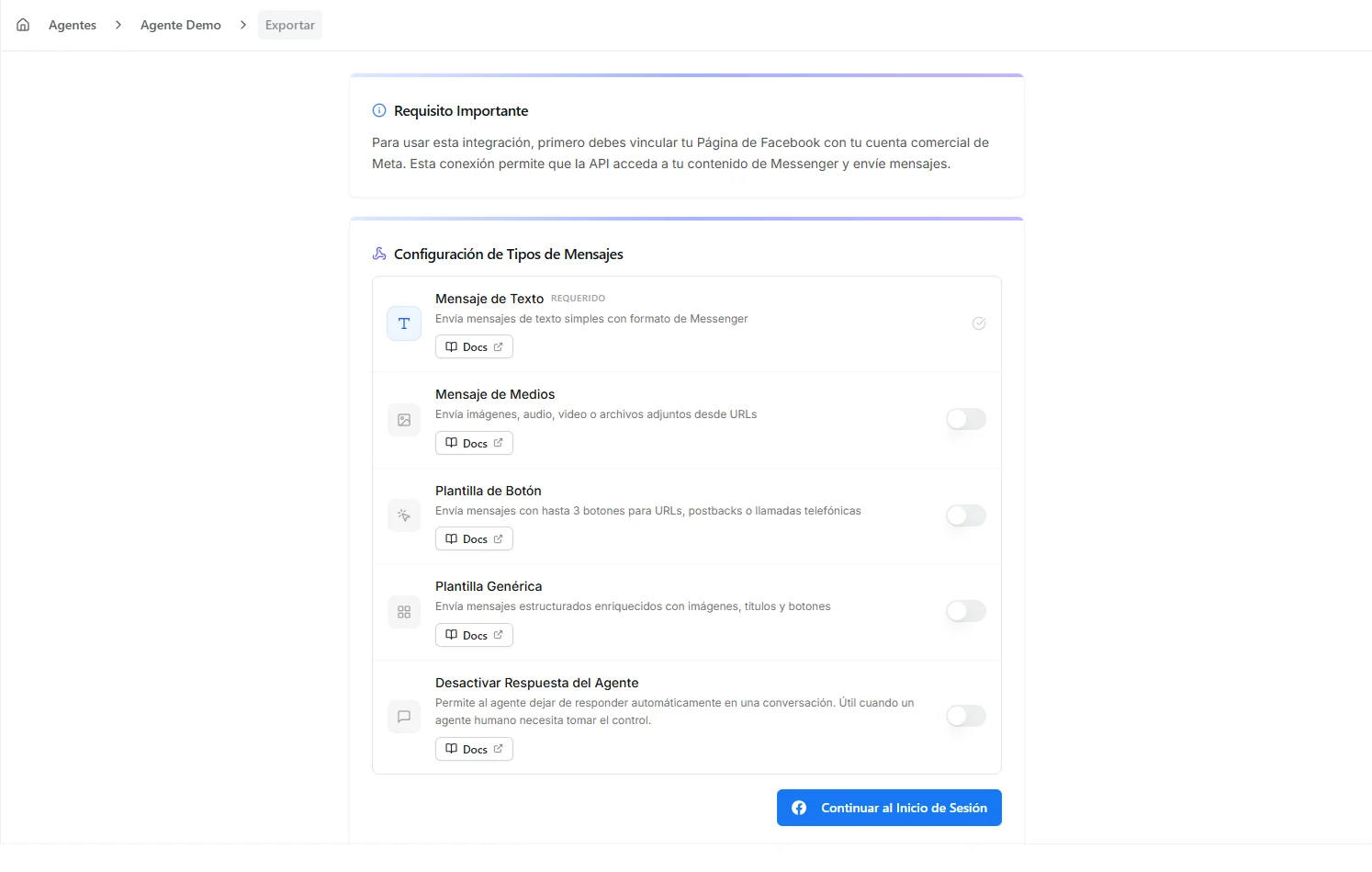 Image: Messenger Business App setup with page selection
If you already have a Meta Platform Credential for Messenger, you can pick it during setup instead of signing in with Facebook again. The same credential can power your other Meta channels (WhatsApp + Instagram + Messenger) without signing in each time.
Option B — Manual Configuration
Choose this only if you already set up a Messenger connection elsewhere and want to plug Nirvai into it. You'll enter the details by hand instead of signing in with Facebook.
- Select Messenger → Existing Flow
- Enter your long-lived access token (a secure access pass that lets Nirvai send messages from your Page), your Page ID, and your App ID (the identifier for your Meta app registration — the entry you create in Meta's developer area to give your connection an identity)
- Save the configuration
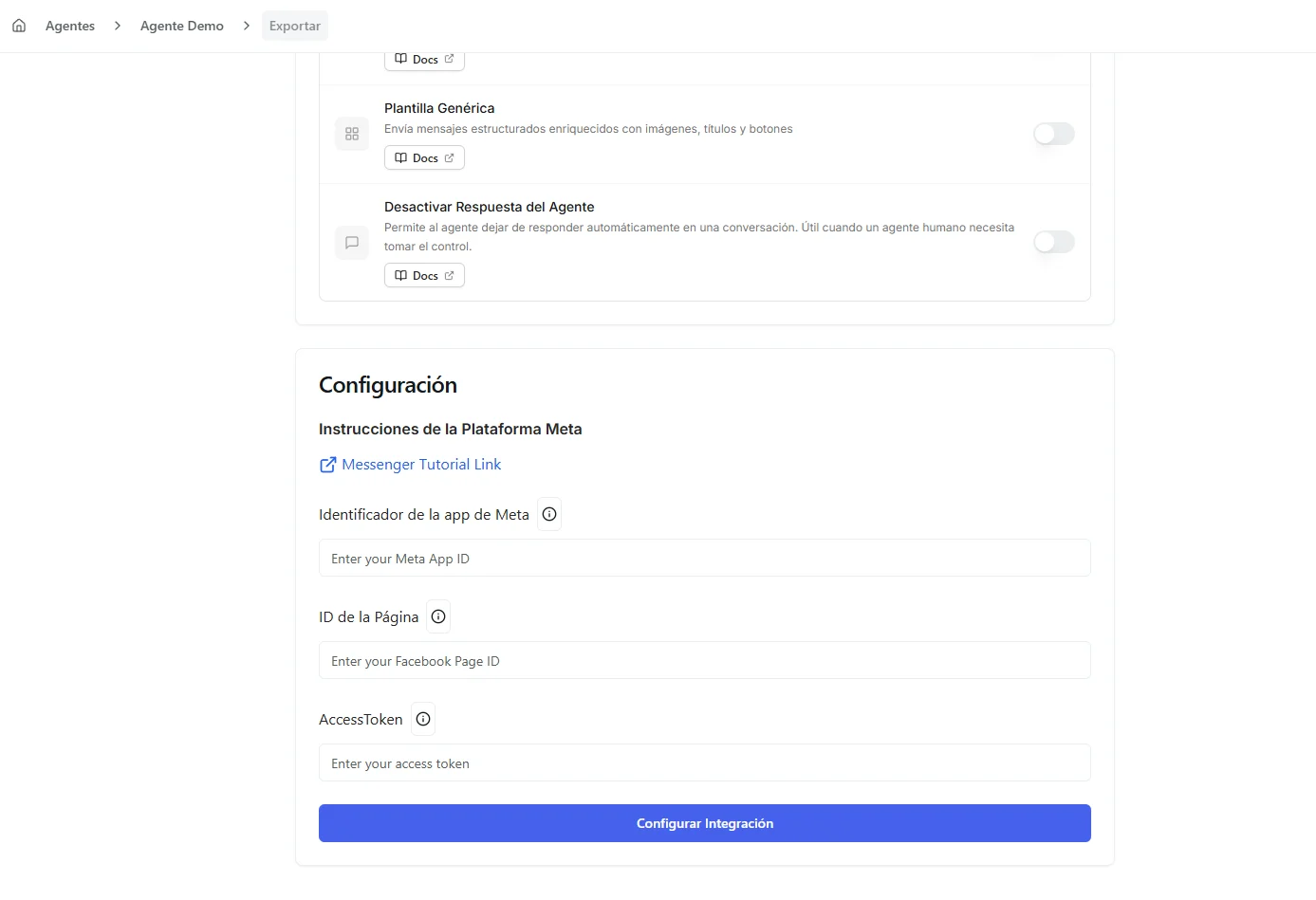 Image: Messenger manual configuration form
Manual setup means copying details out of Meta's developer area, which is easy to get wrong. Use the Business App option unless you have a specific reason not to.
What your agent can send
| Capability | Supported |
|---|---|
| Respond to messages | ✓ |
| Send text messages | ✓ |
| Send media (images, videos) | ✓ |
| Send button templates | ✓ |
| Send generic templates (cards) | ✓ |
| Send files/documents | — |
| Send audio | — |
For Meta's full rules on what you can send and when — including the 24-hour reply window — see the Messenger Platform Guide.
Conversations & human takeover
The Messenger conversation view (in the Agents center: the Inbox, or the agent's Conversations) shows every conversation happening through your Page in one place, and lets you take over from the agent whenever you want.
Turning agent responses on or off
Each conversation has its own toggle. This is per-conversation — switching one to Manual doesn't affect any others.
| Mode | What happens |
|---|---|
| Auto (on) | The agent answers incoming messages automatically |
| Manual (off) | The agent pauses on this conversation — you reply by hand |
When a conversation is in Manual mode:
- The agent stops replying for that conversation only
- You can type and send messages directly to the person
- Other conversations keep running with the agent active
- Switch back to Auto when you're ready for the agent to resume
Use Manual mode for the tricky conversations that need a human touch. The person won't notice the handoff — your replies come from the same Page.
Managing your connection
- Edit — Change which message types your agent can send, or view your connected Page
- Remove — Disconnect Messenger from this agent. Your Facebook Page stays exactly as it was; only the link to this agent is removed
Troubleshooting
| Problem | Fix |
|---|---|
| My Page isn't in the list | Make sure you have admin access to the Page and that it's published (not in draft) |
| Messages aren't arriving | Check that the connection is active and that Messenger is added to your Meta app. See the Messenger Platform Guide for Meta's message rules |
| The agent isn't replying | Check that the conversation's toggle is set to Auto in the conversation view |
| The Facebook login popup is blocked | Allow popups from Nirvai in your browser settings, then try again |
| The login popup never comes back | Close it and try again. If you switched Facebook accounts mid-way, sign out of all Facebook accounts and start over |
What's next
- Messenger Platform Guide — Meta's rulebook: the 24-hour reply window, message types, and how to reach customers after a day.
- Telegram — turn your agent into a public Telegram bot.