Settings
Billing
Manage your subscription plan, buy credits, configure auto-refill, and view payment history
The Billing tab is only visible to organization admins. If you need to make changes to your plan or purchase credits, ask your organization admin.
The Billing tab is like the front desk where you settle up — it's where you manage everything money-related: your subscription plan, credit purchases, auto-refill, and payment history. All payments are processed securely through Stripe.
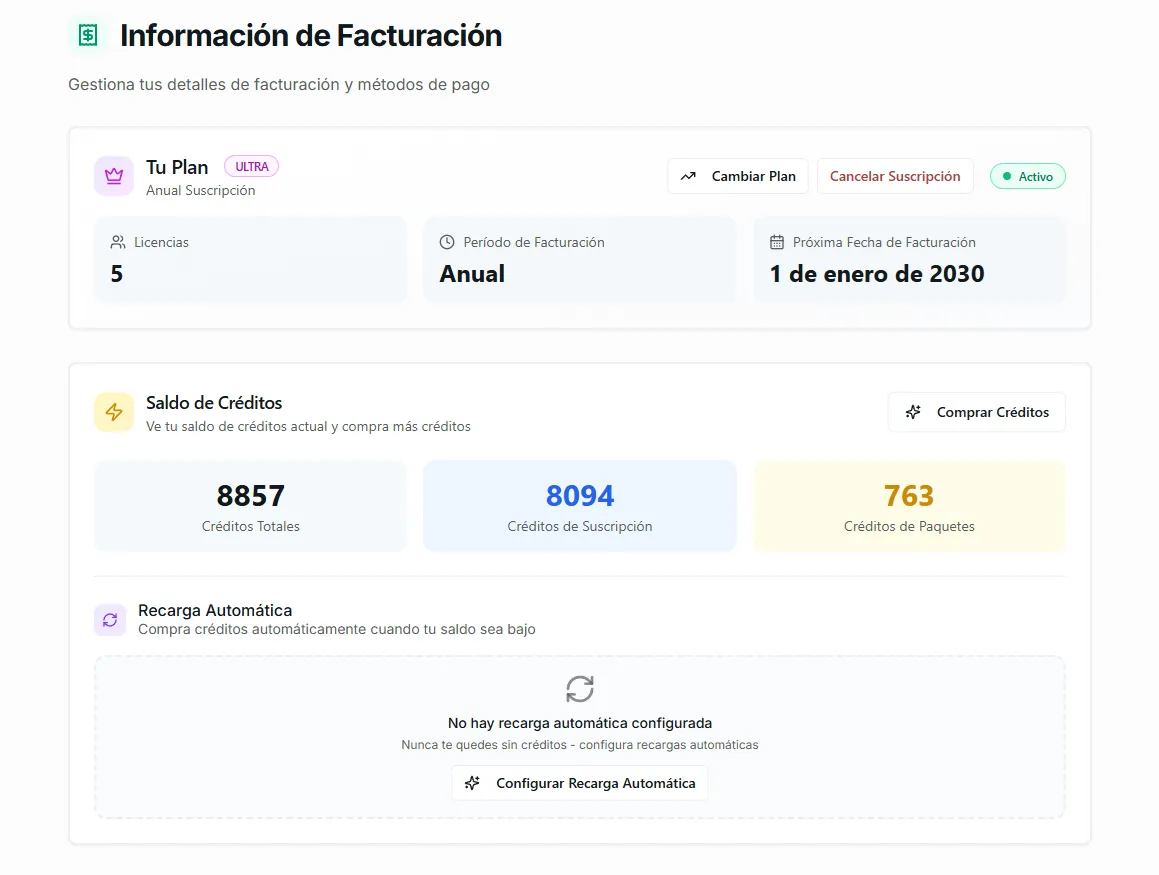 Image: The Billing tab showing subscription details and credit balance
Your Subscription Plan
The main card at the top shows your current plan details:
| Field | Description |
|---|---|
| Plan | Your subscription tier — Builder, Pro, or Ultra |
| Status | Whether your subscription is active or inactive |
| Licenses | How many seats are included in your plan |
| Billing Period | Monthly or yearly |
| Next Billing Date | When your next payment is due |
| Payment Method | The card on file (last four digits and provider) |
Changing Your Plan
To upgrade or downgrade your subscription:
- Click the Change Plan button on the subscription card
- A dialog shows the available plans with their features and pricing
- Select the plan you want
- Confirm the change
Plan changes take effect according to your billing cycle. Upgrades may apply immediately, while downgrades typically take effect at the end of the current billing period. For what each plan includes and how downgrades work, see Plans & Limits.
Image: The Change Plan dialog showing available subscription tiers
Cancelling Your Subscription
If you need to cancel:
- Click the Cancel Subscription button on the subscription card
- Read the warning carefully — cancelling means losing access to your agents, integrations, automations, and remaining credits
- Confirm the cancellation
Cancelling your subscription is a significant action. You will lose access to:
- Your personalized agents and their configurations
- All channel integrations (WhatsApp, Instagram, Slack, etc.)
- Automations
- Any remaining credits in your account
Consider using up your remaining credits and waiting until the end of your billing period before cancelling.
Credit Balance & Auto-Refill
Below the subscription card, you'll find your credit balance and auto-refill settings.
Credit Balance
Three cards show your current credits:
- Total Credits — combined subscription + bundle credits
- From Subscription — credits included with your plan this cycle
- From Bundles — credits from purchased bundles
Buying Credits
To purchase a credit bundle:
- Click the Buy Credits button
- Use the slider or type a dollar amount ($10–$150)
- Review the preview:
- Base amount — what you entered
- Processing fee — 5% of the base amount
- Total charge — what you'll actually pay
- Credits — how many credits you'll receive
- Click Pay to proceed to Stripe checkout
- Credits are added to your account immediately after payment
Purchased credits are valid for 1 year from the purchase date.
Auto-Refill
Auto-refill automatically purchases credits when your organization's balance drops below 500 credits. This ensures your agents never go offline unexpectedly.
Setting it up:
- In the Credits & Auto-Refill section, click Set up Auto-Refill
- Choose a refill amount ($10–$150) — how much to spend each time
- Optionally enable a monthly spending limit to cap auto-charges (e.g., no more than $100/month)
- Click Continue to Payment — save a payment method with Stripe
- Auto-refill is now active
Once configured, you can:
- Toggle on/off — pause auto-refill without removing the setup
- Edit — change the amount or monthly limit
- Remove — delete the configuration entirely
The auto-refill card shows a summary: how many credits will be purchased, the total charge, and (if set) the remaining monthly budget.
For a deeper explanation of how credits and auto-refill work, see the Credits page.
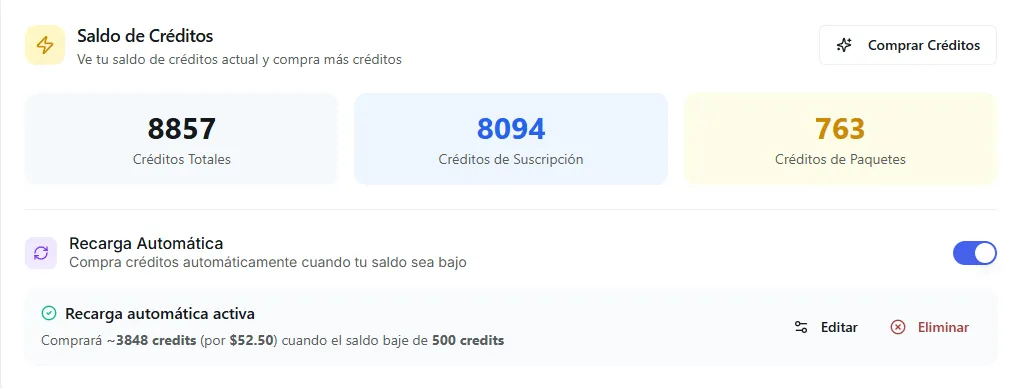 Image: The auto-refill section showing the active configuration with toggle and edit options
Credit Reset Schedule
If your subscription credit reset date differs from your billing renewal date (this can happen when plan changes shift the billing date), a special card appears explaining the situation.
- Your credit reset date is when subscription credits are renewed
- Your billing date is when payment is charged
If these dates are out of sync, you can request synchronization by clicking the Request Sync button, which opens an email to the Nirvai support team.
Stripe Billing Portal
For advanced billing management, you can open the Stripe Billing Portal directly from the Billing tab.
The Stripe portal lets you:
- View and download invoices and receipts
- Update your payment method
- See your complete payment history
To access it, click Open Billing Portal in the Stripe section. A new tab opens with the Stripe portal.
The Stripe Billing Portal is available after you've made at least one payment through Stripe. If you see a message saying "No billing history yet," it means no Stripe transactions exist for your account.
Payment History
At the bottom of the Billing tab, a table shows all your past payments:
| Column | Description |
|---|---|
| Date | When the payment was made |
| Reason | Why the charge occurred (subscription, credit purchase, auto-refill, etc.) |
| Provider | The payment processor (Stripe) |
| Amount | How much was charged, including currency |
| Status | Paid, Pending, or Failed |
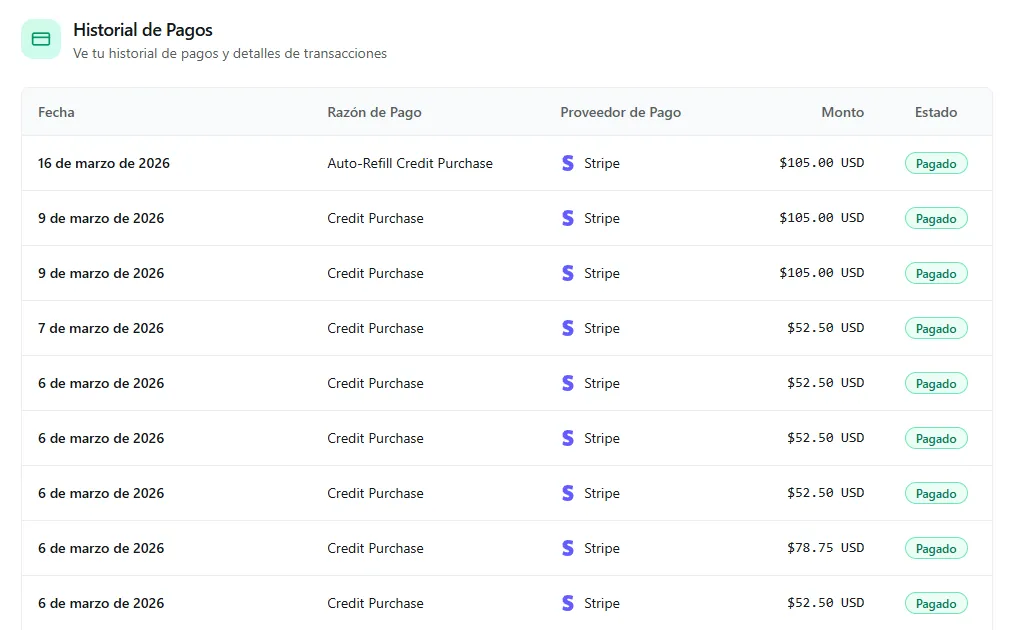 Image: The payment history table showing past transactions
Common Questions
I clicked "Buy Credits" but nothing happened. What's wrong? The Buy Credits button redirects you to Stripe for checkout. Make sure pop-ups are not blocked in your browser, as the Stripe page may open in a new window.
How do I update my credit card? Click Open Billing Portal to access the Stripe portal, then update your payment method there. You can also update it during any checkout or auto-refill setup flow.
Can I get a refund for purchased credits? Contact support at users@nirvana-ai.com for refund requests. Refund policies depend on the specific circumstances.
What happens if my auto-refill payment fails? If the payment method on file fails (e.g., expired card), the auto-refill won't complete and your credits will continue to decrease. You'll receive low-credit alerts. Update your payment method in the Stripe Billing Portal to resolve it.
I upgraded my plan. When do the extra subscription credits arrive? Subscription credit changes typically take effect on your next billing cycle. The exact timing depends on whether you upgraded mid-cycle or at renewal.
What does "Soft-locked" mean? When your organization runs out of credits completely, it enters a "soft-locked" state. All AI operations (agents, automations, chat) pause until credits are added — either through a manual purchase or auto-refill. See Credits for more details.
Can I switch between monthly and yearly billing? Yes. Use the Change Plan option to see available billing frequencies and switch between them.
What's next
- Credits — how credits work, expire, and get consumed
- Organization — manage seats and team roles