Settings
Credits
Understand how credits work — the currency that powers every AI operation in Nirvai
Credits are the fuel that powers everything AI in Nirvai — like gas in a car, your agents keep running as long as there's some in the tank. Every time an agent responds to a message, an automation runs a step, the chat generates an image, or a database query uses AI, credits are consumed.
Where Credits Are Used
Credits are consumed across every feature in the platform:
| Feature | What Uses Credits |
|---|---|
| AI Agents | Every message an agent processes — whether it's from WhatsApp, Instagram, the web, or any other channel |
| Automations | Each step in an automation that involves an AI agent |
| Chat | Messages in the built-in Nirvai Chat, including web search and image generation |
| Databases | AI-powered queries and operations on your databases |
| Custom Tools | When an agent calls an external tool that requires AI processing |
Not every click uses credits — only operations where an AI model is called. Browsing your databases, editing agent settings, or managing your team doesn't cost credits.
Two Types of Credits
Nirvai has two kinds of credits. They work the same way (1 credit = 1 credit), but they come from different sources and have different expiration rules.
Subscription Credits
These credits come included with your plan every month. You don't need to buy them — they're automatically added to your account on each billing cycle.
- Renewed monthly on your billing date
- Expire at the end of the billing cycle — unused subscription credits don't carry over to the next month
- The amount depends on your plan (Free, Builder, Pro, or Ultra — higher plans get more credits)
Bundle Credits
These are credits you purchase separately when you need more than what your subscription provides.
- Purchased on-demand in amounts from $10 to $150 via Stripe
- Expire in 1 year from the purchase date — much longer than subscription credits
- A 5% processing fee is applied at checkout
- You can buy bundles at any time from the Billing tab
| Subscription Credits | Bundle Credits | |
|---|---|---|
| Source | Included with your plan | Purchased separately |
| Renewed | Every billing cycle (monthly) | When you buy them |
| Expiration | End of billing cycle | 1 year from purchase |
| Cost | Part of your subscription | $10–$150 per bundle + 5% fee |
| Value | 1 credit = 1 credit | 1 credit = 1 credit |
The Shared Credit Pool
Credits in Nirvai are organization-wide. All members of your organization share the same pool of credits — there's no per-user balance.
This means:
- If your team has 5 members, all 5 draw from the same credits
- An admin can see the organization's total balance in the Usage tab
- Any member's activity (chatting with an agent, running an automation) consumes from the shared pool
Keep an eye on your organization's credit usage, especially if you have many active team members. You can track who's using credits and how much in the Usage tab.
How Credits Are Consumed
When an AI operation happens, Nirvai uses credits in a specific order:
- Subscription credits are used first — these expire sooner, so the system prioritizes them
- Bundle credits are used next — if your subscription credits are depleted, bundles kick in. The oldest bundle (closest to expiration) is used first (FIFO: first in, first out)
- If both are empty — the organization is "soft-locked" and all AI operations pause
Low Credit Alerts
Nirvai sends notifications to organization admins when credits are running low so you're never caught off guard:
| Threshold | What Happens |
|---|---|
| 1,000 credits remaining | A warning notification is sent to all admins — time to consider buying more |
| 500 credits remaining | A critical alert is sent to admins (if auto-refill is not configured). Auto-refill triggers at this point if it is configured |
| 0 credits | The organization is soft-locked — agents stop responding, automations pause, and chat AI is unavailable until credits are added |
When your organization hits 0 credits, all AI operations stop immediately. Your agents won't respond to customers on WhatsApp, Instagram, or any other channel. Automations will pause mid-run. Adding credits (via purchase or auto-refill) restores everything automatically.
Buying Credits
Organization admins can buy credit bundles at any time:
- Go to Settings > Billing
- Click the Buy Credits button
- Use the slider or type an amount ($10–$150)
- Review the preview showing how many credits you'll receive and the total charge (including the 5% fee)
- Click Pay — you'll be redirected to Stripe for secure checkout
- Credits are added to your account immediately after payment
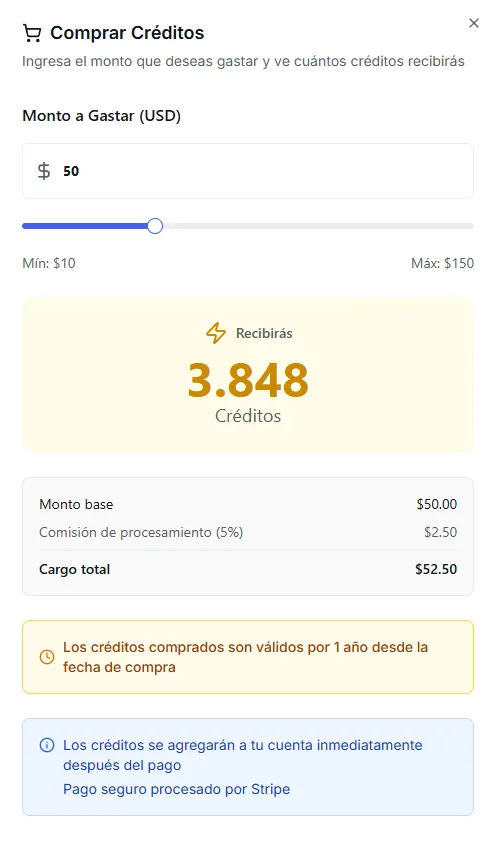 Image: The Buy Credits modal showing the amount slider and credits preview
Purchased credits appear as a "bundle" in your Usage tab, with a progress bar showing how much you've used and when they expire.
Auto-Refill
If you don't want to worry about running out of credits, set up auto-refill. It automatically purchases credits when your balance drops below a threshold.
How It Works
- You choose an amount ($10–$150) — how much to spend each time
- The threshold is set at 500 credits — when your total balance drops below this, a purchase is triggered
- Optionally, set a monthly spending limit to cap how much auto-refill can charge per month
- A Stripe payment method is saved on file — charges happen automatically
Setting Up Auto-Refill
- Go to Settings > Billing
- In the Credits & Auto-Refill section, click Set up Auto-Refill
- Enter your desired refill amount
- Optionally toggle on a monthly spending limit
- Click Continue to Payment — you'll be redirected to Stripe to save a payment method
- Once saved, auto-refill is active and will trigger whenever your balance drops below 500 credits
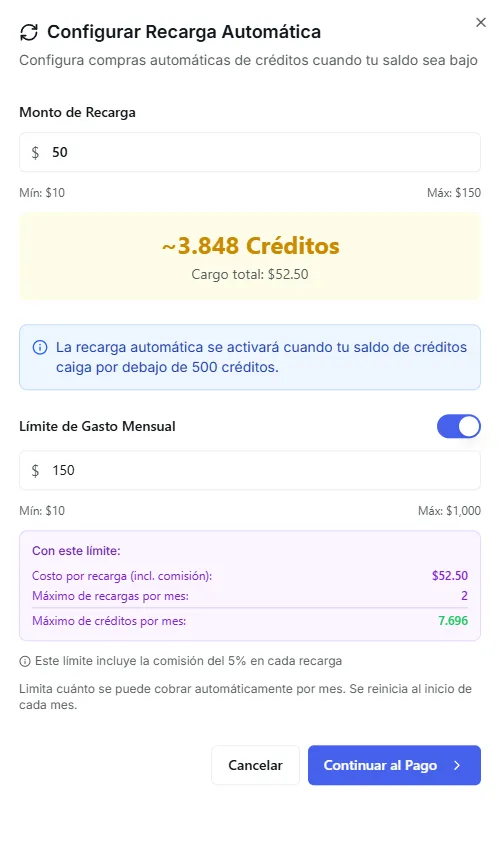 Image: The auto-refill setup dialog with amount and monthly limit options
Managing Auto-Refill
Once configured, you can:
- Toggle it on/off with the switch — pausing auto-refill without removing the configuration
- Edit the amount or monthly limit
- Remove it entirely if you no longer need it
Common Questions
How do I know how many credits I have right now? Go to the Usage tab — the credit balance cards at the top show your subscription credits, bundle credits, and how many you've used this month.
Do subscription credits stack if I don't use them? No. Subscription credits expire at the end of each billing cycle. Unused subscription credits don't carry over. If you consistently have leftover credits, your current plan might be more than you need.
Do bundle credits stack? Yes. You can purchase multiple bundles and they'll all be available in your pool. Each bundle has its own 1-year expiration timer, and the oldest one is used first.
What's the difference between 1,000 credits and $10? The exact credit-to-dollar rate depends on your plan and current pricing. When buying bundles, the Buy Credits modal shows a live preview of exactly how many credits you'll receive for any given dollar amount.
My agents stopped responding — what happened? Most likely your organization ran out of credits. Check the Usage tab for your balance. If it's at zero, buy credits or wait for auto-refill to kick in (if configured). Your agents will resume automatically once credits are available.
Can I transfer credits between organizations? No. Credits belong to the organization and cannot be transferred.
Who can buy credits? Only organization admins can purchase credits or configure auto-refill. Regular members can view the balance in the Usage tab but cannot make purchases.