Settings
User Configuration
Set up your profile, change your password, pick a theme, choose your language, and configure your timezone
Your user configuration is like the personal settings on your phone — they change how Nirvai looks and works for you, and only you. They're split across two tabs in Settings: General (your profile and password) and Configuration (theme, language, timezone, and font size). None of these settings affect other members in your organization.
To open Settings, click your profile icon in the bottom-left corner of the sidebar and select Settings.
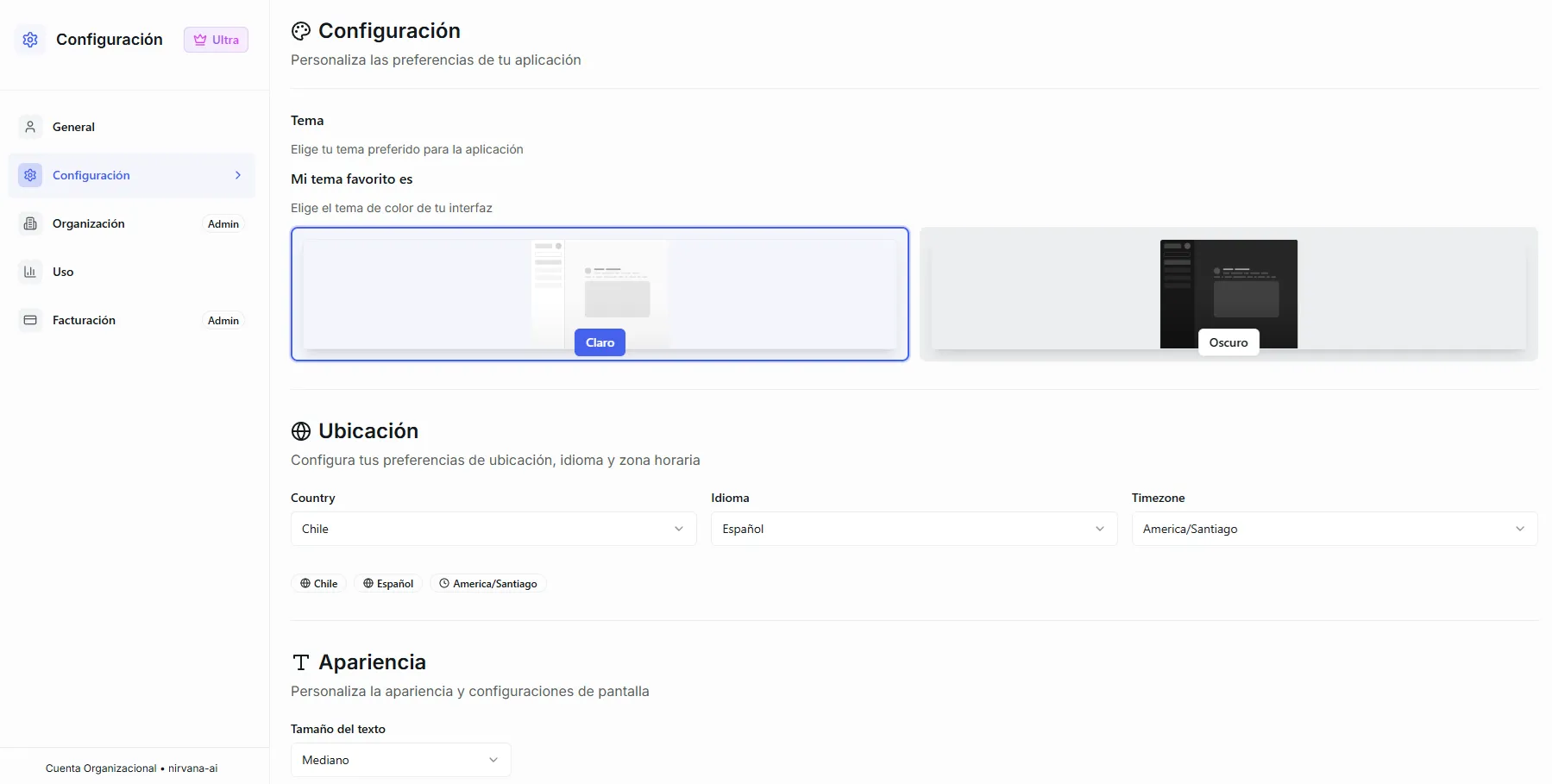 Image: The Settings page showing the left sidebar with all available tabs
Which tabs can I see?
Settings is split into tabs on the left sidebar. Some are available to everyone; others only to organization admins.
| Tab | What it does | Who can access |
|---|---|---|
| General | Profile picture, username, email, and password (this page) | Everyone |
| Configuration | Theme, language, timezone, and font size (this page) | Everyone |
| Organization | Team members, license code, and role management | Admins only |
| Usage | Credit spending history, balance, and export | Everyone |
| Billing | Subscription plan, payments, auto-refill, and Stripe portal | Admins only |
If you don't see the Organization or Billing tabs, your account has a "member" role. Ask your organization admin if you need access to those features.
Your plan badge. The badge at the top of the Settings sidebar shows your current plan — Free (limited credits to get started), Builder, Pro (more credits and features), or Ultra (the highest credit allocation, all features unlocked). See Plans & Limits for what each plan includes. At the bottom of the sidebar you'll also see whether you're on a Personal Account or an Organization Account, along with the organization name.
General — Profile & Account
The General tab is where you manage your personal information and security.
Profile Picture
Your profile picture appears in conversations, team views, and across the platform. To change it:
- Go to Settings > General
- Click on your current profile picture (or the placeholder avatar)
- Select an image from your computer
- The image uploads automatically — no save button needed
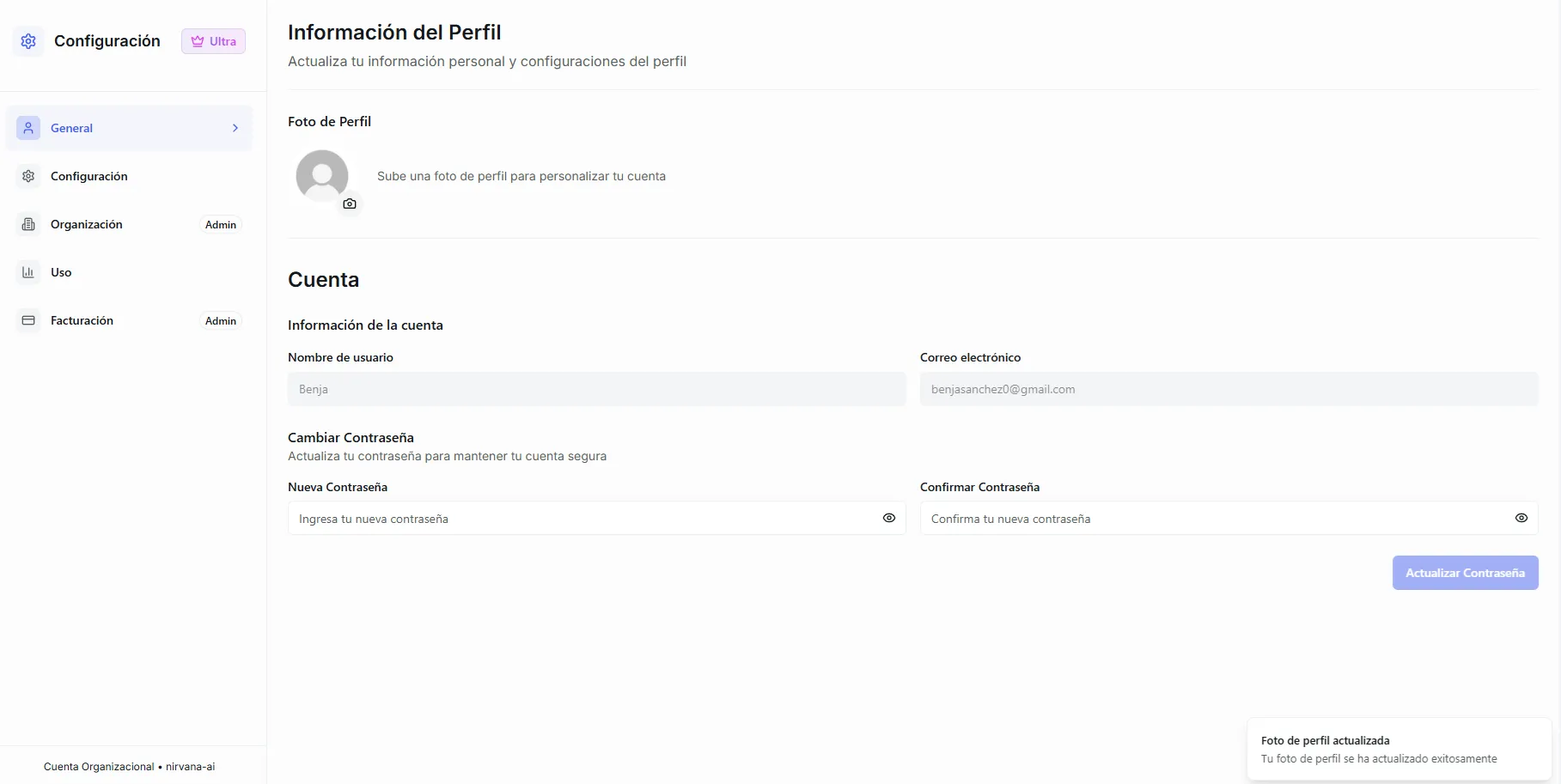 Image: The profile picture section with the upload button
Use a clear photo or an image that helps your teammates recognize you. The image is resized automatically, so any standard photo format works.
Account Information
Your username and email are displayed here but are read-only. These are set when your account is created and cannot be changed from the Settings page. Contact support if you need to update them.
Changing Your Password
To update your password:
- Go to Settings > General
- Scroll down to the Change Password section
- Enter your new password in both the New Password and Confirm Password fields
- Click Update Password
Your password must be at least 8 characters long, and both fields must match.
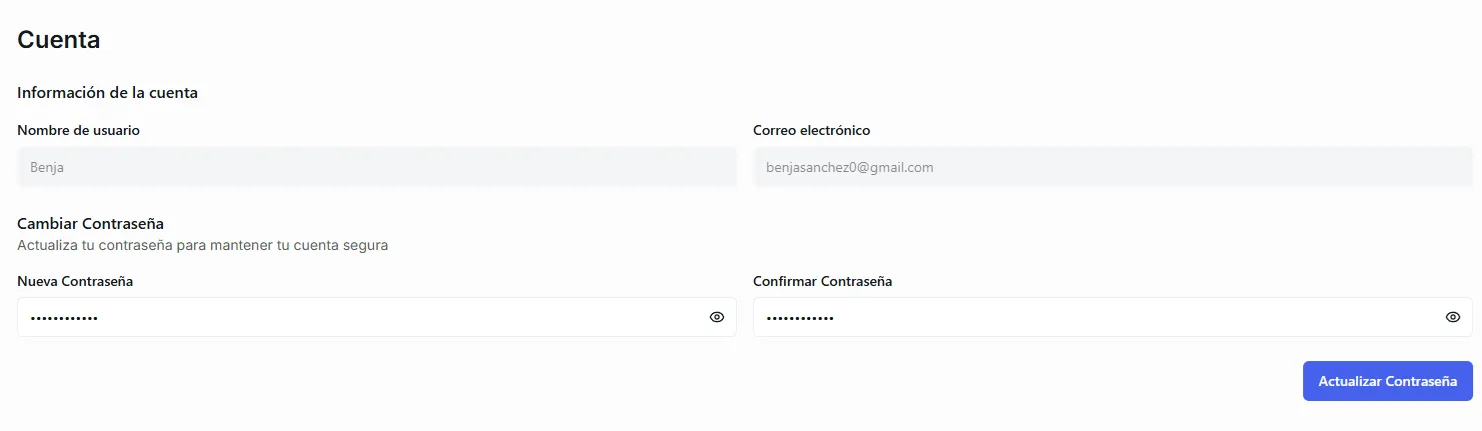 Image: The password change form with the new password and confirm fields
Configuration — Theme, Language & More
The Configuration tab controls how the app looks and feels. Changes here are saved when you click Save Configuration at the bottom.
Theme
Choose between Light and Dark mode. Click either option to preview it instantly — the app switches themes in real time.
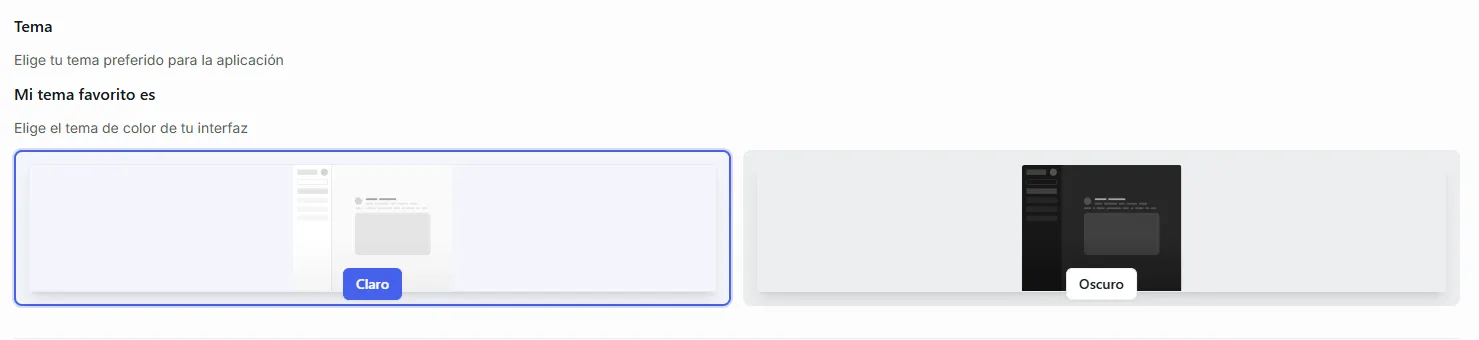 Image: The theme selector showing light and dark mode options side by side
Location Settings
Location settings let you configure three things:
| Setting | What It Does | Why It Matters |
|---|---|---|
| Country | Your country of residence | Used for localization |
| Language | The language for the app interface | Changes all labels, buttons, and menus to your preferred language |
| Timezone | Your local timezone | Used across the platform — automations, scheduled messages, timestamps in the usage table, and more all depend on this |
To configure your location:
- Go to Settings > Configuration
- Use the three dropdowns to select your Country, Language, and Timezone
- Click Save Configuration
 Image: The location settings with country, language, and timezone dropdowns
Setting the correct timezone is important. Many features depend on it:
- Automations — scheduled triggers fire based on your timezone
- Usage timestamps — credit spending entries are displayed in your timezone
- Agent behavior — agents that reference "today" or "this morning" use your timezone for context
If you travel frequently, update your timezone to avoid automations firing at unexpected times.
Font Size
Adjust the text size across the app. Choose from:
- Small — compact view, fits more content on screen
- Medium — the default, balanced size
- Large — easier to read, especially on high-resolution displays
A preview box below the selector shows how text looks at the current size.
Saving Changes
Unlike the General tab (where the profile picture saves automatically), Configuration changes require you to click Save Configuration at the bottom of the page. If you leave without saving, your changes will be lost.
Common Questions
I changed my timezone but my automations are still firing at the old time. What happened? Automations that were already scheduled before the change may keep their original trigger times until the next cycle. If it doesn't correct itself after one cycle, try editing the automation and re-saving it.
Can I use a language that's not in the dropdown? Nirvai currently supports the languages listed in the selector. If your language isn't available, the interface will default to English.
Does the theme affect how my agents look to customers? No. The theme is only for your experience inside the Nirvai app. Customers chatting with your agents on WhatsApp, Instagram, or other channels see whatever interface that platform provides.
I changed my password but forgot the new one. What do I do? Use the Forgot Password option on the login page to reset it via email.
What's next
- Organization — manage your team, roles, and license code (admins)
- Credits — the fuel that powers every AI operation